Archives For LibreOffice

LibreOffice 5.3.4

LibreOffice office suite reached the 6.0 release more than a week ago. Now it’s finally made into LibreOffice Fresh PPA for Ubuntu 16.04, Ubuntu 17.10, Ubuntu 18.04.

Though LibreOffice offers .deb binaries for downloading in its website, it’s recommended to install the PPA packages which are well integrated with Ubuntu desktop.

LibreOffice 6.0 release highlights:

  • Better compatibility with Microsoft Office documents
  • Support for standards-compliant PDF forms within Writer
  • Experimental Notebookbar and other user-interface improvements
  • OpenPGP can now be used to sign ODF documents
  • OOXML interoperability improvements
  • Ability to save documents as ePub ebook files
  • And many more other changes, see the announcement for details.

How to Install LibreOffice 6.0 via PPA in Ubuntu:

Open terminal either via Ctrl+Alt+T keyboard shortcuts, or by searching for “terminal” from application launcher. When it opens, do:

1. Run command to add the LibreOffice Fresh PPA:

sudo add-apt-repository ppa:libreoffice/ppa

Input your password (no visual feedback while typing) when it prompts, and read terminal output for PPA description and hit Enter to continue.

LibreOffice PPA

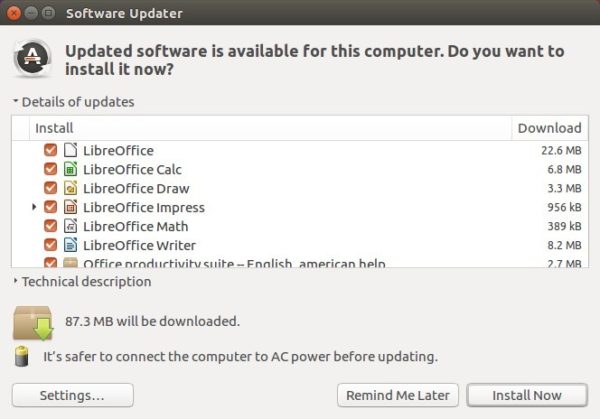
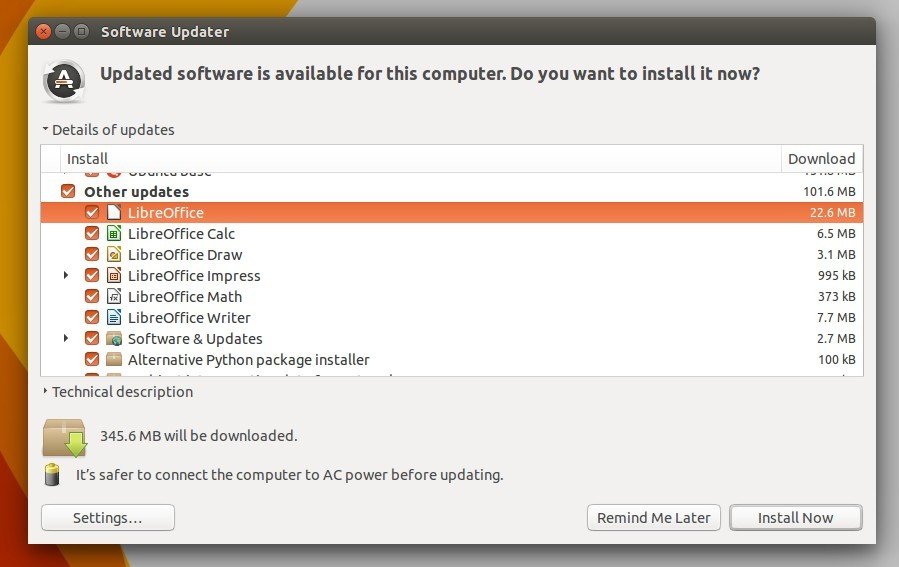
2. Then you’ll see the upgrade available in Software Updater after checking for updates.
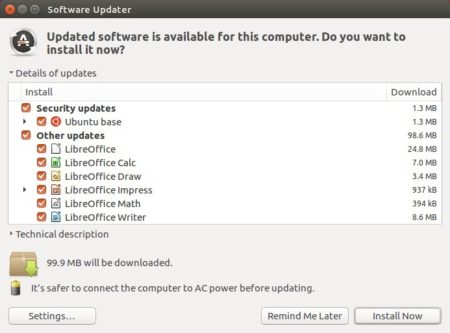
The LibreOffice upgrading process may be kept back. If so, run following commands instead in terminal after added the PPA:

sudo apt-get update

sudo apt-get dist-upgrade

Uninstall:

You can restore to stock version of LibreOffice in Ubuntu main archive by running command in terminal:

sudo apt-get install ppa-purge && sudo ppa-purge ppa:libreoffice/ppa

LibreOffice 5.3.4

LibreOffice 5.3.4, the fourth release for LibreOffice 5.3 family, was announced more than 2 weeks ago. It’s finally made into PPA for Ubuntu 14.04, Ubuntu 16.04, Ubuntu 16.10, Ubuntu 17.04, and Ubuntu 17.10.

LibreOffice 5.3.4 integrates over 100 patches, with a significant number of fixes for interoperability with Microsoft Office RTF and OOXML documents. See HERE for details.

LibreOffice 5.3.4

Install LibreOffice 5.3.4 via PPA in Ubuntu:

1. Open terminal via Ctrl+Alt+T or by searching for “terminal” from app launcher. When it opens, run command to add the PPA:

sudo add-apt-repository ppa:libreoffice/ppa

Type in your password (no visual feedback when typing due to security reason) when prompts and hit Enter.

LibreOffice Fresh PPA

2. Then launch Software Updater and upgrade LibreOffice after checking for updates:

How to restore:

To revert back to the stock version of LibreOffice in your Ubuntu, purge the PPA via command:

sudo apt-get install ppa-purge && sudo ppa-purge ppa:libreoffice/ppa

LibreOffice 5.3

The LibreOffice office suite has reached the 5.3 stable series a few days ago. Now it’s available in both Ubuntu PPA and Snappy store.

LibreOffice 5.3 features:

  • The MUFFIN interfaces (Microsoft Ribbon UI)
  • First source release of LibreOffice Online, that offers basic collaborative editing of documents in a browser
  • Faster rendering performance
  • Many UI/UX improvements
  • New text layout engine
  • And much more, see the release note.
LibreOffice 5.3 'Ribbon' UI

LibreOffice 5.3 ‘Ribbon’ UI

How to Install LibreOffice 5.3 in Ubuntu:

For Ubuntu 16.04 and higher, the latest LibreOffice is now available via snap package, simply run commands below in terminal (Ctrl+Alt+T):

sudo apt install snapd && sudo snap install libreoffice

You can also use Ubuntu Software to install the snap version of LibreOffice (need to install snapd).

libreoffice-snap

To remove the Snap version of LibreOffice, either use Ubuntu Software App, or run command:

sudo snap remove libreoffice
Note that the snap packages so far have known issues, such as unreachable folders outside the Snap’s sandbox, and custom theme issue.

Also, the official PPA is available with traditional packages for Ubuntu 14.04, Ubuntu 16.04, Ubuntu 16.10, Linux Mint 17 & 18:

1. To add the PPA, run following command in terminal:

sudo add-apt-repository ppa:libreoffice/ppa

LibreOffice Fresh PPA

2. Then upgrade LibreOffice using the Software Updater (or Update Manager) utility after checking for updates:

upgrade to LibreOffice 5.2

LibreOffice 5.2 PPA is Ready for Ubuntu 16.04, Ubuntu 14.04

Published: August 9, 2016 — Last updated: August 11, 2016

LibreOffice 5.2

LibreOffice 5.2 is finally available for upgrade in Ubuntu 16.04 and Ubuntu 14.04 via PPA repository.

Although LibreOffice 5.2 was released a weed ago along with .deb binaries, Flatpak, and Snap (still in beta) packages, a PPA repository, with well Unity integrated packages, is still needed for some users. Now the PPA is ready, and here’s how to upgrade for beginners.

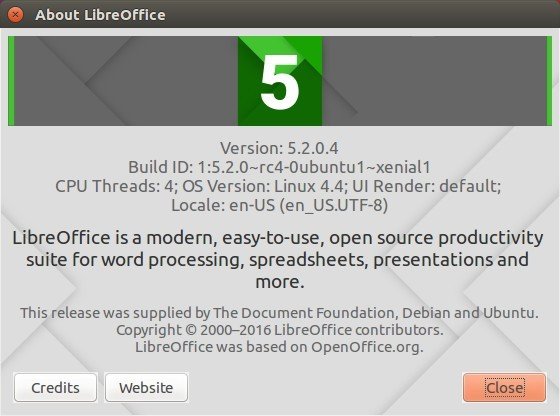
LibreOffice 5.2.0 About

What’s new in LibreOffice 5.2:
  • a single toolbar mode for Writer and Calc
  • most of the context menus can now be customized
  • new Calc spreadsheet functions (including forecasting functions)
  • support for signature descriptions
  • support for OOXML signature import/export
  • GTK3 user-interface improvements
  • OpenGL rendering improvements
  • multi-threaded 3D rendering, faster rendering
  • bookmark improvements.
  • See release note for more.

How to install LibreOffice 5.2 in Ubuntu via PPA:

1. First open terminal (Ctrl+Alt+T) and run command to add LibreOffice Fresh PPA:

sudo add-apt-repository ppa:libreoffice/ppa

Type in your password when it prompts and hit Enter, read the PPA description, and hit Enter to continue.

LibreOffice PPA

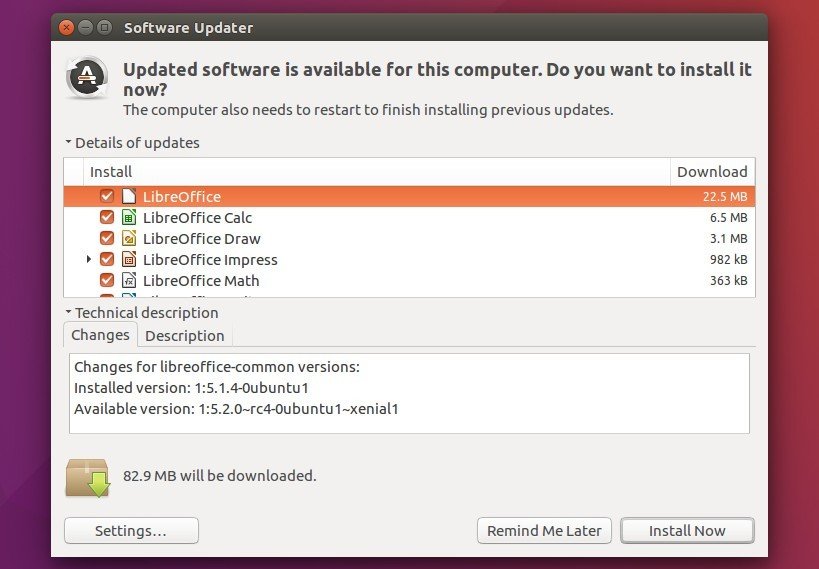
2. Upgrade LibreOffice via Software Updater, after checking for updates. removing the package libreoffice-gtk.

The current build in PPA uses the package libreoffice-gtk2 instead of the default libreoffice-gtk, so Software Updater or (apt upgrade) will keep back the original LibreOffice release.

To fix it, simple remove libreoffice-gtk before the upgrade process:

The PPA has re-built the package with traditional libreoffice-gtk package added, so just launch Software Updater and upgrade your system.

upgrade to LibreOffice 5.2

Instead of using Software Updater, you may also use the dist-upgrade command to upgrade to LibreOffice 5.2:

sudo apt update && sudo apt dist-upgrade

3. (Optional) To downgrade to LibreOffice 5.1.4, purge the PPA via command:

sudo apt install ppa-purge && sudo ppa-purge ppa:libreoffice/ppa

That’s it. Enjoy!

LibreOffice 5.1

The Document Foundation officially announced the release of LibreOffice 5.1 yesterday. PPA updated for Ubuntu 15.10, Ubuntu 14.04, and derivatives, e.g., Linux Mint 17.x, and Elementary OS Freya.

LibreOffice 5.1 offers a completely reorganized user interface, and several improved features targeted at enterprise deployments: better support for ODF 1.2, interoperability with proprietary document formats and file management on remote servers.

Read the announcement for more details.

LibreOffice 5.1.0
How to upgrade to LibreOffice 5.1:

LibreOffice 5.1 has been made into Software Center for Ubuntu 16.04 LTS. For ubuntu 15.10 and Ubuntu 14.04, it’s available in the LibreOffice 5.1.x series PPA.

For Linux Mint users who are still running LibreOffice 4.x, you have to do below changes to be available to upgrade via PPA:

Launch terminal, and run command to create and edit a file:

gksudo gedit /etc/apt/preferences.d/libreoffice.pref

When the file opens, paste below lines and save it.

Package: *
Pin: release o=LP-PPA-libreoffice
Pin-Priority: 700

1. To add LibreOffice 5.1.x PPA.

Launch terminal from App Launcher or via Ctrl+Alt+T shortcut key. When it opens, paste below command and hit run:

sudo add-apt-repository ppa:libreoffice/libreoffice-5-1

Type in password (no visual feedback when typing) when it asks and hit Enter to continue.

LibreOffice 5.1 series PPA

2. To upgrade LibreOffice

Launch Software Updater (or Update Manager for Mint), and install available updates after checking for updates.

upgrade to LibreOffice 5.1

3. (Optional) To revert the changes, install ppa-purge and purge the PPA:

sudo apt-get install ppa-purge

sudo ppa-purge ppa:libreoffice/libreoffice-5-1

For Linux Mint 17.x which is based on Ubuntu 14.04, use -d option to specify Ubuntu codename, so the last command should be:

sudo ppa-purge -d trusty ppa:libreoffice/libreoffice-5-1

libreoffice-thumbnail

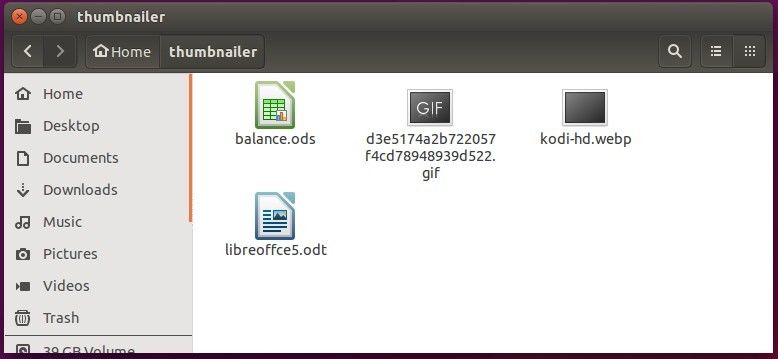
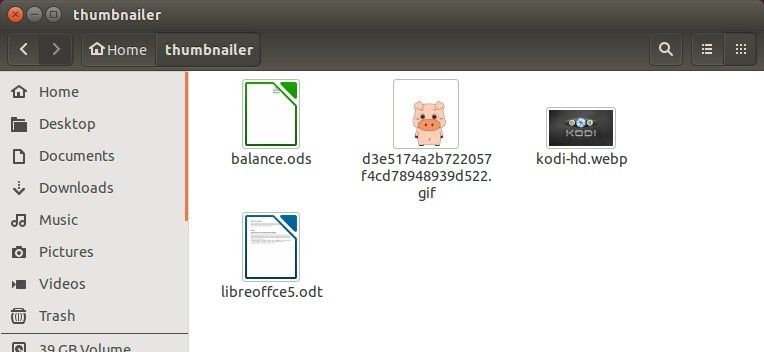
Nautilus file browser doesn’t generate thumbnail images for WebP files, LibreOffice Documents, and animated GIFs (maybe) by default.

Thanks to atareao team, some simple extensions has been created with that Ubuntu displays thumbnail images for these file formats in Nautilus.

WebP is a image format that provides lossless and lossy compression for images on the web. It is currently developed by Google, based on technology acquired with the purchase of On2 Technologies. more…

Here are the screenshots in my Ubuntu 15.04 desktop:

Before

Before

GIF, WebP thumbnails

After

To install these extensions, go to the developer’s PPA page:

Thumbnailers for GIF, WebP, LibreOffice Docs

Scroll down and click package links and download the xxxthumbnailer_xxx.deb packages from expanded pages (Work on Ubuntu 14.04 though they’re built against 15.04).

Finally install these three .deb packages by clicking on each of them to open with Ubuntu Software Center and click the install button.

To apply changes, remove the thumbnail caches and restart Nautilus by running below commands one by one:

rm ~/.cache/thumbnails/fail/gnome-thumbnail-factory/*
rm ~/.cache/thumbnails/large/*
rm ~/.cache/thumbnails/normal/*
nautilus -q

remove-thumbnail-cache

Finally start Nautilus browser and see result.

via

How to Upgrade to LibreOffice 5.0 in Ubuntu, Linux Mint

Published: August 5, 2015 — Last updated: August 5, 2015

LibreOffice 5.0

The Document Foundation finally announced the release of LibreOffice 5.0 and updated its PPA for Ubuntu 15.10, Ubuntu 15.04, Ubuntu 14.04, Ubuntu 12.04, and derivatives (e.g., Linux Mint 13/17, Elementary OS Freya/Luna).

What’s New in LibreOffice 5.0:

Below are the descriptions from its new features page. For more, see the release note.

LibreOffice 5.0 ships an impressive number of new features for its spreadsheet module, Calc: complex formulae image cropping, new functions, more powerful conditional formatting, table addressing and much more. Calc’s blend of performance and features makes it an enterprise-ready, heavy duty spreadsheet application capable of handling all kinds of workload for an impressive range of use cases.

New icons, major improvements to menus and sidebar: no other LibreOffice version has looked that good and helped you be creative and get things done the right way. In addition, style management is now more intuitive thanks to the visualization of styles right in the interface.

LibreOffice 5 ships with numerous improvements to document import and export filters for MS Office, PDF, RTF, and more. You can now timestamp PDF documents generated with LibreOffice and enjoy enhanced document conversion fidelity all around.

libreoffice5

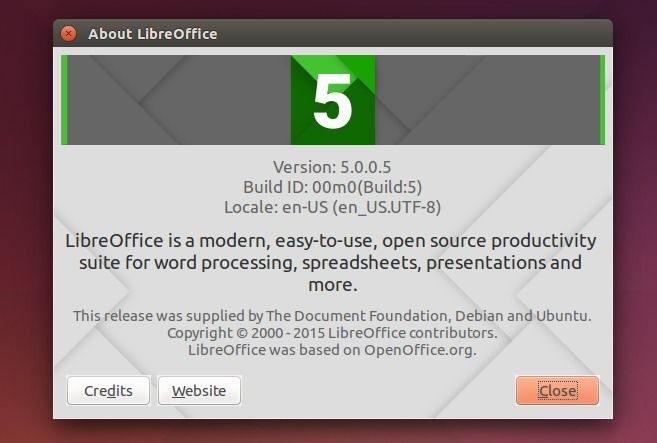
libreoffice5-about

How to upgrade to LibreOffice:

For all current Ubuntu releases and based systems, the best way is to upgrade LibreOffice 5.0 through the official PPA.

1. Open terminal from the Dash, Launcher, or via Ctrl+Alt+T shortcut keys. When it opens, run command to add PPA:

sudo add-apt-repository -y ppa:libreoffice/ppa

libreoffice-ppa

2. After that, open Software Updater/Update Manager and install all updates for LibreOffice after checking for updates, though the new packages named with ~rc5:

upgrade libreoffice 5.0

As the PPA description says “This PPA might contain the release candidate that is assumed to become the final release even before it is declared so by the Document Foundation (e.g. usually release candidate 2 for minor updates).”

Or you can run below commands to do the upgrade process after adding the PPA:

sudo apt-get update; sudo apt-get install libreoffice

libreoffice_logo

LibreOffice 4.4.5, the final stable release before LibreOffice 5.0 stable which is scheduled to be released next week, has been announced today.

It is the fifth bugfix release from the 4.4 branch of LibreOffice which contains new features and program enhancements. As such, the version is stable and is suitable for all users. This version may contain a few annoying bugs which will be fixed in the next bugfix versions to come.

How to Upgrade to LibreOffice 4.4.5:

For Ubuntu 15.10, Ubuntu 15.04, Ubuntu 14.04, Ubuntu 12.04 and derivatives (e.g., Linux Mint 17.x, and Elementary OS Freya), follow below steps to upgrade the office suite from PPA.

1. To add LibreOffice PPA, open terminal either from the Dash/Launcher or via Ctrl+Alt+T shortcut keys. When it opens, run below command:

sudo add-apt-repository -y ppa:libreoffice/ppa

libreoffice-ppa

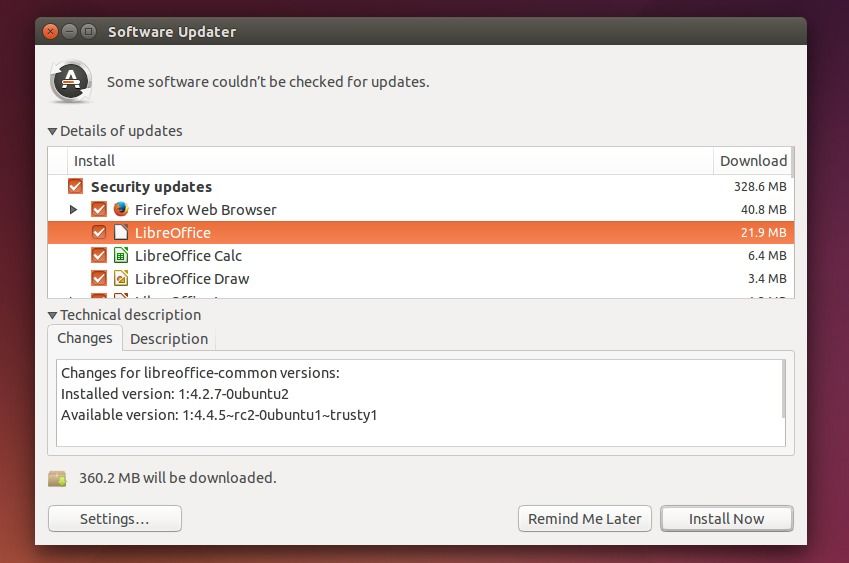
2 After added the PPA, open Software Updater and you’ll see the new LibreOffice release available for upgrade after checking for updates.

Just click Install Now button to install/upgrade it.

upgrade-to-libreoffce445

You can also use Synaptic Package Manager to upgrade the office suite.

3. Optional For those who want to revert back to the original LibreOffice version in Ubuntu, run below commands to install ppa-purge and purge the PPA which also downgrades all installed packages from that PPA:

sudo apt-get install ppa-purge

sudo ppa-purge ppa:libreoffice/ppa
How to Upgrade to LibreOffice 4.4.3 in Ubuntu 15.04/14.04

Published: May 6, 2015 — Last updated: May 6, 2015

libreoffice-icon

A new release of the open-source office suite, LibreOffice 4.4.3, now is available for upgrade in Ubuntu 15.04, Ubuntu 14.04, Ubuntu 12.04, Ubuntu 14.10 and derivatives.

LibreOffice 4.4.3 is the third bug-fix release from the 4.4 branch which brings over 88 bug-fixes. As such, the version is stable and is suitable for all users. The Document Foundation does not announced the 4.4.3 release at the moment, but the official PPA has been updated with packages for Ubuntu 12.04 and higher.

libreoffice-443

How to Upgrade LibreOffice:

As the PPA description says, it is way better to use packages from the PPA than using the *.deb files that The Document Foundation provides upstream in its website, which are intentionally build against a very old baseline for maximum compatibility.

1. So if you want to upgrade LibreOffice, open terminal from the Dash/Menu (or press Ctrl+Alt+T). When it opens, run commands to add its PPA:

sudo add-apt-repository -y ppa:libreoffice/ppa

libreoffice-ppa

2. After adding the PPA, you can install/upgrade the office suite by:

  • opening Software Updater and installing available updates after checking for updates.
  • or by running below commands one by one directly in terminal:
    sudo apt-get update 
    
    sudo apt-get install libreoffice

3.(Optional) If for some reason, you want to remove the new release and revert your office installation. Run commands to install ppa-purge and purge the Libreoffice PPA which also downgrade all installed packages from that repository.

sudo apt-get install ppa-purge

sudo ppa-purge ppa:libreoffice/ppa

That’s it.

How to Upgrade to LibreOffice 4.4 in Ubuntu 14.04

Published: January 30, 2015 — Last updated: January 30, 2015

LibreOffice 4.3 PPA

LibreOffice, the open-source office suite, has reached the 4.4 release. Here’s how to upgrade it in Ubuntu 14.04 and/or Ubuntu 14.10.

According to the official release note, the new release brings user-interface and OOXML file formats support improvements, source code fixes thanks to Coverity scans, a new OpenGL framework, digital signing of PDF files on exporting, and many other changes. See more at libreoffice website.

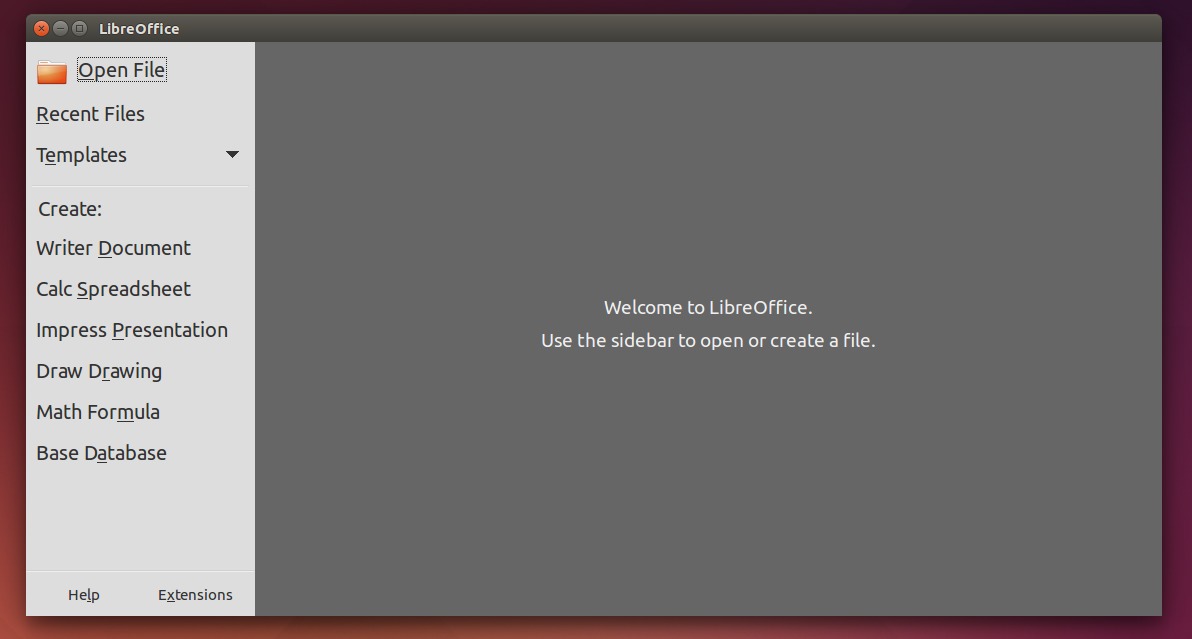
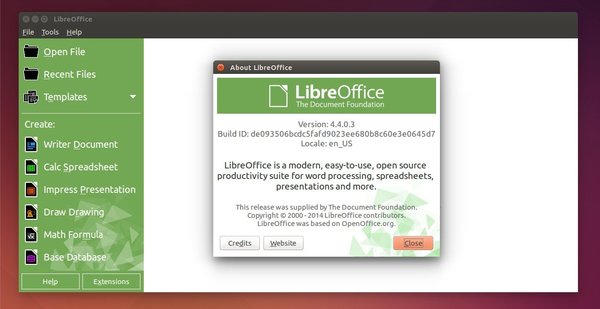
LibreOffice 4.4 StartCenter

Install or Upgrade LibreOffice 4.4 in Ubuntu:

Since the official LibreOffice PPA does not yet update the new release for Ubuntu 14.04 users, you can always follow below steps to install or upgrade a new LibreOffice release in Ubuntu via the official DEBs.

LibreOffice 4.4 has been made into PPA, available for Ubuntu 14.04, Ubuntu 12.04, Ubuntu 15.04, Ubuntu 14.10 and derivatives. Simply run below commands one by one in terminal to install / upgrade it:

sudo add-apt-repository -y ppa:libreoffice/ppa

sudo apt-get update

sudo apt-get dist-upgrade

1. Before getting started, you may remove the previous installation by opening terminal from the Dash (or press Ctrl+Alt+T) and running command:

sudo apt-get purge libreoffice*

You can skip this step, but you’ll have two LireOffice versions on your system after this tutorial.

2. Download LibreOffice installer from the official link below:

LibreOffice Download Page

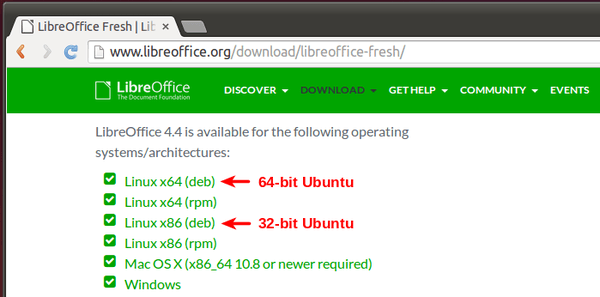
Depends on your OS type, 32-bit or 64-bit (check out via System Settings -> Details), scroll down and select download Linux x86 (deb) or Linux x64 (deb).

After clicked the link in below picture, you’re redirected to the download page (similar to previous link, but url changed.). Just click download the Main Installer.

The downloaded package looks like “LibreOffice_4.4.0_Linux_*.*_deb.tar.gz”.

Download LibreOffice

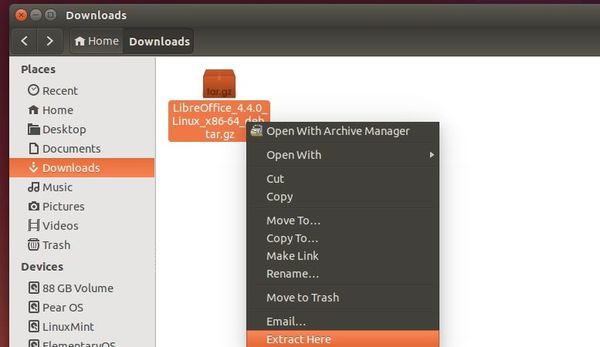
3. Once downloaded, open your file-browser and extract the package from its context menu.

Unpack LibreOffice package

In the result folder, there are a number of .deb packages. What you have to do is install all of them.

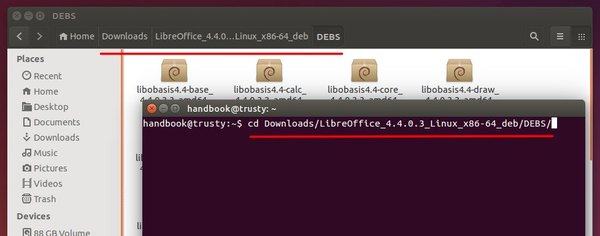
4. Open terminal from the Dash or by pressing Ctrl+Alt+T on keyboard. When it opens, run below command to navigate to the LibreOffice package folder:

cd Downloads/LibreOffice_4.4.0.3_Linux_x86_64_deb/DEBS

Depends on the downloaded package, you may replace LibreOffice_4.4.0.3_Linux_x86_64_deb with the folder name to yours. Or type LibreOffice and hit Tab key to auto-complete its name.

navigate-libreoffice-folder

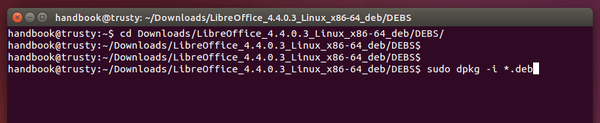
5. Finally run one command to install all the .deb packages in that directory:

sudo dpkg -i *.deb

install-libreoffice-debs

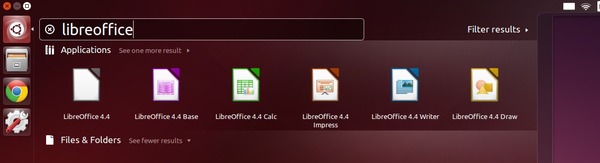
Now start LibreOffice from the Dash and enjoy!

Start LibreOffice 4.4

If you don’t see the shortcut icons like me, restart your computer.