Archives For LibreOffice

LibreOffice 4.3 PPA
 
LibreOffice, the default office suite in Ubuntu, has finally reached version 4.3 with a large number of improvements and new features.

The packages has been made into 4.3 series PPA – available for Ubuntu 14.04 and Ubuntu 12.04 – which will provide future minor release updates (4.3.1, 4.3.2, 4.3.3 …).
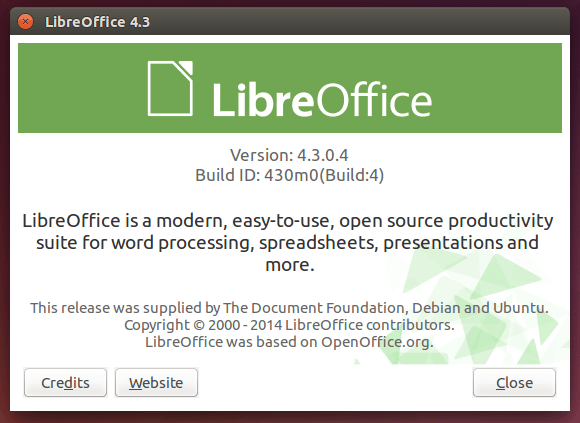
LibreOffice 4.3 in Ubuntu 14.04

What’s New in LibreOffice:

  • Better OOXML interoperability, and support of legacy Mac file formats
  • Better comment management, and highly intuitive spreadsheet handling
  • 3D models in Impress, and support for “monster” paragraphs
  • LibreOffice 4.3 also support “monster” paragraphs exceeding 65,000 characters
  • See the release note for details

Upgrade to LibreOffice 4.3 in Ubuntu:

1. Add the 4.3 series PPA, available for Ubuntu 14.04, Ubuntu 12.04 and their derivatives.

Press Ctrl+Alt+T on keyboard to open the terminal. When it opens, paste the command below and hit enter to run:

sudo add-apt-repository ppa:libreoffice/libreoffice-4-3

2. Open Software & Updater from Unity dash. After checking for updates, you’ll see the latest LibreOffice packages available in the update list. Click the Install Now to install updates.
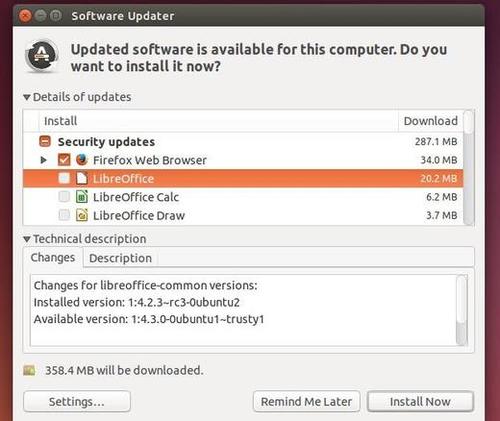
upgrade to libreoffice 4.3

You can also run the commands below to do the upgrade process:

sudo apt-get update; sudo apt-get upgrade

That’s it. Enjoy!

LibreOffice 4.2

This is a beginners’ guide about how to install or upgrade to the latest official build of LibreOffice in Ubuntu or Linux Mint.

As you may know, the open-source office suite LibreOffice 4.2 has been released recently which is focusing on performance and interoperability, and improving the integration with Microsoft Windows. See what’s new in LibreOffice 4.2

To install LibreOffice 4.2 in Ubuntu:

1. Press Ctrl+Alt+T on keyboard to open the terminal. When it opens, run the command below to remove the previous installation:

sudo apt-get remove --purge libreoffice*

Remove LibreOffice

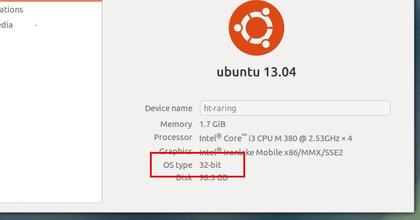
2. Check out your system type, 32 bit or 64 bit, by going to System Settings -> Details

System-type-32bit-64-bit

3. Download:

LibreOffice_4.2.0_Linux_x86_deb.tar.gz (32 bit)

LibreOffice_4.2.0_Linux_x86-64_deb.tar.gz (64 bit)

Go to this page when a new release is out.

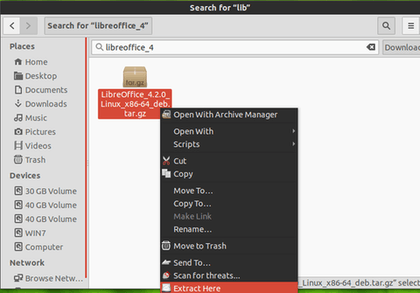
4. Right on the downloaded package and extract it. After that, you’ll see the result folder: LibreOffice_4.2.0.4_Linux_x86-64_deb.

extract libreoffice package

5. In previous terminal window (or press Ctrl+Alt+T to open a new one), run the command below to navigate to LibreOffice folder:

cd ~/Downloads/LibreOffice_4.2.0*

You may replace “LibreOffice_4.2.0*” with your full folder name.

6. Now install all the debian packages under DEBS:

cd DEBS && sudo dpkg -i *.deb

Install LibreOffice DEB

After that, you can Launch LibreOffice 4.2 from Unity Dash or Menu.