Archives For Opera

Install Opera 26 Stable in Ubuntu 14.04

Last updated: December 3, 2014

Opera Browser for Linux Goes Stable

Opera web browser for Linux finally goes stable by releasing the Opera 26 which is based on Chromium 39.

Opera for Linux is 64-bit only. It comes with all the same features as Opera for Windows and Mac, including Speed Dial, the Discover feature, Opera Turbo, bookmarks and bookmark sharing, themes, extensions and more.

An official repository for Debian/Ubuntu based system is available for receiving automatic Opera updates.

For more, see the frequently asked questions about Opera for Linux.

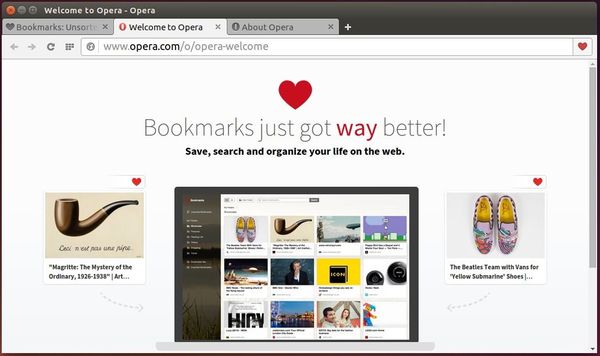
Opera for Linux Welcome Page

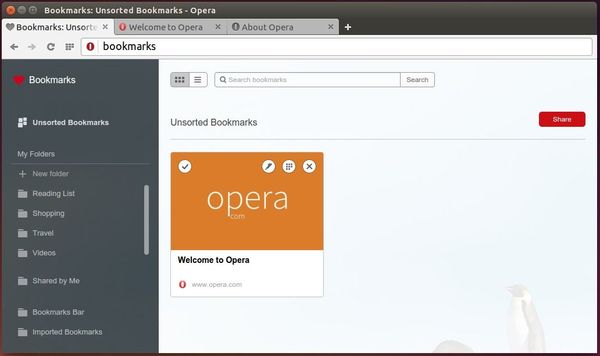
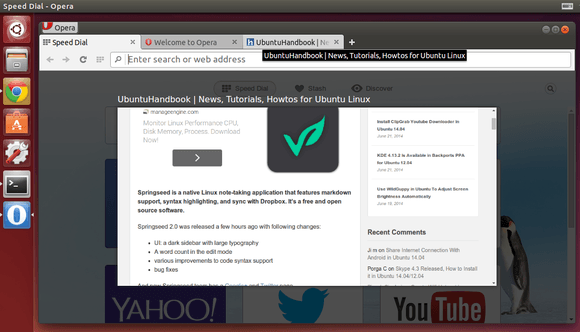
Opera For Linux BookMarks Page

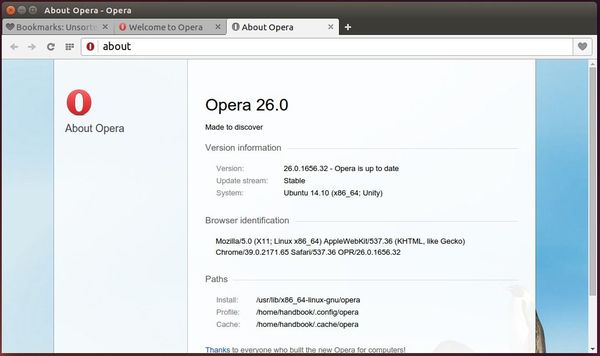
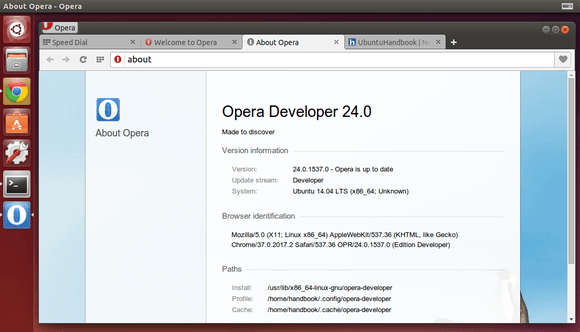
Opera For Linux About Page

Install Opera 26 in Ubuntu 14.04 and Other Releases:

Just download the .deb package from the link below and click to open with Ubuntu Software Center and finally install the browser:

Download Opera Stable

While the installing process, you’ll be prompts to add the Opera Stable repository. To enable flash, just search for and install the package pepperflashplugin-nonfree from Ubuntu Software Center.

Opera for Linux 24

Opera 24 for Linux, the first Chromium-based build, was finally released today on June 23, 2014, as part of the ‘developer stream’. It has been almost one year since Opera released version 12.16 for Linux in July 2013.

Now, Linux users can get the newest Opera features, including:

  • Aura-powered UI
  • Discover
  • Stash
  • A wide selection of extensions and themes
  • Vastly improved Speed Dial and Opera Turbo.
  • and more.

Opera for Linux 24

Opera for Linux tag preview

A 64-bit .deb package is available from the link below:

Download Opera 24 for Linux

Click to install the package via Ubuntu Software Center. During the installing process, it will add the Opera repository into your system so that you can receive future updates by running regular Ubuntu updates via Software Updater. Also, it will install the Pepper Flash Plugin to get flash working.

Tip:

I’ve installed Opera 24 on my 64-bit Ubuntu 14.04 laptop, but it does not launch due to permissions issue (might be).

I can open it by running below command in terminal (Ctrl+Alt+T) to open it via root:

sudo opera-developer

Or edit the .desktop file (sudo gedit /usr/share/applications/opera-developer.desktop) and change the exe command to make it look like:

Exec=gksudo opera-developer %U

via: blogs.opera.com

opera ubuntu 13.10

This tutorial shows how to install Opera browser in Ubuntu 13.10 Saucy Salamander or Linux Mint 16 Petra.

Opera is a web browser developed by Opera Software. The latest versions of Opera use the Blink layout engine, which is used in Chrome v28+.

The latest Opera 12.16 for Linux is a recommended upgrade offering security and stability enhancements.

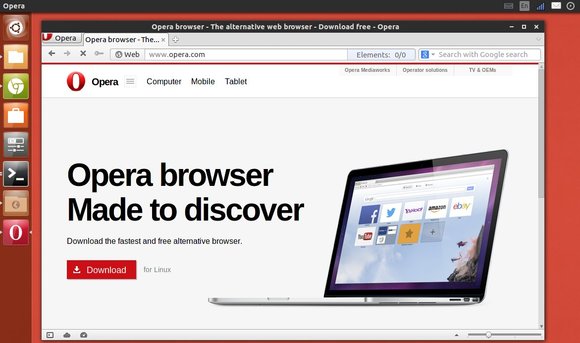
opera web browser in ubuntu 13.10

How to install Opera:

It’s very easy to install Opera in Ubuntu and its derivatives. Just download the Debian package from its official site. Or check your OS type (32-bit or 64-bit) and download the installer from Opera repository:

Opera 12.16 for 32-bit Ubuntu

Opera 12.16 for 64-bit Ubuntu

Once downloaded, double-click to install the package via pop-up Ubuntu Software Center or Gdebi. If you’re missing dependencies, run below command in terminal (Ctrl+Alt+T):

sudo dpkg -i ~/Downloads/opera_12.16*.deb; sudo apt-get -f install