Archives For Opera

opera web browser

Opera web browser reached the new stable 48 release earlier today with new and improved features.

Opera 48 release highlights:

  • Add measurement, time zone, currencies converters in Search pop up tool.
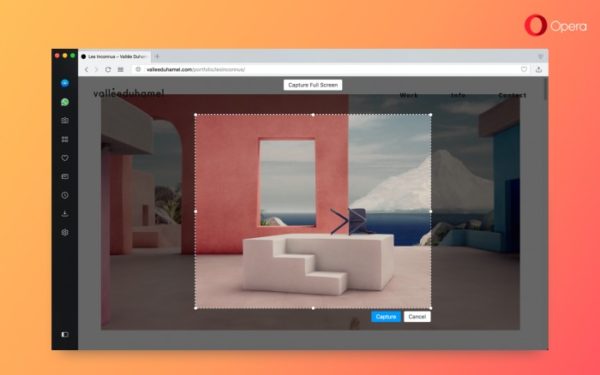
  • Capture your favorite parts of the web with the Snapshot tool
  • Add option to remove unwanted autocomplete suggestions in the search and address bar.
  • O-Menu cleaned up
  • All importing bookmarks from Edge and Yandex
  • UI improvements for HiDPI displays.
  • Update to Chromium version 61.
  • And see the release note for more.

How to Install Opera 48 in Ubuntu:

The opera website offers official .deb binaries for Ubuntu Linux, available for download at the link below:

Download Opera for Linux

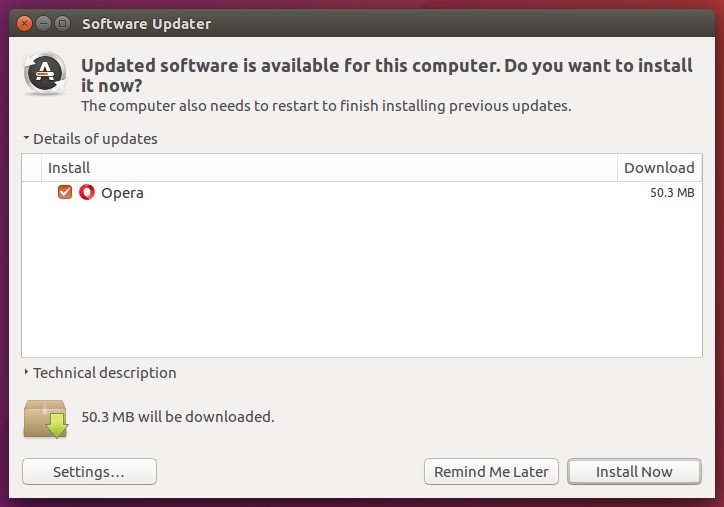
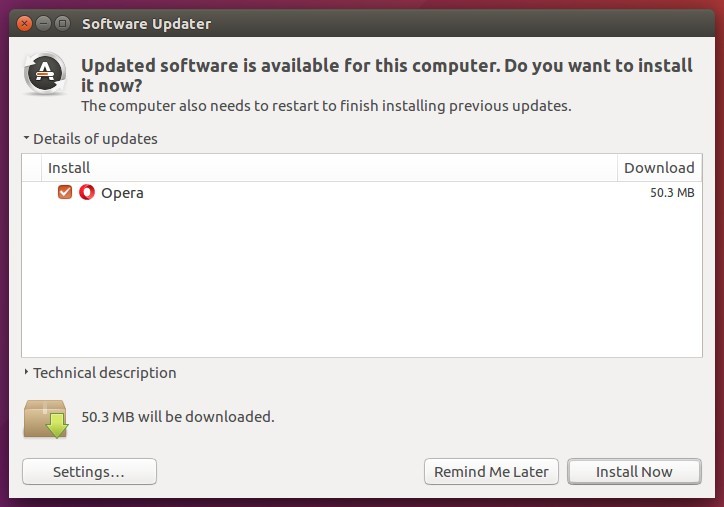
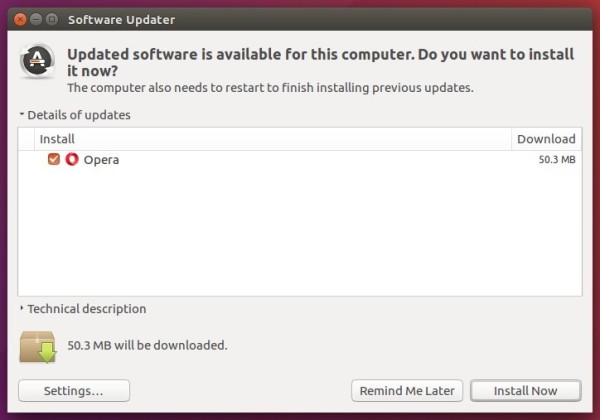
If you have a previous release installed, and enabled the official Opera Linux repository, upgrade it via Software Updater:
To manually add the Opera for Linux repository, open terminal via Ctrl+Alt+T or from app launcher, when it opens, run commands:

1. Add the opera repository:

sudo sh -c 'echo "deb http://deb.opera.com/opera-stable/ stable non-free" >> /etc/apt/sources.list.d/opera.list'

2. Get the key:

wget -O - http://deb.opera.com/archive.key | sudo apt-key add -

Finally either install Opera via your system package manager or upgrade the browser via Software Updater.

Opera 47 Stable Released with Great Improvements

Published: August 9, 2017 — Last updated: August 9, 2017

opera web browser

Opera web browser has reached the new stable 47 release earlier today. It mainly features a handful of useful improvements.

What’s new in Opera 47:

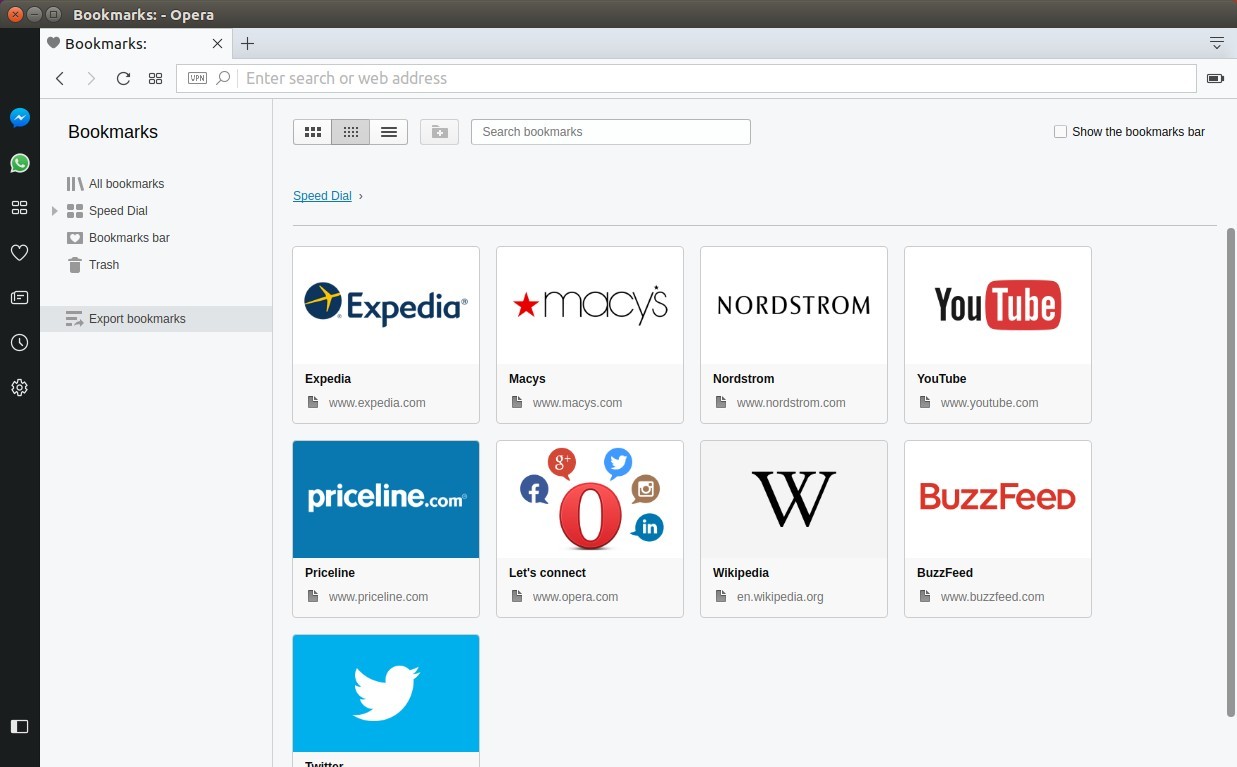
  • Ability to export everything from your Speed Dial, bookmarks bar and other folders
  • Smoother background loading of news
  • Opera now retains up to 32 recently closed tabs
  • Video playback fixes in Windows 7 and Mac OS.
  • User interface gained refined visuals for better readability.
  • .scf files added to “risky file protection” for Windows.
  • updated to Chromium 60.

Download / Install Opera 47:

The opera website offers official .deb binaries for Ubuntu Linux, available for download at the link below:

Download Opera for Linux

If you have a previous release installed, and enabled the official Opera Linux repository, upgrade it via Software Updater:

To manually add the Opera for Linux repository, open terminal via Ctrl+Alt+T or from app launcher, when it opens, run commands:

1. Add the opera repository:

sudo sh -c 'echo "deb http://deb.opera.com/opera-stable/ stable non-free" >> /etc/apt/sources.list.d/opera.list'

2. Get the key:

wget -O - http://deb.opera.com/archive.key | sudo apt-key add -

Finally either install Opera via Synaptic Package Manager or upgrade the browser via Software Updater.
Opera 45 Released with Built-in Facebook Messenger, WhatsApp

Published: May 10, 2017 — Last updated: May 10, 2017

opera web browser

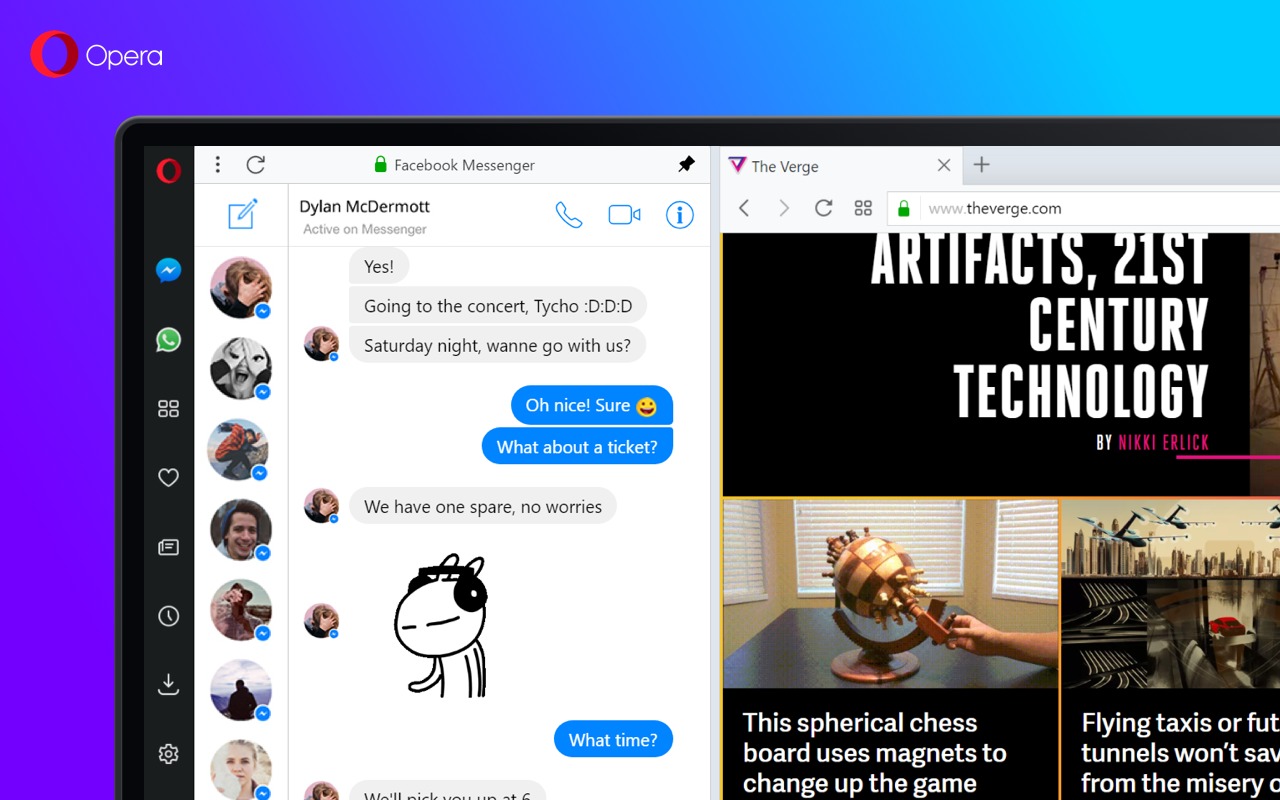
Opera 45, codenamed Reborn, was released earlier today. The new release features built-in social messengers: Facebook Messenger, WhatsApp and Telegram.

Simply click a social icon on left sidebar, you can open the social messenger in overlay or pin it side-by-side with your current tab.

If you use more than one messenger, you can easily switch between them via ⌘ + ⇧ + m on macOS, CTRL + SHIFT + m on Windows and Linux.

opera social messengers

Other features in Opera 45:

  • light and dark theme
  • Refined user interface, new icons, and animations.
  • More control over ad blocking
  • graphics improvements on Windows and security warning for non https.
  • For more, see the announcement.

Download / Install Opera 45:

For Linux, download Opera from the official link below:

Opera Download Page

If you have a previous release installed, and enabled the official Opera Linux repository, upgrade it via Software Updater:

In addition, to manually add the Opera for Linux repository, open “terminal” via Ctrl+Alt+T and run following commands:

1. Setup the opera repository:

sudo sh -c 'echo "deb http://deb.opera.com/opera-stable/ stable non-free" >> /etc/apt/sources.list.d/opera.list'

2. Setup the key:

wget -O - http://deb.opera.com/archive.key | sudo apt-key add -

Vivaldi browser

The Vivaldi web browser has reached the 1.6 release today, features ability to display notifications in tabs, rename tab stacks, and tab selection by domain.

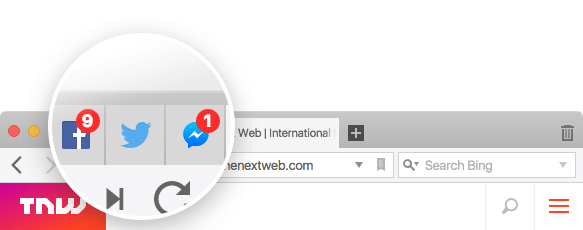
Vivaldi 1.6 brings tab notifications features, which displays overlay icons on both pinned and regular tabs that notify you of new emails or messages coming through social media websites.

Vivaldi tab notifications

After enabling “Allow Tab Stack Renaming” in settings, Vivaldi 1.6 also allows you to rename tab stack by right clicking on a tab and choose “Rename Tab Stack” option.

named-stack

Another feature: Tab selection by domain. You can select multiple tabs at once by simply holding Ctrl (or ⌘ on macOS) and double-clicking on one of the tabs. All open tabs from the same domain will now be selected.

tab-selection

Download Vivaldi browser:

Download the .deb package from the link below, then click install it via Ubuntu Software:

Vivaldi Browser Download Page

opera web browser

Opera 42, a new stable release of this Chromium based web browser, was released today. The new release features built-in currency converter and improved newsreader.

Opera 42 Features:

  • Built-in currency converter. Simply select the price you want to convert on the page and Opera will automatically show it in your local currency.

  • Even smarter and faster startup
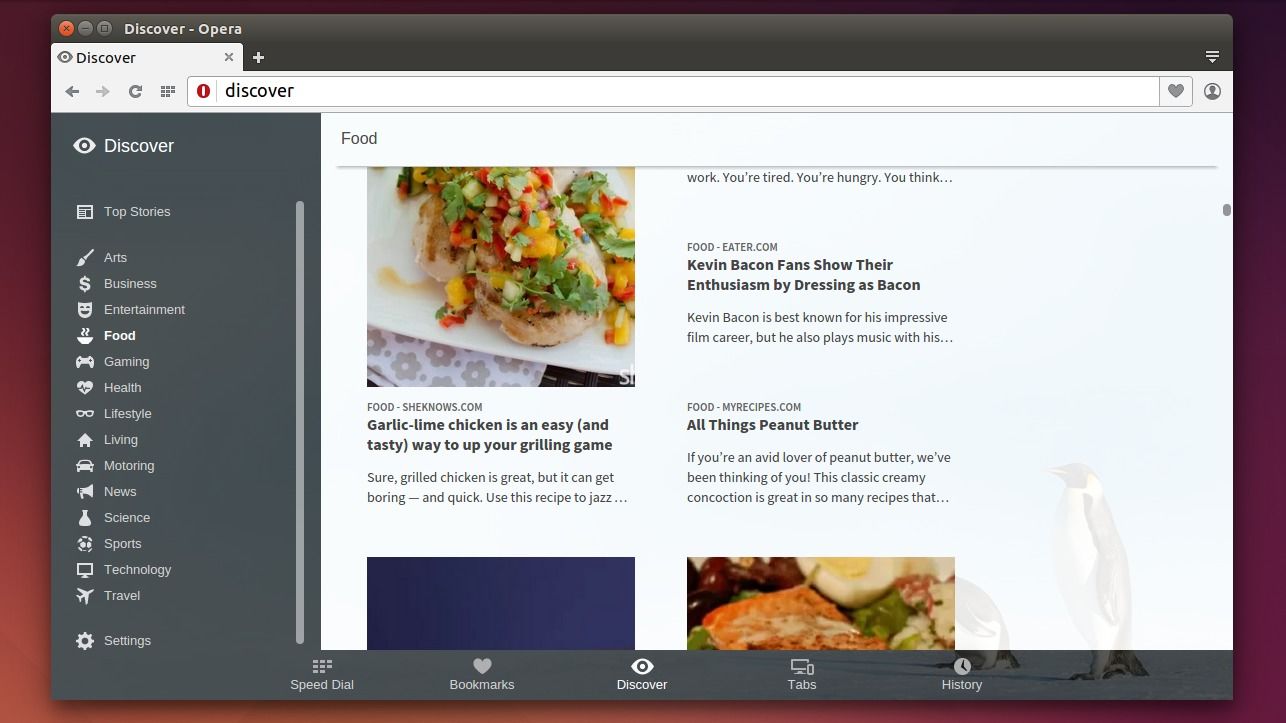
  • Easier way to discover feeds. Opera’s personal newsreader offers a newspaper icon on address bar. (Disabled by default)

Opera 42 personal news

Download & Install Opera 42:

For those who have a previous release installed and added the Opera for Linux repository, just launch Software Updater to upgrade the browser:

upgrade opera via updater

Or you can download the .deb package and click to install via Ubuntu Software from the link below:

Download Opera for Linux

[Updated] Install Flash Player for Chromium, Opera in Ubuntu 16.10

Published: October 23, 2016 — Last updated: March 5, 2017

adobe-flash-icon245

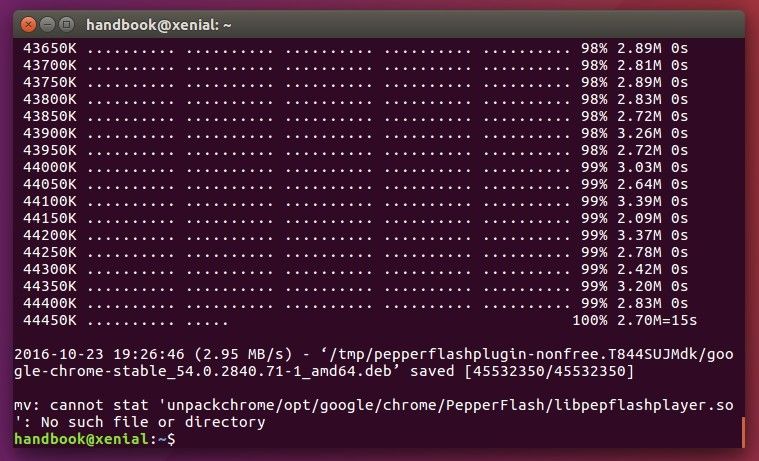
The Pepper Flash Player installer, pepperflashplugin-nonfree package, does not work any more for Chromium based browsers since Google Chrome 54 removed the latest PPAPI bundle.

pepperflashplugin-nonfree

failed to install PPAPI

There’s now a new Pepper flash installer available for Ubuntu 16.04, Ubuntu 14.04, that installs PPAPI directly from adobe website.

For those who want to install the latest PPAPI Flash Player (so far it’s 23.0.0.185), you can download the source tarball from Adobe website and install it manually.

1. Go to link below:

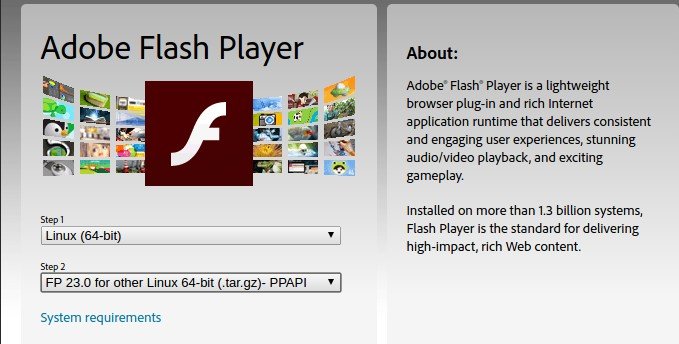
Download Adobe Flash (PPAPI)

Check your OS type from System Settings -> Details, then select in download page:

  • Linux (64-bit) or Linux (32-bit)
  • FP 23.0 PPAPI

Download PPAPI

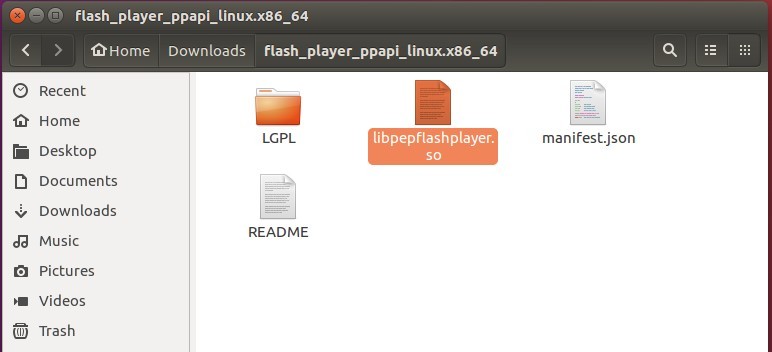
2. Extract the downloaded .tar.gz package, and navigate to the result folder.

extract-ppapi

3. pepperflashplugin-nonfree is still required to work as a wrapper. Install it if you don’t have it via command (Press Ctrl+Alt+T to open terminal):
sudo apt install pepperflashplugin-nonfree

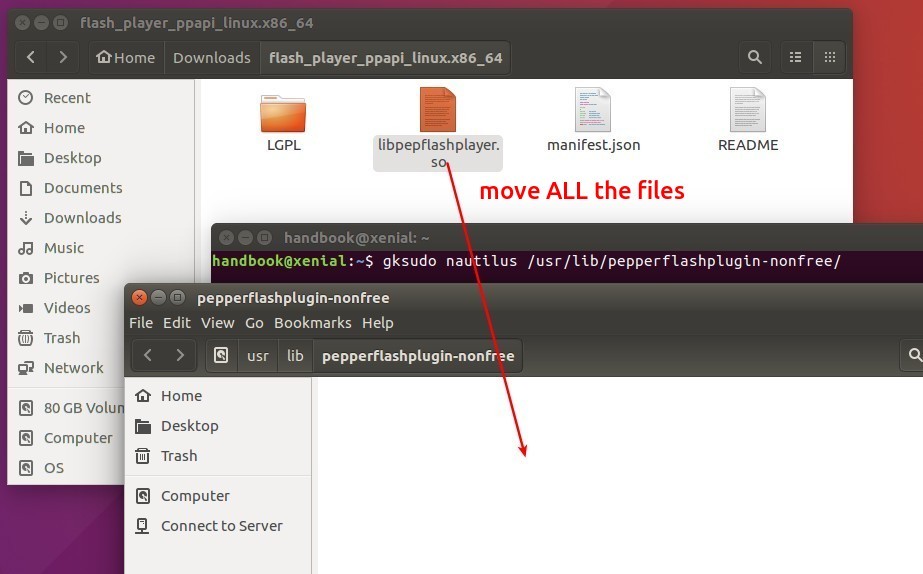
4. Now move the libpepflashplayer.so file from downloaded folder to /usr/lib/pepperflashplugin-nonfree directory.

You can do this via command:

sudo mv ~/Downloads/flash_player_ppapi_*/* /usr/lib/pepperflashplugin-nonfree/

Or open the “/usr/lib/pepperflashplugin-nonfree” directory via root by running command:

gksudo nautilus /usr/lib/pepperflashplugin-nonfree

Then drag and drop ALL THE FILES from Downloads folder to the directory:

install ppapi

Finally restart Chromium, Opera, or other based browsers and flash should work.

opera-icon2

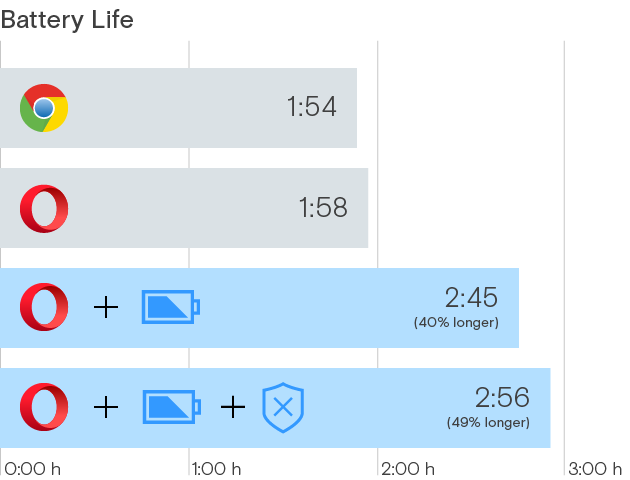
Opera browser 38 was released earlier today with new power-saving mode, which offers up to 50 longer battery life and avoids overheating.

By reducing background tabs activity and frame rate, using hardware accelerated video codecs in video-playback, pausing themes’ animations, auto-pausing unused plugins, including ad blocker, the new power-saving mode increases as much as 50% battery life comparing to other browser, and keeps your laptop over 3 degrees °C cooler.

opera-powersaver-info-2

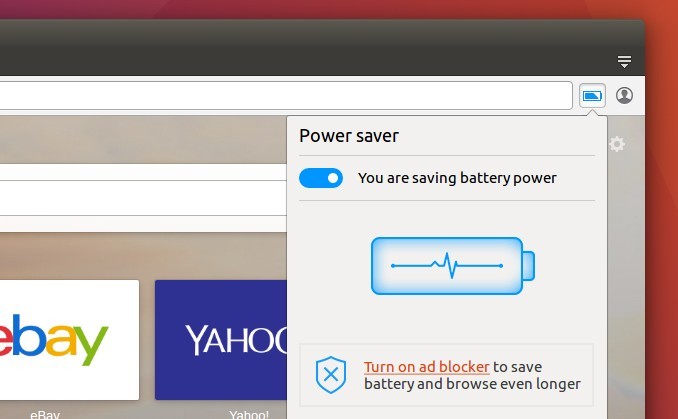
This feature can be easily enabled from the top-right corner in Opera browser window.

Opera 38

There’s also some other features added in Opera 38:

  • add your own lists in add blocker
  • add your own photo as theme
  • extension button visible in the Speed Dial side panel
  • Speed Dial improvements.

To get the latest Opera for Linux, go to:

Download Opera for Linux

Opera web browser

Opera web browser for computers has reached version 35, the first stable release for 2016, which features mute tabs, refreshed downloads page, new basic section in setting page, and 32-bit DEB/RPM for Linux users.

Opera 35 lets you mute the sound from a website easily via an option from the tab’s context menu. There’s also an option to mute all other tabs.

mute tab option

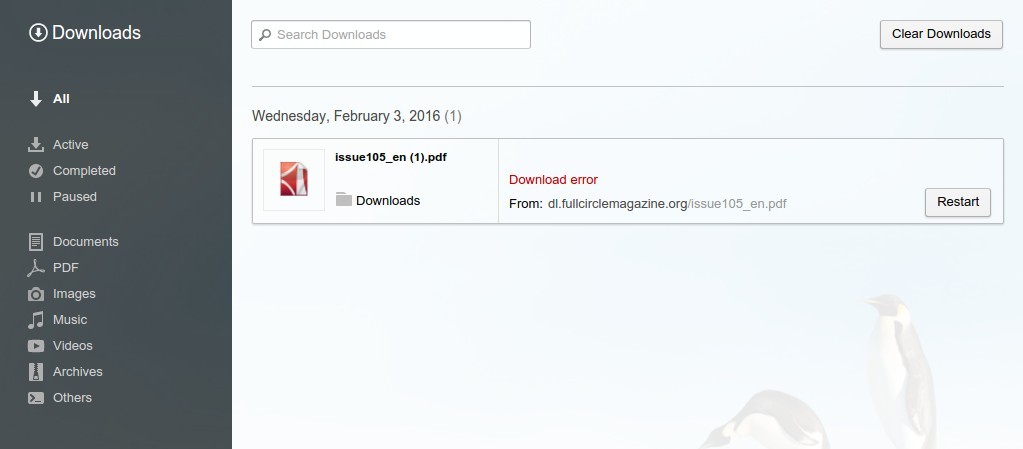
The download page has been redesigned. There are quick links in left pane for most used file formats: documents, PDFs, images, music, videos, archives and others.

refreshed downloads

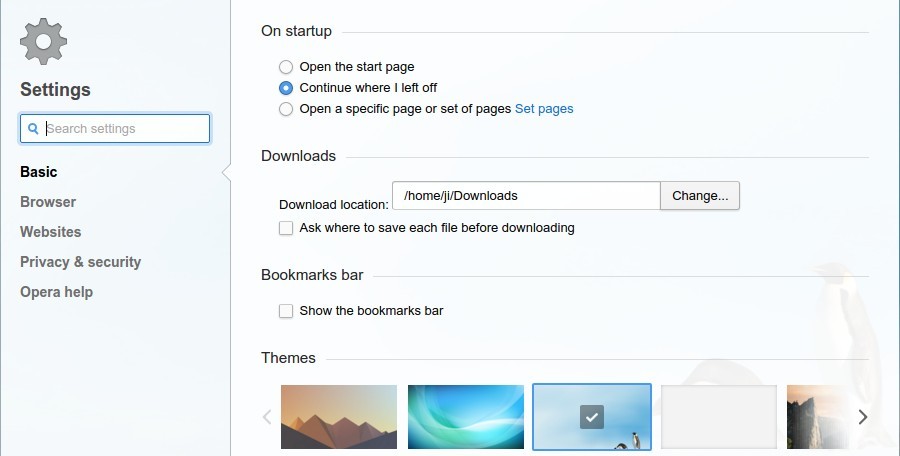
The settings page brings a new basic section with simple settings for start-up behavior, downloads, bookmarks bar, themes, and cookies.

basic settings

And finally Opera Team made 32-bit DEB and RPM binaries for Linux users, available for download at the link below:

Download Opera for Linux

opera-browser-icon

The 31 release of Opera web browser has been announced today with big improvement on its start up time.

According to the release note, Opera for desktops now starts up to 70% faster in comparison to previous versions, which is especially important and helpful for devices with slower, traditional hard drives.

Opera 31 also has redesigned pages so everything looks nice and modern.

Opera Browser 31

How to install/upgrade to Opera 31:

If you have a previous version installed on your system and agreed to add Opera for Linux repository when you were installing the browser, just run Software Updater to upgrade Opera to the latest.

old opera upgrade picture

old opera upgrade picture

Or you can directly download the .deb installer from its Linux download page:

Download Opera for Linux

Opera Browser for Linux

The latest stable Opera browser for Linux has reached the 28 release. The new release features bookmark synchronization on all devices.

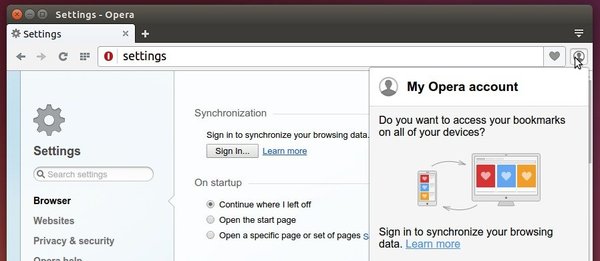
Opera team recently announced the bookmark syncing feature by releasing the Opera Stable 28, which is available on Opera for computers, Opera Mini for iOS and Opera for Android. To use this feature, you need an Opera Account and login from either Setting page or the little figure icon.

Opera Bookmark Sync

In addition, Opera 28 also brings:

  • a better integration with Mac OS, as “vibrancy” of the address field and improved Mac fullscreen mode have been added
  • a bundled themes selection has been updated
  • For more, see the changelog.

Install / Upgrade Opera in Ubuntu:

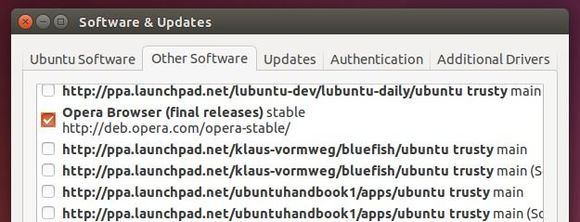
If you have an previous Opera release installed, the Opera Stable Repository should be added on your system. (Go to Software & Updates -> Other Software tab, and check it out)

Opera Linux repository

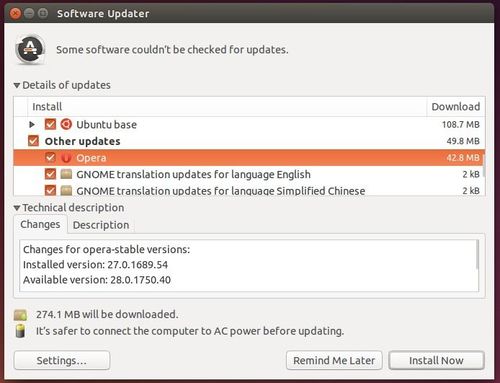
Then you can upgrade Opera through Software Updater after checking for updates.

upgrade-opera

Or you can download Opera browser directly from its Linux download page.