


Paint.NET image editor added experimental Linux support with version 5.2 Alpha. Here’s step by step guide shows how to try it out in Ubuntu.
There are quite a few Paint.NET alternative apps with native Linux support, but it’s always good to see a Windows app add Linux support.
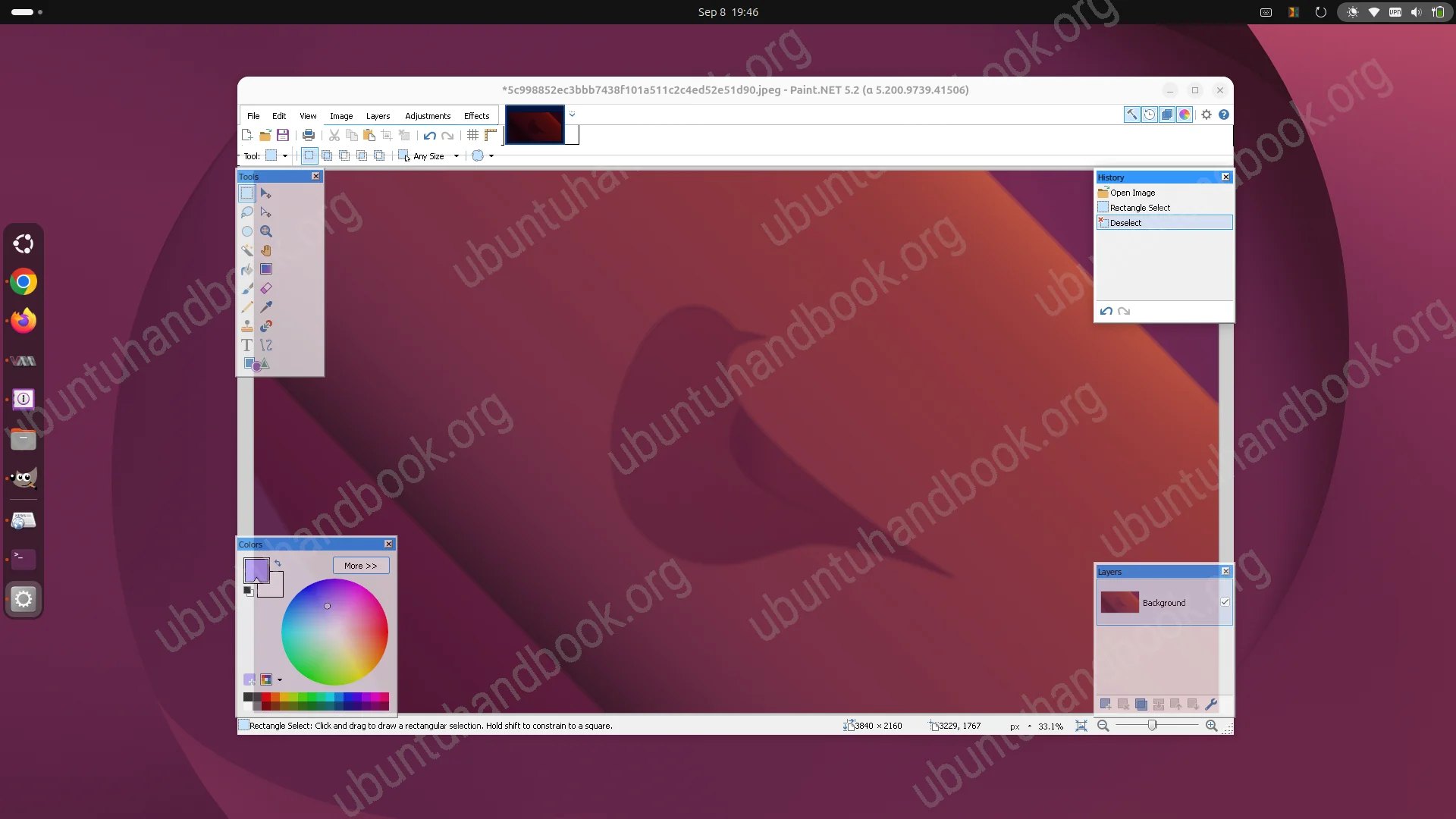
Paint.Net in Ubuntu 26.04 desktop
Paint.NET made the step in last week by releasing 5.2 Alpha, though it works through Wine, and the code was written through AI. See the announcement for details.
Try out Paint.NET in Ubuntu
The steps below are tested in Ubuntu 26.04, though it should also work in Ubuntu 24.04, Ubuntu 22.04, and their based distributions, such as Linux Mint.
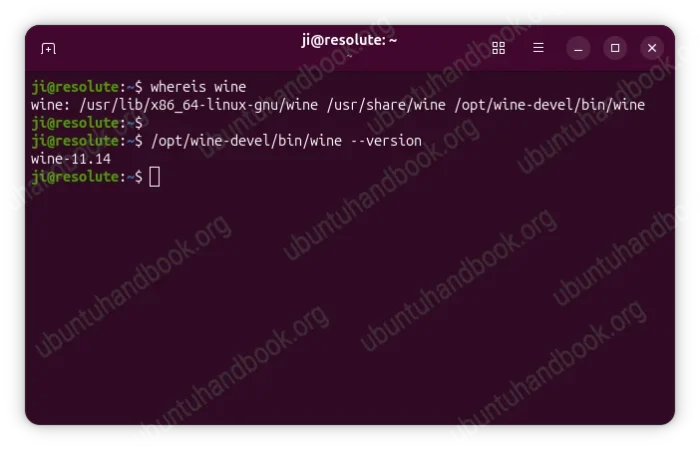
1. As mentioned, the Linux implementation works through Wine (version >= 11.14). You need to first launch terminal (Ctrl+Alt+T) and follow the official guide to install wine-devel package in your Ubuntu.
After that, run wine --version or /opt/wine-devel/bin/wine --version to verify.
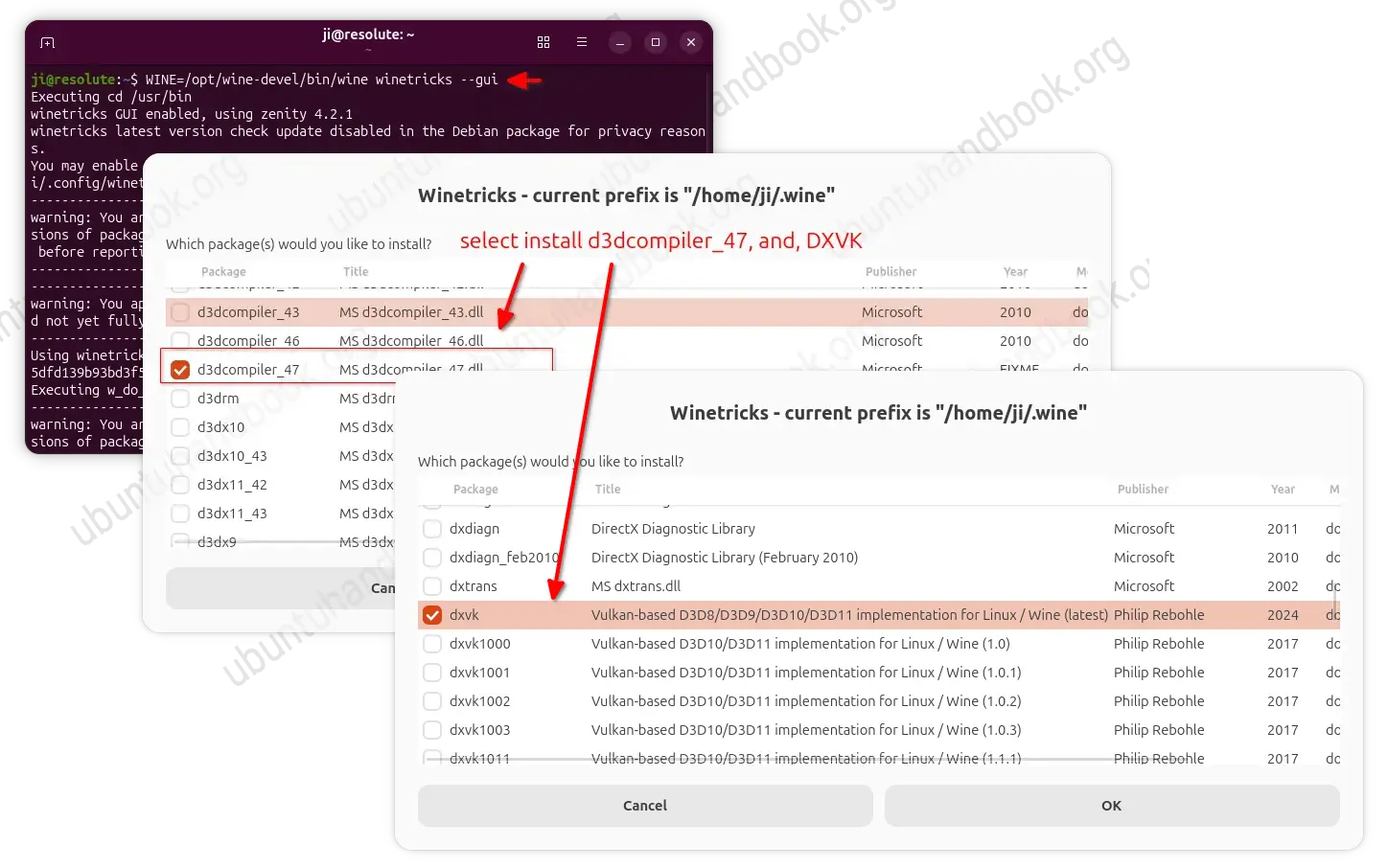
2. Next install DXVK, the Direct3D to Vulkan implementation, and d3dcompiler_47 dll.
To do so, launch terminal (Ctrl+Alt+T) and run command to install winetricks:
sudo apt install winetricks
Then, launch winetricks GUI by running the command below in terminal:
winetricks --gui
Or use WINE=/opt/wine-devel/bin/wine winetricks --gui to specify wine position.
When the graphical dialog opens, choose “Select the default wineprefix”, then select “Install a Windows DLL or component”, finally select install d3dcompiler_47 and DXVK.
3. Then, launch the wine configuration dialog by running the command below in terminal:
winecfg
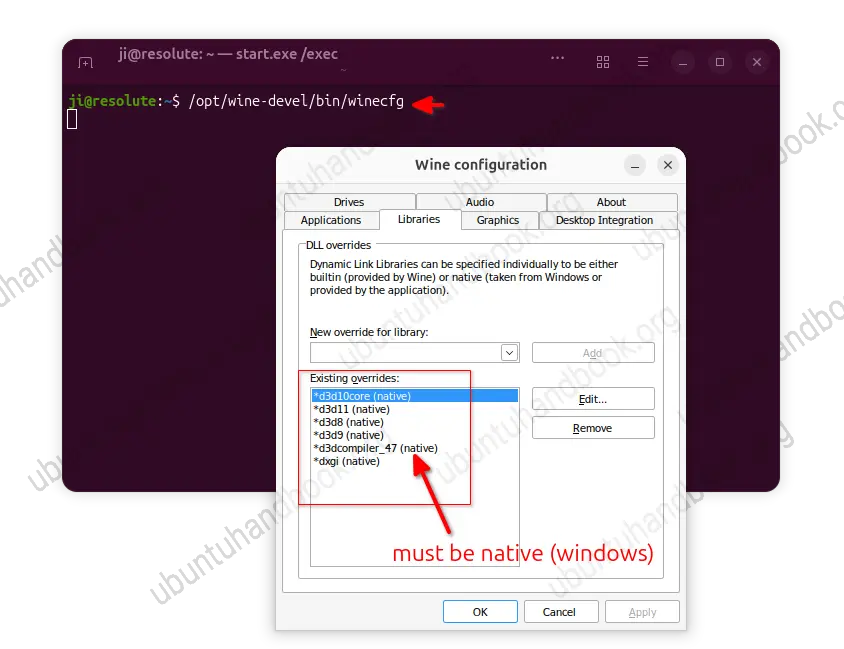
Or /opt/wine-devel/bin/winecfg.
When it opens, navigate to Libraries tab and make sure you have d3d8, d3d9, d3d10, d3d11 etc overrides provided by DXVK, as well as d3dcompiler_47 which must be set to Native (Windows).
4. After installed wine and setup dll libraries, download Paint.NET from the Github releases page via the link below:
Select version 5.2 (Alpha build 9739 so far), and choose download the portable “paint.net.5.200.xxxx.portable.x64.zip” for AMD/Intel platform (or arm64 portable for ARM devices).
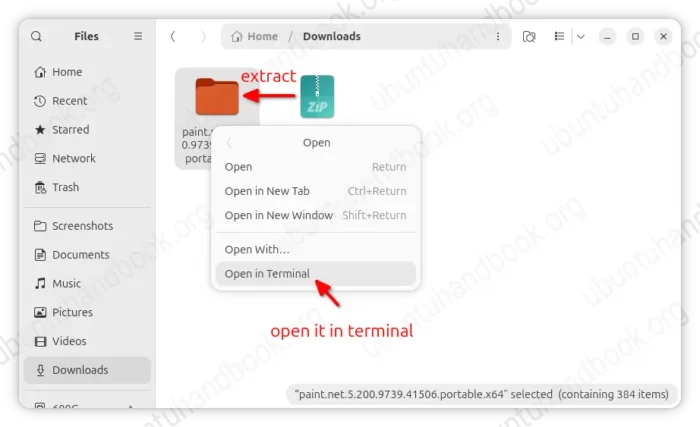
Finally, decompress the zip archive, right-click on extracted folder and select “Open in Terminal”.
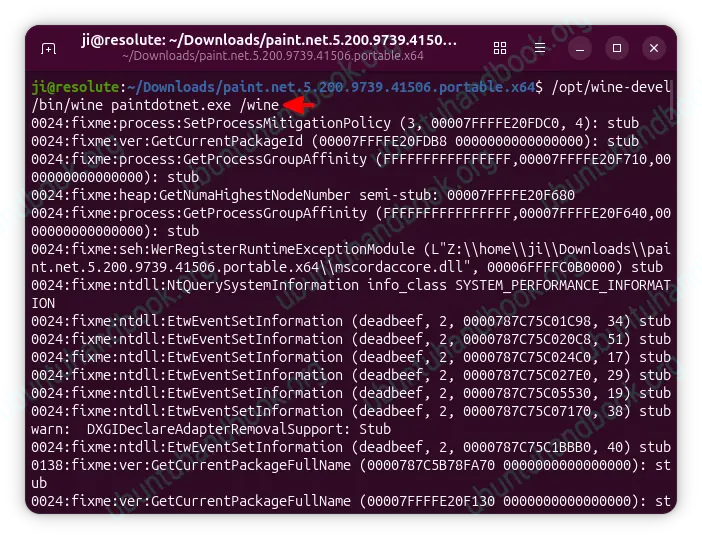
You can then launch Paint.NET through wine via the command below:
/opt/wine-devel/bin/wine paintdotnet.exe /wine
If everything goes well, you may create a desktop entry through a custom .desktop file in .local/share/applications directory, so you can launch the image editor like a regular app.













all done but i receive:
unable to find an entry point named
DXGIDeclareAdapterRemovalSupport in DLL
According to error, it seems something to do with DXVK.
Did you install the DLL through via
winetricks --gui. Or try an old DXVK version if you’re on Ubuntu 24.04/22.04 with Vulkan 1.3, that might be not compatibility with latest DXVK 3.1.