Archives For Howtos

HP Linux Imaging and Printing

HPLIP 3.19.10, HP developed printer and scanner drivers for Linux, was released today with new devices and 64-bit Ubuntu 19.10 support.

HPLIP 3.19.10 added following new devices support:

  • HP Color LaserJet MFP M776dn
  • HP Color LaserJet Flow MFP M776z
  • HP Color LaserJet Flow MFP M776zs
  • HP Color LaserJet M856dn
  • HP Color LaserJet M856x
  • HP Color LaserJet E85055dn

Also 64-bit of Manjaro 18.1.0, Ubuntu 19.10, and Fedora 31 are supported in the release.

HPLIP 3.19.10 also added supported for “hp-uiscan” to scan only backside of a page, added Job Accounting Support for the following devices:

  • HP LaserJet Managed Flow MFP E77822-28-30 Printer
  • HP LaserJet Managed MFP E77822-28-30 Printer
  • HP LaserJet Managed Flow MFP E87640-50-60 Printer
  • HP LaserJet Managed MFP E87640-50-60 Printer
  • HP LaserJet Managed Flow MFP E82540-50-60 Printer
  • HP LaserJet Managed MFP E82540-50-60 Printer
  • HP LaserJet Managed Flow MFP E72525-30-35 Printer
  • HP LaserJet Managed MFP E72525-30-35 Printer

1. To install the software, download the package “hplip-3.19.10.run” from the link below:

HPLIP Download Page

2. Then make the downloaded file executable from its Properties dialog > Permissions tab:

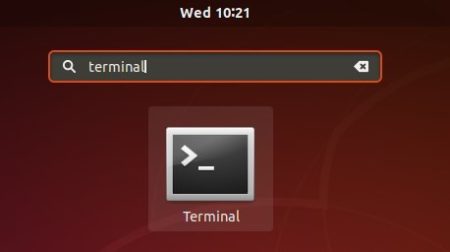
3. Finally open terminal either via Ctrl+Alt+T or search for “terminal” from app launcher. When it opens, run command to start installing it:

./Downloads/hplip-3.19.10.run

4. Follow the terminal prompts, answer some questions to build and install HPLIP on your system. When everything is done, plug/re-plug your printers and enjoy!

How to Install MPV 0.30 in Ubuntu 18.04/19.10

Last updated: October 28, 2019

MPV media player logo

MPV video player 0.30.0 was released a few days ago with many new features and improvements. Here’s how to install it in Ubuntu 18.04, Linux Mint 19.x, and Ubuntu 19.10.

MPV 0.30.0 release highlights:

  • Vulkan interoperability with CUDA hardware decoding support as well as VA-API + Vulkan interop support.
  • replace Vulkan implementation with one based upon libplacebo
  • resentation feedback support with the DRM EGL code
  • support for direct mode of 4:4:4 content with VDPAU decoding
  • 30bpp support for the DRM output back-end
  • support for 10-bit OpenGL rendering on macOS
  • add gamepad support through SDL2
  • add presentation time support for wayland.

How to Install MPV 0.30.0 in Ubuntu:

There’s an Ubuntu PPA contains most recent MPV packages for Ubuntu 18.04 and Ubuntu 19.10.

1.) Open terminal either via Ctrl+Alt+T keyboard shortcut or by searching for ‘terminal’ from application menu. When it opens, run command to add the PPA:

sudo add-apt-repository ppa:mc3man/mpv-tests

Type user password (no asterisk feedback) when it prompts and hit Enter.

2.) If a previous version of MPV was installed, launch Software Updater and you’ll see new MPV package available to upgrade.

Or run command one by one in terminal to install (upgrade) MPV:

sudo apt install mpv

Uninstall:

To downgrade MPV to the stock version in Ubuntu main repositories, run command to purge the PPA:

sudo apt install ppa-purge && sudo ppa-purge ppa:mc3man/mpv-tests

To remove the PPA only, go to Software & Updates -> Other Software tab.

To simply remove MPV media player, either use Ubuntu Software or run command in terminal:

sudo apt remove --autoremove mpv

KeePassX 2 YubiKey support

KeePassXC, KeePass cross-platform community edition, released version 2.5.0 today with a large number of new features and improvements.

KeePassXC 2.5.0 release highlights:

  • Add paper backup support (Export to HTML).
  • Add database statistics panel
  • Offline user manual.
  • Import 1Password OpVault files
  • Add support for OnlyKey as an alternative to YubiKeys

The new release also brings a redesigned unlock dialog, a reworked entry panel, a function to download favicons for all your entries at once, and many CLI improvements. See the release note for more details.

How to Install KeePassXC 2.5.0 in Ubuntu:

For Ubuntu 18.04 and higher, the easiest way is to install the Snap package (runs in sandbox) via Ubuntu Software:

For those prefer native Ubuntu .deb package, open terminal from application menu or press Ctrl+Alt+T on keyboard, and run following commands one by one:

1.) Run command to add the official PPA, which so far supports for Ubuntu 16.04, Ubuntu 18.04, Ubuntu 19.04, and Ubuntu 19.10.

sudo add-apt-repository ppa:phoerious/keepassxc

Type user password (no asterisk feedback due to security reason) when it prompts and hit Enter to continue.

2. Then upgrade KeePassXC from previous release via Software Updater:

or run commands one by one in terminal to install the password manager:

sudo apt update

sudo apt install keepassxc

Uninstall:

To remove the PPA, open Software & Updates and navigate to Other Software tab.

To remove KeePassXC .deb package, run command in terminal:

sudo apt-get remove --autoremove keepassxc

Mesa 3D graphics library 19.2.1 now is finally made into PPA available to install in Ubuntu 18.04 LTS.

Mesa 19.2.x is the latest development series that features:

  • Mesa 19.2 now pretty much at parity or beyond the i965 OpenGL driver.
  • OpenGL 4.6 support for the Intel OpenGL driver
  • Radeon RX 5700 series (Navi 10) support in RADV and RadeonSI Vulkan/OpenGL drivers.
  • Initial Navi 12/14 support.
  • A big RADV performance boost for AMD GPUs.
  • EGL platform device support.

Canonical’s Timo Aaltonen has made Mesa 19.2.1 package into “Ubuntu-X” team PPA, available to install in Ubuntu 18.04.

1. Open terminal either via Ctrl+Alt+T keyboard shortcut or by searching for ‘terminal’ from application menu. When it opens, run command:

sudo add-apt-repository ppa:ubuntu-x-swat/updates

Type user password (no asterisk feedback) when it prompts and hit Enter to continue.

2. After adding the PPA, do system update via command:

sudo apt-get dist-upgrade

apt-get update is not required any more in Ubuntu 18.04 since adding PPA automatically refreshes system package cache.

3. Finally check your driver version via command:

glxinfo | grep "OpenGL version"

Uninstall:

To restore changes and downgrade to the default drives shipped in Ubuntu 18.04, run command:

sudo apt-get install ppa-purge && sudo ppa-purge ppa:ubuntu-x-swat/updates

gnome shell

This tutorial shows beginners how to add ‘Open as Administrator’ option in Nautilus file browser context menu (right-click menu) in Ubuntu 19.10.

Want to open a file folder and/or edit a file via root user account? Without running Linux command, you can do this by adding ‘Open as Administrator‘ or ‘Edit as Administrator‘ right-click menu option via nautilus-admin extension.

1.) The nautilus-admin package is available in Ubuntu universe repository. Simply open terminal either from application menu or by pressing Ctrl+Alt+T on keyboard.

When terminal opens, run command to install it:

sudo apt install nautilus-admin

Type user password (no asterisk feedback) for sudo prompt and hit Enter.

2.) Once installed the extension, restart Nautilus file browser via command:

nautilus -q

Next time you open the file browser, you’ll see ‘Open as Administrator‘ context menu option for file folders, and ‘Edit as Administrator‘ option for documents.

That’s it. Enjoy!

Paper GTK3 and Icon themes

Turning on Wi-Fi Hotspot in Wi-Fi settings is not working very well in Ubuntu 18.04 default Gnome desktop. It says ‘can not connect’ or ‘password error’ when I’m tring to connect via iOS or Android device.

Since Ubuntu switched to Gnome 3, Wi-Fi Hotspot can be easily created by the System Settings utility. It’s however not working very well in my Ubuntu 18.04 laptop. And here’s a workaround to make it work

1.) Press Alt+F2 on keyboard to bring up ‘Enter a Command’ box, then input nm-connection-editor and hit Enter.

2.) When the ‘Network Connections‘ window pops up, click on the bottom-left plus button to create a new connection.

3.) In next window, seleft Wi-Fi from the drop-down box.

4.) After clicked the ‘Create…’ button, do following settings in next window.

  • Type connection name: whatever as you want (Ji-laptop in the case)
  • Type SSID: whatever as you want (ubuntu1804 in the case)
  • Select Mode: Hotspot
  • (Optional) Set password in Wi-Fi security tab. (WPA & WPA2 Personal in my case)

Tip: you may disable ‘Automatically connect to this network when it is available’ in General tab, or Wi-Fi hotspot auto-enabled in every login.

5.) Finally in Wi-Fi Settings window, do:

  • click the top-right menu and select Connect to Hidden Network…
  • then choose connect to the previous created network.

That’s it. Enjoy!

This quick tutorial shows how to remove Snap applications from indexing in Ubuntu Software utility in Ubuntu 18.04 and higher.

Snap is a containerized software package developed by Canonical (company behind Ubuntu). It bundles most runtime libraries and can be running on most Linux desktops.

Snap is great. It makes some popular applications possible to install in Ubuntu, and backports latest version of applications without worrying about dependency issues.

There’s also downside to the Snap package. It’s large in file size, requires a daemon and not everyone loves that.

If you dislike or just don’t want to install any Snap applications, you can remove them from Ubuntu Software utility, so it will be faster and not display duplicate applications in search result.

1.) Open terminal either via Ctrl+Alt+T keyboard shortcut or by searching for ‘terminal’ from application menu.

2.) When terminal opens, run command to remove the plugin package that handles Snap package indexing:

sudo apt remove gnome-software-plugin-snap

Type user password (no asterisk feedback due to security reason) for sudo prompt and hit Enter.

That’s it.

For any reason if you want to restore the change, simply install the plugin back via command:

sudo apt install gnome-software-plugin-snap

shutter screenshot

Shutter is one of must install applications in my Ubuntu desktop. And now it’s made into PPA for Ubuntu 19.10 Eoan Ermine.

Shutter is a feature-rich screenshot application with editing feature. It was available in Ubuntu universe repository. Since Ubuntu 18.10, it’s removed, along with some old Gnome libraries required by the screenshot tool.

Thanks to “Linux Uprising” team, the PPA maintains Shutter packages as well as dependencies for new Ubuntu releases.

1. Open terminal either via Ctrl+Alt+T keyboard shortcut, or from application launcher. When it opens, run command to add the PPA:

sudo add-apt-repository ppa:linuxuprising/shutter

Type user password (no asterisk feedback due to security reason) when it prompts and hit Enter to continue.

2. Then install Shutter either via Synaptic package manager or by running command in terminal:

sudo apt install shutter

Once installed, launch it from gnome software menu and enjoy!

Uninstall Shutter:

To remove shutter, simply open terminal and run command:

sudo apt remove --auto-remove shutter

And remove the PPA via Software & Updates -> Other Software.

Xournal++, open-source handwriting notetaking software with PDF annotation support, released 1.0.5 a few days ago. Here’s how to install it in Ubuntu 16.04, Ubuntu 18.04, and higher.

Xournal++ is written in C++ with GTK3. It supports pen input from devices such as Wacom Tablets, and features:

  • Support for annotating PDFs
  • PDF Export (with and without paper style)
  • PNG Export (with and without transparent background)
  • LaTeX support (requires a working LaTeX install)
  • Audio recording and playback alongside with handwritten notes
  • Plugins using LUA Scripting
  • And much more other features.

Xournal++ 1.0.4 was released a week ago, quickly followed by a minor 1.0.15 release. It includes many bugfixes as well as some quality-of-life enhancements and new experimental floating toolbox.

How to Install Xournal++ 1.0.5 in Ubuntu:

For Ubuntu 16.04 and Ubuntu 18.04 64-bit, the official xournalpp-1.0.15-Ubuntu-xenial-x86_64.deb package is available to download at the link below:

Download Xournal++

Install “Gdebi package installer” from Ubuntu Software, and click install the Xournal++ .deb package via Gdebi.

Other ways:

Git builds of Xournal++ snap package (runs in sandbox) is also available in Ubuntu Software for Ubuntu 18.04 and higher.

Flathub repository offers version 1.0.5 of Xournal++ flatpak package (runs in sandbox) for Ubuntu 18.04 and higher.

KDE Plasma 5.16

KDE Plasma desktop 5.17 was released yesterday. Now you can install it in (K)Ubuntu 19.10 via KUbuntu Backports PPA.

Plasma 5.17 release highlights:

  • Night Color for X11.
  • Fractional scaling support on Wayland.
  • Faster startup performance.
  • New panel in System Settings for configuring Thunderbolt devices
  • Improved widget resizing, settings panels, and many other small feature additions.
  • For more details, see the release note.

How to Install Plasma 5.17 in (K)Ubuntu 19.10:

Open terminal either via Ctrl+Alt+T keyboard shortcut or by searching for ‘terminal’ from application menu. When it opens, do:

1. Add Kubuntu Backports PPA:

sudo add-apt-repository ppa:kubuntu-ppa/backports

Type user password (no asterisk feedback) when it prompts and hit Enter to continue.

2. Install Plasma 5.17 in Kubuntu 19.10:

Either install all system update via Update Manager, or run command in terminal:

sudo apt update && sudo apt full-upgrade

3. For non-Kubuntu user:

Run command to install Plasma desktop:

sudo apt update && sudo apt install plasma-desktop

or install full KDE desktop environment via command:

sudo apt update && sudo apt install kubuntu-desktop

Uninstall:

You can purge the Kubuntu Backports PPA, which also downgrade Plasma desktop to the stock version (5.16.5) in Ubuntu 19.10 repository.

sudo apt install ppa-purge && sudo ppa-purge ppa:kubuntu-ppa/backports