Archives For Howtos

LibreCAD 2.0 Stable


LibreCAD, free and open-source 2D-CAD application finally released version 2.0.0. At the moment, there’s no official announcement in its website. But the download links for Windows and Mac OS X and Ubuntu PPA are ready.

According to the official blog, LibreCAD 2.0.0 will has below features:

  • better spline and Bezier curve support;
  • complete conic section support after adding of hyperbola and parabola entities;
  • draw a circle/ellipse tangential to two selected circles/ellipses.
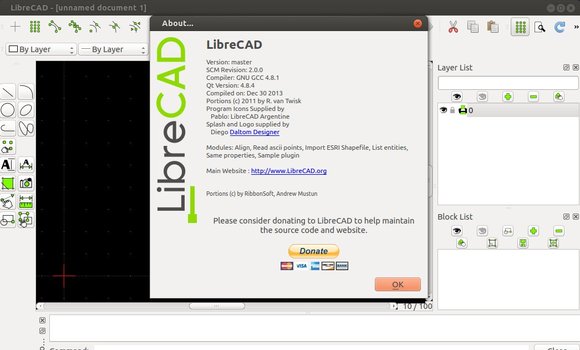
LibreCAd 2.0.0 Ubuntu

Install LibreCAD 2.0.0:

This release has been made into Ubuntu 14.04’s universe repository, so Trusty user can easily install it from Ubuntu Software Center.

For Ubuntu 13.10 Saucy, Ubuntu 13.04 Raring, Ubuntu 12.10 Quantal, (Ubuntu 12.04 build are failed) run commands below one by one in terminal (Ctrl+Alt+T) to install from PPA:

sudo add-apt-repository ppa:librecad-dev/librecad-daily

sudo apt-get update

sudo apt-get install librecad

For Windows, Mac OS packages go to LibreCAD Homepage

xfce4 whisker menu

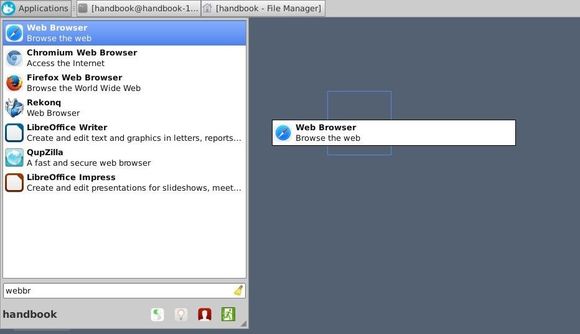
Whisker Menu, the default application launcher of Linux Mint Xfce Desktop now is at version 1.3.0. According to the changelog, now you can drag app launchers from Whisker Menu to Panel or Desktop.

Whisker Menu 1.3 ChangeLog:

  • Fix menu artifacts when switching categories
  • Fix undefined behavior in slots
  • Add command to launch menu editor
  • Add command to switch users
  • Add hiding commands
  • Add browsing for commands
  • Add hiding category and launcher icons
  • Add loading default settings from a file
  • Add search actions
  • Add running arbitrary programs in PATH
  • Add dragging launchers to panel or desktop
  • Add support for custom menu files
  • Defer loading applications until window is shown
  • Merge configuration dialog tabs
  • Rearrange source files to match standard layout of Xfce plugins
  • Reduce unnecessary reloading of applications
  • Rewrite search model code
  • Use a single row in Xfce 4.10 panel
  • Use empty file for saving settings
  • Translation updates: Asturian, Brazilian Portuguese, Bulgarian, Catalan, Chinese (Taiwan), Dutch, German, Hebrew, Hungarian, Italian, Japanese, Kazakh, Malay, Nepali, Norwegian Bokmål, Persian, Polish, Portuguese, Romanian, Russian, Serbian, Serbian (Latin), Slovak, Spanish, Turkish, Ukrainian, Uzbek

Xfce Drag launcher to desktop or panel

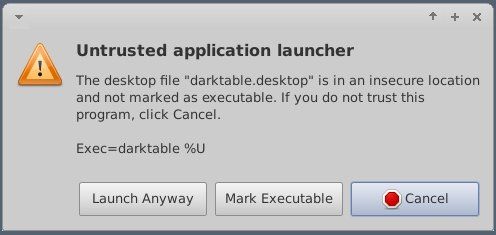
Click “Mark Executable” button if you get below window. The desktop icon will work properly next time you open it.

Xfce drag launcher to desktop

Install Whisker Menu:

If you’re on Xfce Desktop with Ubuntu 14.04, Ubuntu 13.10, Ubuntu 13.04, Ubuntu 12.10, Ubuntu 12.04, Linux Mint 13/14/15/16 and their derivatives. Whisker Menu can be easily installed from PPA.

Press Ctrl+Alt+T on keyboard to open terminal. When it opens, run commands below one by one:

sudo add-apt-repository ppa:gottcode/gcppa

sudo apt-get update

sudo apt-get install xfce4-whiskermenu-plugin

For Debian, Fedora, OpenSUSE and other Linux, go to whisker menu homepage

Foobar2000-Like music player

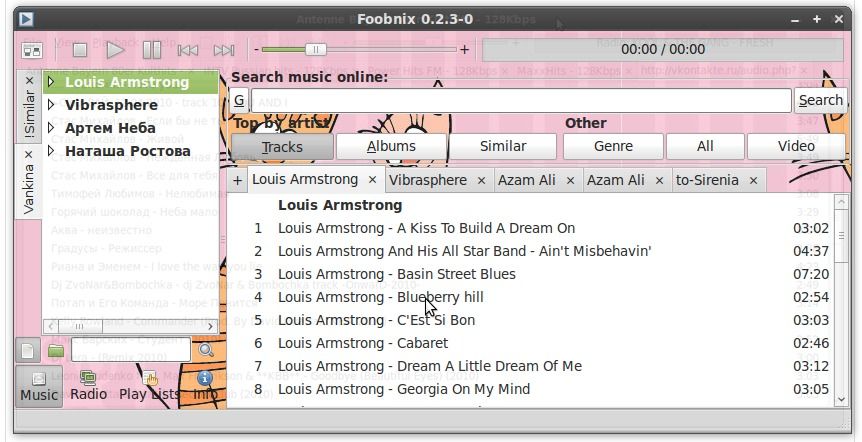
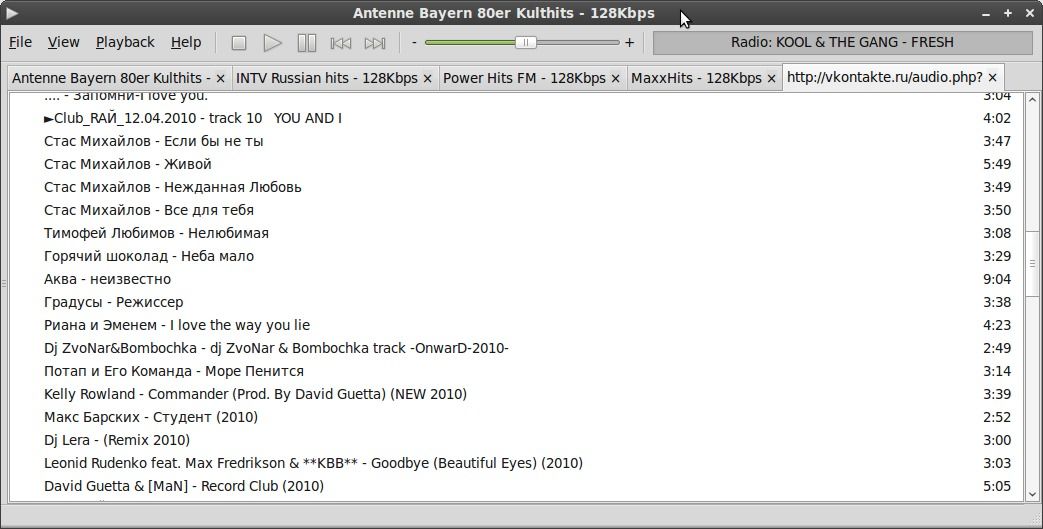
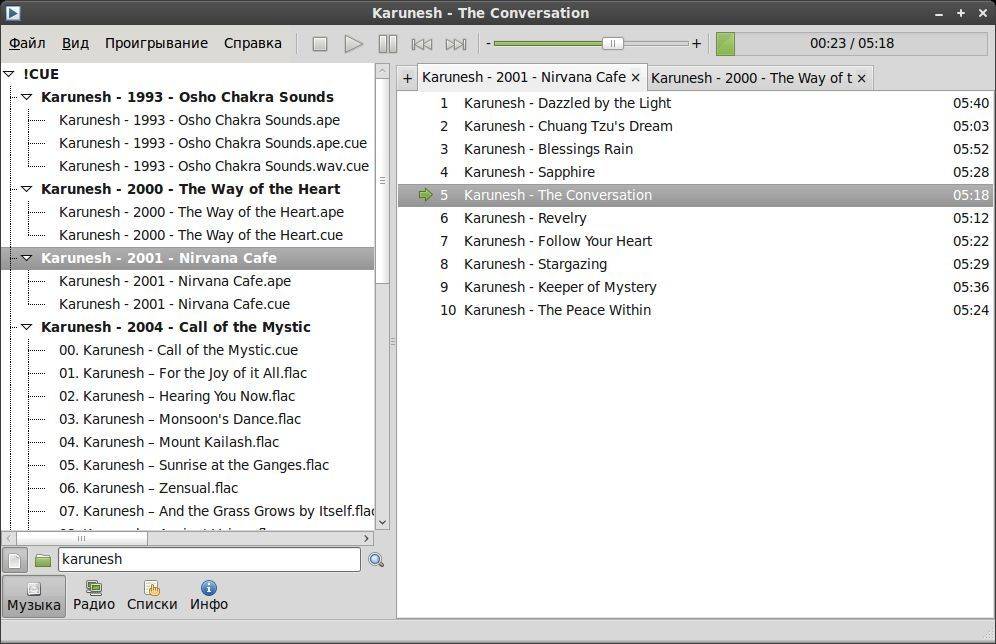
Foobnix is a light and functional music player with Foobar2000-Like user interface available for Linux and Windows. It supports all popular formats, flac, lossless, CUE, 5000+ radios from box, online music for free, Last.fm and Vkontakte and more.

Foobnix has below features:

  • Support for CUE (also wv, iso.wv) is the best under Linux (zavlab)
  • Formats MP3, MP4, AAC, CD Audio, WMA, Vorbis, FLAC, WavPack, WAV, AIFF, Musepack, Speex, AU, SND …
  • Converter any format to any (mp3, ogg, mp2, ac3, m4a, wav)
  • Scrobbler tags with music and radio
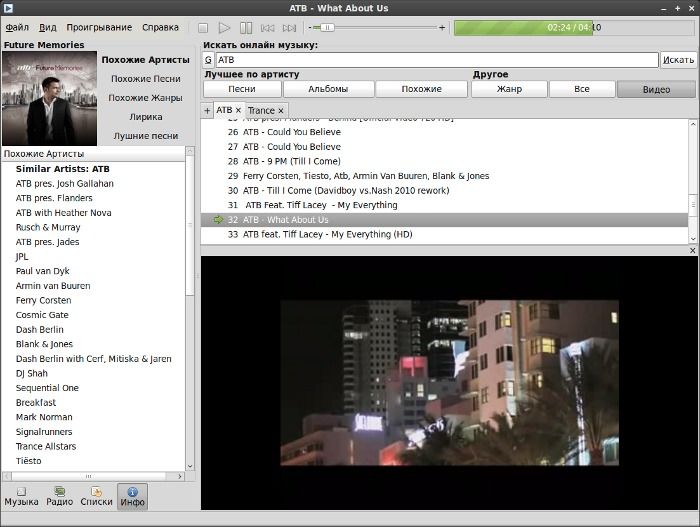
  • Find and play music and videos
  • Equalizer
  • Online music download manager
  • Shortcuts
  • Displays the album cover, lyrics, photo artist
  • Integration with VKontakte (displaying all the friends and their music, downloading music from the group vkontakte)
  • Integration with Last.FM (Show plays the best songs, favorite songs, artists)

Screenshots:

Foobnix custom themes

Foobnix custom themes

Foobnix compact foobar2000 like

Foonix compact foobar2000 like

Foobnix Local Music view

Foonix Local Music view

foobnix watch video

foobnix watch video

Install Foobnix in Ubuntu:

Press Ctrl+Alt+T on keyboard to open terminal. When it open, run below commands one by one:

UPDATE: So far supports Ubuntu 15.04, Ubuntu 14.04, Ubuntu 12.04, Ubuntu 14.10. Old release also available in the PPA.

For stable release (Support Ubuntu 13.04, 12.10, 12.04, 10.04):

sudo add-apt-repository ppa:foobnix-team/foobnix-player
sudo apt-get update
sudo apt-get install foobnix

For development release (Support Ubuntu 14.04, 13.10, 13.04, 12.04):

sudo apt-get remove foobnix
sudo add-apt-repository ppa:popsul1993/ppa
sudo apt-get update
sudo apt-get install foobnix

To install from source:

sudo python setup.py install
# or
sudo make install
# or
./install

More information at GitHub page

simple screen recorder ubuntu

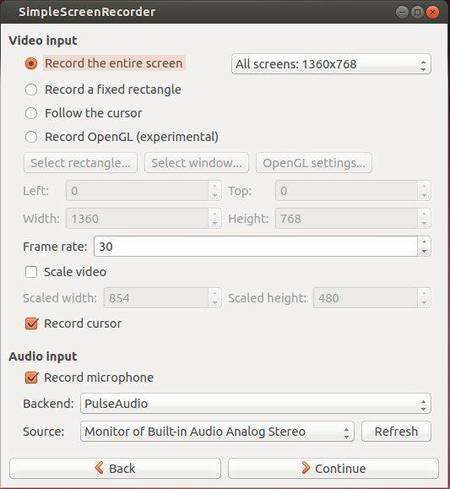
SimpleScreenRecorder is a Linux program to record programs and games. It aims to be powerful and really simple to use. It’s ‘simple’ in the sense that it’s easier to use than ffmpeg/avconv or VLC, because it has a straightforward user interface.

simple screen recorder Ubuntu

This recorder has below features:

  • Graphical user interface (Qt-based).
  • Faster than VLC and ffmpeg/avconv.
  • Records the entire screen or part of it, or records OpenGL applications directly (similar to Fraps on Windows).
  • Synchronizes audio and video properly (a common issue with VLC and ffmpeg/avconv).
  • Reduces the video frame rate if your computer is too slow (rather than using up all your RAM like VLC does).
  • Fully multithreaded: small delays in any of the components will never block the other components, resulting is smoother video and better performance on computers with multiple processors.
  • Pause and resume recording at any time (either by clicking a button or by pressing a hotkey).
  • Shows statistics during recording (file size, bit rate, total recording time, actual frame rate, …).
  • Can show a preview during recording, so you don’t waste time recording something only to figure out afterwards that some setting was wrong.
  • Uses libav/ffmpeg libraries for encoding, so it supports many different codecs and file formats (adding more is trivial).
  • Can also do live streaming (experimental).
  • Sensible default settings: no need to change anything if you don’t want to.
  • Tooltips for almost everything: no need to read the documentation to find out what something does.

Install SimpleScreenRecorder Ubuntu:

The developer has created a PPA for Ubuntu and Linux Mint users. Currently supports Ubuntu 13.10, Ubuntu 13.04, Ubuntu 12.10, Ubuntu 12.04, Mint 13/14/15/16.

To install it, press Ctrl+Alt+T on keyboard to open terminal. When it opens, run commands below one by one:

sudo add-apt-repository ppa:maarten-baert/simplescreenrecorder
sudo apt-get update
sudo apt-get install simplescreenrecorder

# if you want to record 32-bit OpenGL applications on a 64-bit system:

sudo apt-get install simplescreenrecorder-lib:i386

For Arch Linux, Gentoo, OpenSUSE and other Linux packages, refer to the app homepage

Lubuntu Tweak PPA

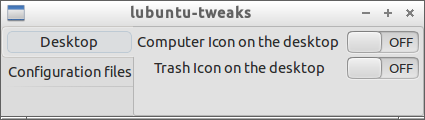
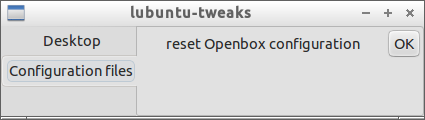
Lubuntu users now have a new configuration tool “Lubuntu-Tweaks“, which allows to do simple tweaks. Right now it only has options to enable Computer and Trash icon on Desktop, and allows to reset Openbox configuration.

Screenshots:

Lubuntu Tweak desktop icons


Lubuntu Tweak reset openbox

Install Lubuntu Tweak:

This little app is still in early stage. If you would like to install it, press Ctrl+Alt+T on keyboard to open terminal. When it opens, run commands below one by one:

sudo add-apt-repository ppa:lubuntu-dev/non-official-apps

sudo apt-get update

sudo apt-get install lubuntu-tweaks

Currently supports Ubuntu 14.04, Ubuntu 13.10, Ubuntu 13.04, Ubuntu 12.10.

Lubuntu Tweaks on Launchpad

Free File Sync Ubuntu PPA

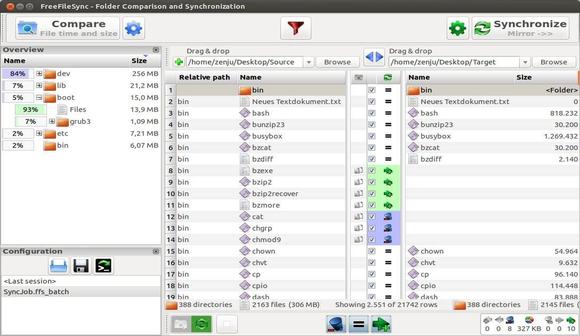
FreeFileSync a folder comparison and synchronization tool that provides highly optimized performance and usability without needless user interface complexity.

Key Features of FreeFileSync:

  • Detect moved and renamed files and folders
  • Copy locked files (Volume Shadow Copy Service)
  • Detect conflicts and propagate deletions
  • Binary file comparison
  • Configure handling of Symbolic Links
  • Automate sync as a batch job
  • Process multiple folder pairs
  • Comprehensive and detailed error reporting
  • Copy NTFS extended attributes (compressed, encrypted, sparse)
  • Copy NTFS security permissions
  • Support long file paths with more than 260 characters
  • Fail-safe file copy
  • Cross-platform: Windows, Linux, Mac OS X
  • Expand environment variables like %USERPROFILE%
  • Access variable drive letters by volume name (USB sticks)
  • Native 64-bit support
  • Keep versions of deleted/updated files
  • Prevent disc space bottlenecks via optimal sync sequence
  • Full Unicode support
  • Highly optimized runtime performance
  • Include/exclude files via filter
  • FreeFileSync portable and local installation available
  • Handle daylight saving time changes on FAT/FAT32
  • Use macros %time%, %date%, et al. for recurring backups
  • Case-sensitive synchronization
  • Built-in locking: serialize multiple jobs running against the same network share

Install FreeFileSync in Ubuntu:

Press Ctrl+Alt+T on keyboard to open terminal. When it opens, run commands below one by one:

sudo add-apt-repository ppa:freefilesync/ffs

sudo apt-get update

sudo apt-get install freefilesync

Currently support Ubuntu 13.10, Ubuntu 13.04, Ubuntu 12.10, Ubuntu 12.04 and Linux Mint. Go to the launchpad page to check out if your Ubuntu release is supported.

Install FreeFileSync Ubuntu

Totem full-screen mode

Playing videos with Ubuntu’s default Totem player? Well you may want to open movies directly in full-screen mode.

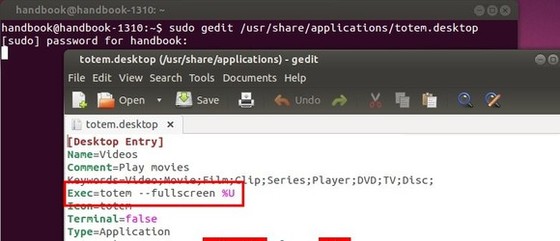
Totem doesn’t provide an option to open in full-screen, but it’s not hard to tweak this setting since Ubuntu Unity uses .desktop files to manage application launchers. All you need to do is change a parameter in totem.desktop file.

To get started, press Ctrl+Alt+T on keyboard to open terminal. When it opens, copy and paste below command and hit enter:

sudo gedit /usr/share/applications/totem.desktop

Type in your user password when prompt (Terminal won’t display your password, just type in mind and hit enter to get pass).

You’ll see the totem.desktop opened with Gedit editor. What you need to do is add --fullscreen parameter to Exec value:

Totem open in full-screen

Save the file and now your movies will be opened directly in fullscreen mode with Totem player.

Enjoy!

system restore app for Ubuntu Linux

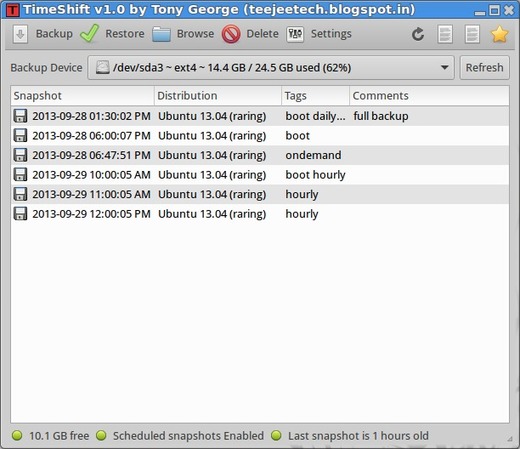
TimeShift is a Linux app that provides functionality similar to the System Restore feature in Windows and the Time Machine tool in Mac OS.

TimeShift takes incremental snapshots of the file system at regular intervals. These snapshots can be restored later to bring your system to the exact state it was in at the time when the snapshot was taken.

Snapshots are taken using rsync and hard-links. Common files are shared between snapshots which saves disk space. Each snapshot is a full system backup that can be browsed with a file manager.

TimeShift is designed to protect only system files and settings. User files such as documents, pictures and music are excluded. This ensures that your files remains unchanged when you restore your system to an earlier date.

create system restore point

TimeShift 1.3 was released recently with Ubuntu 12.04 build error fixed. The TimeShift PPA is ready for Ubuntu 13.10, Ubuntu 13.04, Ubuntu 12.10, Ubuntu 12.04, Linux Mint and their derivatives.

To install the tool, press Ctrl+Alt+T on keyboard to open terminal. When it opens, run commands below one by one:

sudo add-apt-repository ppa:teejee2008/timeshift

sudo apt-get update

sudo apt-get install timeshift

For Fedora, OpenSuse, ArchLinux and other Linux Operating Systems, you may use the .run installer from TimeShift website.

TimeShift Homepage

Device Driver Manager


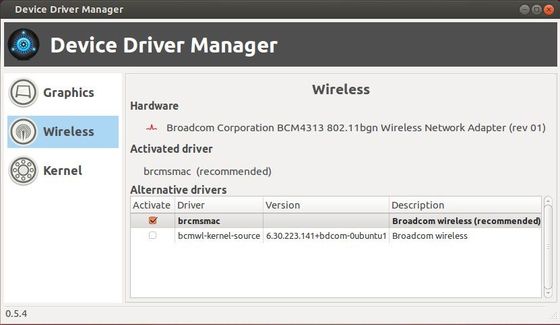
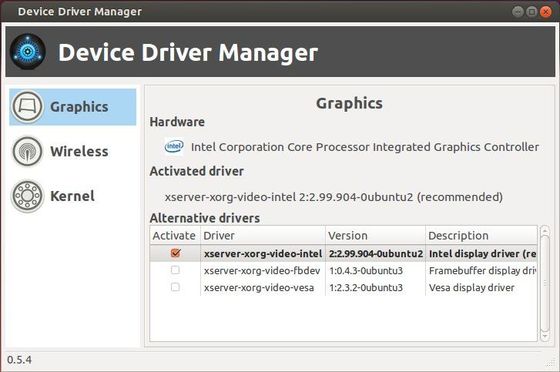
Device Driver Manager is one of Linux Mint application makes it easy to manage open source and proprietary graphics, wireless drivers. Currently Nvidia, ATI, Intel, VIA and Broadcom are supported. It also checks whether or not the PAE kernel can be installed on multi-processor 32-bit systems.

Device Driver Manager Ubuntu

Device Driver Manager Ubuntu

The Device Driver Manager is an independent application, boot the application will scan your system for any available drivers, just select a driver or kernel, DDM will download and install the appropriate packages uses available repositories on your system.

To install this app, download the DEB package from Linux Mint webpage

ubuntu hardware information

Want to check out your system and hardware information? Well, here are two tools that display detailed information about Ubuntu Linux and your computer hardware. They are: HardInfo and I-Nex

I-Nex

UPDATE 2019-1: I-Nex support ends at Ubuntu 17.04! Use Hardinfo instead which is available in Ubuntu Software

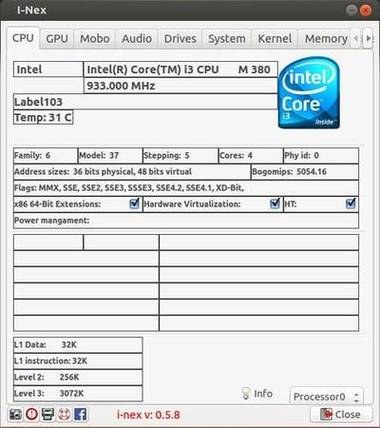
I-Nex has a CPU-Z similar interface that displays CPU, GPU, MotherBoard, Audio, Drives, System, Kernel, Memory, Network, USB info in tabs.

I-Nex collects real-time CPU temperature and Memory usage, it also allows to take a screenshot or generate (print) report.

I-Nex cpu information

To install I-Nex, press Ctrl+Alt+T on keyboard to open terminal. When it opens, run commands below one by one to get it from PPA:

sudo add-apt-repository -y ppa:i-nex-development-team/stable

sudo apt-get update

sudo apt-get install i-nex

Works on Ubuntu 14.04, Ubuntu 13.10, Ubuntu 13.04, Ubuntu 12.10, Ubuntu 12.04, Ubuntu 10.04 and Linux Mint.

HardInfo:

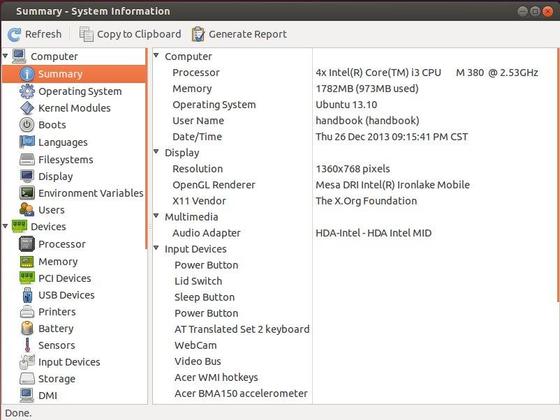
HardInfo is a system information and benchmark tool available in Ubuntu’s universe repository. It displays a summary of your system information and detailed devices, network, benchmarks. It allows to generate printable reports either in HTML or in plain text formats.

hardinfo ubuntu information

To install this app, just open up Ubuntu Software Center, search for and install hardinfo package.