Archives For jimingkui

As you may know, ClassicMenu Indicator is a notification area applet that displays classic GNOME-style application menu on top panel of Unity Desktop.

classic menu indicator

While the PPA repository is not available for Ubuntu 13.10 Saucy Salamander, you can directly download and install the Deb from its official website. Here I’ll tell you how to do it!

To get started, press Ctrl+Alt+T to open terminal. When it opens, run below commands to download the installer:

wget http://www.florian-diesch.de/software/classicmenu-indicator/dist/classicmenu-indicator_0.07_all.deb

download classic menu indicator

Then install the applet and fix dependency problem if any:

sudo dpkg -i classicmenu-indicator_*.deb; sudo apt-get -f install

install classic menu indicator

Once installed, you can open it from Unity Dash. That’s it!

If you’re dual booting Ubuntu with Windows 7 or other Operating Systems, you may wish to change boot order to set which OS starts by default. Well, In this tutorial I’ll show you how to do it in Ubuntu 13.10 Saucy and 13.04 Raring.

grub2 boot loader

There’s a GUI (graphical user interface) tool for editing Grub 2 boot loader, it called Grub-Customizer. You can install it in Ubuntu using the PPA repository. To do so, press Ctrl+Alt+T to open terminal, then run below commands one by one:

sudo add-apt-repository ppa:danielrichter2007/grub-customizer

sudo apt-get update

sudo apt-get install grub-customizer

With Grub-Customizer, highlight the OS entry and click up / down arrow button to change its order. Or set the default OS in General Settings tab.

change boot order via grub customizer

If you’re comfortable with running some terminal commands, it’s not difficult to change default OS without installing any third-party program.

1.) Press Ctrl+Alt+T to open terminal. Edit the “/etc/default/grub” via below command and change GRUB_DEFAULT=0 to GRUB_DEFAULT=saved. This will make it easy to change default OS later.

sudo gedit /etc/default/grub

2.) Update grub to apply changes to grub configuration:

sudo update-grub

3.) After that, you can run sudo grub-set-default with the number of menu entry to boot (the first entry is 0) at any time, which will set the entry as default OS permanently. Or run sudo grub-reboot only for next boot.

For example, below command will set Windows 7 as default OS (Windows 7 is 4 in picture at top) permanently.

sudo grub-set-default 4

The latest stable Linux Kernel 3.10.5 has been released. All users of the 3.10 kernel series are urged to upgrade as soon as possible. Here’s how to install / upgrade in Ubuntu 13.04 Raring, 12.04 Precise and 12.10 Quantal.

install kernel 3.10.5 ubuntu

UPDATE: The 3.10 kernel series has reached 3.10.6, see this tutorial.

Linux kernel 3.10.5 contains lots of fixes and improvements, such as updated video drivers (Radeon, i915, Nouveau, etc.), updated iSCSI, MD, RAID, Wireless, ATA, SATA, ACPI and USB drivers, as well as sound improvements.

Install / Upgrade Kernel 3.10.5

Press Ctrl+Alt+T to open terminal for running commands. When it opens, follow below steps:

For 32-bit system, run below commands to download the Debs:

wget http://kernel.ubuntu.com/~kernel-ppa/mainline/v3.10.5-saucy/linux-headers-3.10.5-031005-generic_3.10.5-031005.201308040618_i386.deb

wget http://kernel.ubuntu.com/~kernel-ppa/mainline/v3.10.5-saucy/linux-headers-3.10.5-031005_3.10.5-031005.201308040618_all.deb

wget http://kernel.ubuntu.com/~kernel-ppa/mainline/v3.10.5-saucy/linux-image-3.10.5-031005-generic_3.10.5-031005.201308040618_i386.deb

For 64-bit system, run beloww commands instead:

wget http://kernel.ubuntu.com/~kernel-ppa/mainline/v3.10.5-saucy/linux-headers-3.10.5-031005-generic_3.10.5-031005.201308040618_amd64.deb

wget http://kernel.ubuntu.com/~kernel-ppa/mainline/v3.10.5-saucy/linux-headers-3.10.5-031005_3.10.5-031005.201308040618_all.deb

wget http://kernel.ubuntu.com/~kernel-ppa/mainline/v3.10.5-saucy/linux-image-3.10.5-031005-generic_3.10.5-031005.201308040618_amd64.deb

After downloading the packages, both 32-bit & 64-bit can run below commands to install them:

sudo dpkg -i linux-headers-3.10.5*.deb linux-image-3.10.5*.deb

Once installed, update grub to apply changes:

sudo update-grub

(Optional) To remove Linux Kernel 3.10.5, run below commands in terminal:

sudo apt-get purge linux-image-3.10.5*

The desktop publishing app Scribus has reached version 1.4.3, this tutorial will show you how to install it in Ubuntu 13.04, 12.04, 12.10, 10.04, Linux Mint via its official repository.

Scribus Ubuntu

UPDATE: Latest Stable Scribus 1.4.4 Now is available in PPA for Ubuntu 14.04, Ubuntu 13.10, and Ubuntu 12.04.

Like the previous version, this is mostly a bugfixing release, but there are also some important enhancements:

  • Scribus has been ported to the Haiku operating system. For more information see: Installing_Scribus_on_Haiku
  • The Barcode Writer has been updated and supports many more barcodes, including QR.
  • The Galaxy Gauge™ color matching system and color tools have been included.
  • New color palettes from government agencies (Canada, Germany, The Netherlands, United Kingdom) have been included.
  • More Open Source color palettes have been included.
  • Improvements to the build system.
  • Improvements to the Preflight Verifier.
  • The A4 page size limit of TeX-rendered graphics in Render Frames has been removed.
  • The Short Words plug-in now supports Danish.
  • Many updates to the Online Manual.

Most important bugfixes:

  • Disabled hyphenation on some Linux distributions is working again.
  • Some unit conversion issues have been fixed.
  • Display issues related to Ubuntu’s Unity interface have been fixed.
  • Some fixes to wrong or irritating UI behavior.
  • Memory management in connection with the new Hyphenator has been optimized.
  • Issues with the Clang compiler have been fixed.
  • Scribus now supports Pillow as an alternative to the Python Imaging Library.
  • Many translation updates.

Install Scribus from Official Repository:

Press Ctrl+Alt+T to open terminal for running commands. When it opens, follow below steps:

1.) Run command to add the Scribus repository:

sudo add-apt-repository "deb http://debian.scribus.net/debian/ $(lsb_release -cs) main non-free"

2.) Get the key:

gpg --keyserver wwwkeys.pgp.net --recv-keys EEF818CF

Export the key and add it to the apt keyring:

gpg --armor --export EEF818CF | sudo apt-key add -

3.) update and install the packages:

sudo apt-get update; sudo apt-get install scribus

That’s it! After this tutorial, you can redo step 3.) to receive updates when a new release comes out.

This simple tutorial shows you how to enable DVD playback and install multimedia codecs in Ubuntu 13.10 Saucy, so that you can play encrypted DVDs, wmv, mpeg, mp3, divx, and more with the default player.

All you need to to is run below commands in terminal one by one and then restart your computer to take effect.

To get started, press Ctrl+Alt+T on your keyboard to open terminal. When it opens, run below commands to install multi-media codecs:

sudo apt-get install gstreamer0.10-plugins-ugly gstreamer0.10-ffmpeg libxine1-ffmpeg gxine mencoder libdvdread4 totem-mozilla icedax tagtool easytag id3tool lame nautilus-script-audio-convert libmad0 mpg321 gstreamer1.0-libav

install multi-media codecs

Then run command to install libdvdcss2 to enable DVD playback:

sudo /usr/share/doc/libdvdread4/install-css.sh

Done.

Enable Nautilus Preview in Ubuntu 13.04, 13.10

Last updated: August 4, 2013

Want to preview documents on Nautilus file browser? Well, here I’m going to show you how to do it. As well as preview files folders, you’ll be able to previewing Pictures, Movies, Music, and everything that can be opened in your system.

nautilus preview folder nautilus preview mp3
nautilus preview movie nautilus preview files

To get started, install the Sushi plugin for Nautilus in Ubuntu. You can search for and install the gnome-sushi from Ubuntu Software Center. Or just click the link below to bring up USC:

click to install sushi preview

That’s it!

You may need to install multi-media codecs to enable previewing movies. Press Ctrl+Alt+T to open terminal. When it opens, run below commands to install media codecs:

sudo apt-get install gstreamer0.10-plugins-ugly gstreamer0.10-ffmpeg libxine1-ffmpeg gxine mencoder libdvdread4 totem-mozilla icedax tagtool easytag id3tool lame nautilus-script-audio-convert libmad0 mpg321 gstreamer1.0-libav

Restart Nautilus to apply the changes:

nautilus -q

You’re done. Enjoy!

As you may know, Pinta is a Paint.NET-like image drawing and editing program which is free and open-source. It is lighter and simpler than popular open-source image editor GIMP.

pinta ubuntu

Pinta is available in Ubuntu Softare Center by default, but it’s a little old. In this tutorial I’ll show you how to install the latest stable and development version of Pinta in Ubuntu 13.10 Saucy, Ubuntu 13.04 Raring, 12.10 Quantal, 12.04 Precise and Linux Mint via PPA repository.

To get started, press Ctrl+Alt+T on your keyboard to open terminal. When it opens, run below commands:

To install the latest development version, run following 3 commands one by one in terminal:

sudo add-apt-repository ppa:pinta-maintainers/pinta-daily

sudo apt-get update

sudo apt-get install pinta

To install the latest stable version (support Ubuntu 12.10, 12.04, 11.10), run below commands instead:

sudo add-apt-repository ppa:pinta-maintainers/pinta-stable

sudo apt-get update

sudo apt-get install pinta

This simple tutorial is going to show you how to install and setup Google Authenticator to secure your Ubuntu SSH remote login by two-factor authentication.

Google provides this application for various smartphone platforms. With it, you can secure your account by logging in with a frequently-changing authentication code. So far, I’m using this in WordPress Login, Ubuntu Server SSH Login, Linode VPS Login. As I know, Google Authenticator also works on Amazon Web Services, App.net, Dropbox, and more.

Install Google Authenticator in Ubuntu:

Since Ubuntu 12.04 Precise, the Google Authenticator PAM module is available in the universe repository by default. Just open Ubuntu Software Center, search for and install libpam-google-authenticator package

google authenticator ubuntu

Once installed, press Ctrl+Alt+T to open terminal. Run below command to create a key and display a QR code which you can scan using the smartphone app. The emergency codes can be used when you don’t have your phone.

google-authenticator

google authenticator secret key

To enable two-step authentication for SSH login, add the line “auth required pam_google_authenticator.so” (witout quotes) into /etc/pam.d/sshd. To do so, run below command in terminal:

sudo sh -c 'echo "auth required pam_google_authenticator.so" >> /etc/pam.d/sshd'

Also add the line “ChallengeResponseAuthentication yes” (without quotes) to /etc/ssh/sshd_config, you can do it by running below command:

sudo sh -c 'echo "ChallengeResponseAuthentication yes" >> /etc/ssh/sshd_config'

Finally restart SSH service on Ubuntu:

sudo /etc/init.d/ssh restart

UPDATE 2024: Nightingale is also discontinued! Try Clementine Music Player which is available in Ubuntu Software / App Center.

Here I’m going to tell you that the popular Songbird Music Player project has been discontinued. For those who are looking for an alternative, check out Nightingale which is built upon Songbird.

songbird discontinued

Eric Wittman announced on the Songbird blog, “Unfortunately, the company has found ourselves unable to fund further business operations and as of June 28, 2013 all of Songbird’s operations and associated services will be discontinued.”

Songbird is a music player originally released in early 2006 with the stated mission “to incubate Songbird, the first Web player, to catalyze and champion a diverse, open Media Web”. On June 3, 2010, official Linux support for Songbird was dropped.

While thanking the users, investors, partners, developers of Songbird, Eric Wittman openly recommends the open source desktop media player Nightingale as an alternative.

To access the open source for the Songbird Desktop player, you can go here:

http://getsongbird.com/desktop/index.php?download=source (Domain expired)

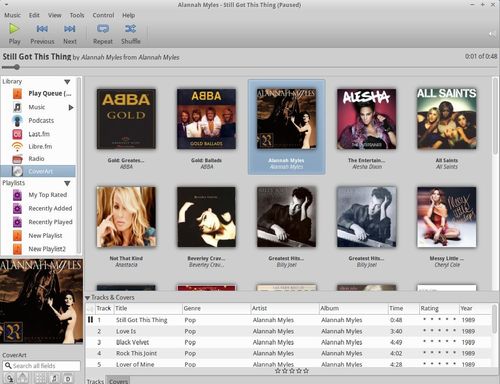
Nightingale is an open source media player based on Songbird and focused on Linux. It has a beautiful interface with a wide range of supported audio formats, all with multi-platform support!

nightingale in ubuntu

Nightingale is available for downloading at: getnightingale.com/all-versions.php

For Ubuntu 13.04, 12.04, 12.10 and Linux Mint 13, 14, 15 users, run below commands in terminal (Ctrl+Alt+T) to install nightingale from PPA:

sudo add-apt-repository ppa:nightingaleteam/nightingale-release

sudo apt-get update

sudo apt-get install nightingale

This tutorial shows you how to install Cisco VPN on Ubuntu 13.04 Raring or 13.10 Saucy. You don’t have to do anything special to install Cisco VPN client, because network manager supports Cisco IPSec VPNs after installed the vpnc plugin.

To get started, search for and install network-manager-vpnc package from Ubuntu Software Center. It installs the Cisco-compatible VPN client as well as the plugin for network manager.

Cisco VPN for network manager

Once installed, you can follow below steps to setup Cisco VPN for Ubuntu:

1.) Move your cursor to right-top corner system tray area, click on Network Manager icon and choose VPN Connections -> Configure VPN

setup Cisco VPN for Ubuntu

2.) In next window, click on Add button to add a new connection and then choose Cisco Compatible VPN (vpnc) from the drop-down menu.

setup cisco vpn connection

3.) Click on Create and you’re able to type in your Cisco VPN details in next window. After all, check off “Use this connection only for resources on its network” otherwise your traffic significantly slowed down

configure cisco vpn connection