Archives For Howtos

gThumb image viewer released a new stable version 3.9.1 a few days ago. Here’s how to install it in Ubuntu 18.04, Ubuntu 19.10, and Ubuntu 20.04.

gThumb 3.9.1 comes with many new features and user visible changes. Here are some of them:

  • Ability to customize the keyboard shortcuts.
  • A shortcuts window to show the available shortcuts.
  • Option to change the mouse wheel action.
  • Ability to define the transparency style.
  • Allow to view the video at the original size
  • Ability to search in multiple folders.
  • Added %T to insert a timestamp in the command.
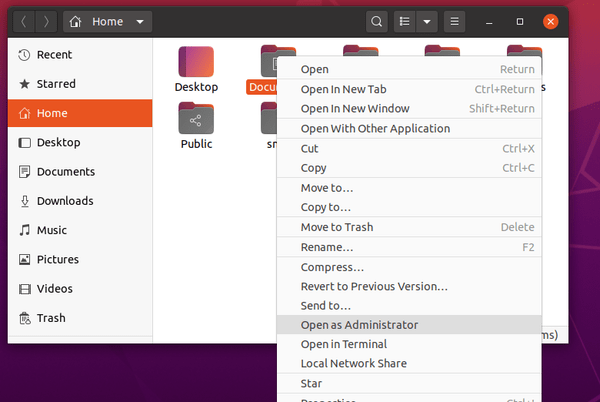
  • Add ‘Open in Terminal’ command in folder tree context menu.
  • Updated app icon to follow the new GNOME style.
  • And many other changes.

How to Install gThumb 3.9.1 in Ubuntu:

Dariusz Duma’s PPA has made the new release packages for Ubuntu 18.04, Ubuntu 19.10, Ubuntu 20.04, Linux Mint 19.x, and their derivatives.

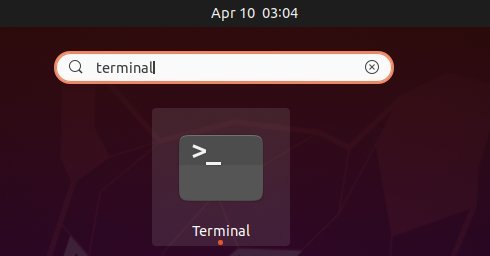
1.) Open terminal either via Ctrl+Alt+T keyboard shortcut or by searching for terminal from application menu. When it opens, run command to add the PPA:

sudo add-apt-repository ppa:dhor/myway

Type user password (no asterisk feedback) for sudo prompt and hit Enter to continue.

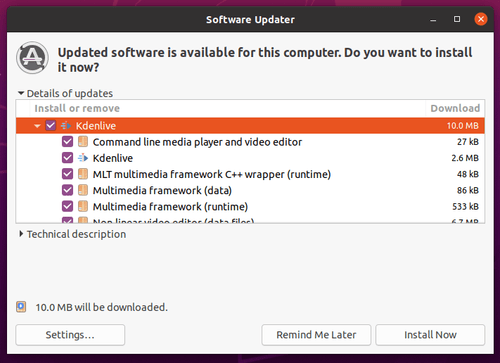
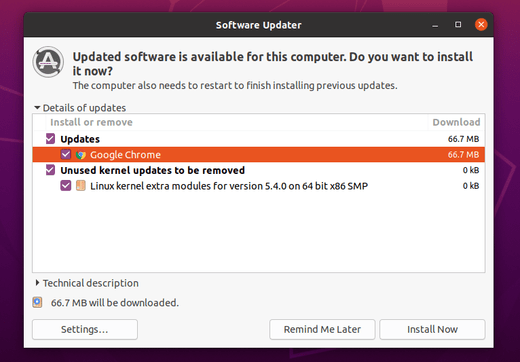
2.) If an old version was installed, upgrade it using Software Updater:

or run commands in terminal to install or upgrade the image viewer:

sudo apt update && sudo apt install gthumb

Uninstall:

To remove the PPA, either open Software & Updates and navigate to Other Software tab, or run command in terminal:

sudo add-apt-repository --remove ppa:dhor/myway

And you can remove gThumb via command:

sudo apt remove gthumb gthumb-data

gnome shell

This quick tutorial shows how to remove the Activities button in the left corner of top-bar in Ubuntu Gnome desktop.

The top-left corner ‘Activities’ button shows all opened application windows with a search box on the top and workspaces on the right. Some users find it useless and want to remove the button. And it can be done easily via a Gnome Shell extension.

1. Open Ubuntu Software, search for and install Hide Activities Button.

Install the first one. So far, it supports Gnome up to v3.34 (shipped in Ubuntu 19.10). Done!

2. To manage the extension, install and launch Gnome Tweaks via Ubuntu Software, then go to Extensions tab.

Gscan2pdf, a graphical tool to produce PDF / DjVu from scanned document, released version 2.6.5 with some bug fixes and improvements. Here’s how to install it in all current Ubuntu releases.

As a new monthly release, Gscan2pdf 2.6.5 includes following changes:

  • Fixed bug when editing page number causing page to deselect and thumbnails to scroll to top of list
  • Use a scrolled window in the multiple message dialog to prevent it from growing too large.
  • Use the “Don’t show these messages again” checkbox to switch the checkboxes for the individual messages. Set the button inconsistent if the states are not all the same.
  • Fix warning message about pdftk (again) by making sure that user-defined tmp directory is available in time.
  • Improve responsiveness with OCR output (again)
  • Select # pages = all when switching from reverse->facing.
  • Show “waiting” cursor for longer to prevent scans from being started before all options applied.
  • Respect ‘Use timezone from locale’ option when setting file system timestamp
  • Updated translations.

How to Install gscan2pdf 2.6.5 in Ubuntu:

The official Gscan2PDF PPA has made the new release packages for all current Ubuntu releases, and their derivatives, including Ubuntu 16.04, Ubuntu 18.04, Ubuntu 19.10, Ubuntu 20.04, Linux Mint 18.x and 19.x

1. Open terminal either by pressing Ctrl+Alt+T on keyboard or by searching for ‘terminal’ from application menu. When it opens, run command to add the PPA:

sudo add-apt-repository ppa:jeffreyratcliffe/ppa

Type user password (no asterisk feedback due to security reason) when it prompts and hit Enter.

2. For those who have a previous release installed, upgrade it through Software Updater:

upgrade gscan2pdf

Or run following command in terminal to install or upgrade the software:

sudo apt update && sudo apt install gscan2pdf

How to Remove:

To remove gscan2pdf, either use your system package manager or run command:

sudo apt-get remove --autoremove gscan2pdf

And the PPA can be removed via Software & Updates utility, under Other Software tab.

OpenShot Video Editor

OpenShot video editor 2.5.1 was released a day ago. Here’s how to install it in Ubuntu 16.04, Ubuntu 18.04, Ubuntu 19.10, and derivatives via PPA.

OpenShot 2.5.1 features faster performance, huge optimizations with effects, and improved UTF-8 character support. Release highlights include:

  • UTF-8 Project Encoding Bug Fix (for non-ASCII characters)
  • Auto-Repair UTF-8 Corrupted Projects
  • Thumbnail Server UTF-8 Encoding
  • Fixed Broken Color-Shift and Shift Effects
  • Optimize Saturation, Hue, Blur, Wave, Brightness, Pixelate Effects
  • Frame: Fix interlaced AddImage
  • Raise Preview Cache to CPUs X 8 Frames (max 64)
  • Enhance Json Data Handling
  • Improve Travis Speed (remove homebrew from Mac builds)
  • Auto-Update HEX Version (for older CMake versions)

How to Install OpenShot 2.5.1 in Ubuntu:

1. Open terminal from software launcher (or press Ctrl+Alt+T), when it opens, run command to add the PPA:

sudo add-apt-repository ppa:openshot.developers/ppa

Type user password (no asterisk feedback due to security reason) when it prompts and hit Enter.

2. Then run following commands one by one to refresh repository cache and install OpenShot:

sudo apt update

sudo apt install openshot-qt

Also it’s recommended to upgrade your system libraries via sudo apt upgrade to avoid launching issue.

Uninstall:

To uninstall openshot video editor, run following command in terminal:

sudo apt-get remove --autoremove openshot-qt

And remove the PPA by launching “Software & Updates” and navigating to Other Software tab.

Kodi Media Center 18.6 now is available to install via its official PPA in Ubuntu 16.04, Ubuntu 18.04, Ubuntu 19.10, and their derivatives.

Kodi 18.6 is a maintenance release contains mainly bug-fixes and stability improvements. It’s not officially announced at the moment. According to the changelog, changes in the new release include: add image mime type for support over imagedecoder.raw, fix launching zip and 7z files from MyGames, fix error playing disk image games, remove now superflous HeadSet check, Remove Headphone check, and much more other changes.

How to Install Kodi 18.6 in Ubuntu:

The Kodi stable PPA has made the new release packages for Ubuntu 16.04, Ubuntu 18.04, Ubuntu 19.04, and Ubuntu 19.10.

1. Open terminal either from application menu or by pressing Ctrl+Alt+T on keyboard. When it opens, run command to add the PPA:

sudo add-apt-repository ppa:team-xbmc/ppa

Type user password (no asterisk feedback) when it prompts and hit Enter to continue.

2. Then either upgrading Kodi from an existing version via Software Updater:

upgrade Kodi

or refresh system package cache and install Kodi 18.6 via commands:

sudo apt update

sudo apt install kodi

Uninstall:

To remove the Kodi PPA repository, simply open Software & Updates -> Other Software.

To remove Kodi, run command:

sudo apt remove --autoremove kodi kodi-data kodi-bin

opera web browser

Opera web browser 67 was released a few days ago with tab organization redefined via a new tool called ‘Workspaces’.

Often have your browser with too many tabs open? With Opera 67, opened tabs can be grouped into different workspaces. And you can easily switch workspaces via the icons in the left sidebar.

You can add up to 5 workspaces, name them, and designate their icons. Tabs can be moved to the workspace of your choice via their context (right-click) menu.

Other new features in Opera 67 include:

  • Highlight duplicated tabs when hover mouse pointer over a tab.
  • New tab-cycler via Ctrl+Tab shortcut.
  • Sidebar setup panel via the three-dot icon in the bottom left.
  • Improved security with DNS over HTTPS
  • Improved Video pop-out (picture in picture)

How to Install Opera 67 in Ubuntu:

The Opera team offers snap package (runs in sandbox), available to install in Ubuntu Software:

Also the native Ubuntu .deb package is available for downloading at the link below:

Download Opera for Linux

Grab the .deb package, and double-click to install it.

If you installed Opera via the .deb package, you may also add the official apt repository via following steps to receive future software updates.

1. Open terminal (Ctrl+Alt+T) and run command to add the opera repository:

sudo sh -c 'echo "deb http://deb.opera.com/opera-stable/ stable non-free" >> /etc/apt/sources.list.d/opera.list'

2. Get the key:

wget -O - http://deb.opera.com/archive.key | sudo apt-key add -

Finally either install Opera via following command or upgrade the browser via Software Updater:

sudo apt update

sudo apt install opera-stable

Uninstall:

For the Opera snap package, simply remove it from Ubuntu Software.

For the Opera apt repository, launch Software & Updates and navigate to Other Software tab.

To remove traditional opera package, either use your system package manager or run command in terminal:

sudo apt remove --autoremove opera-stable

GIMP extra color palettes

GIMP image editor 2.10.18 was released a day ago with new features and usability improvements. Here’s how to install it in Ubuntu.

Due to a critical bug, v2.10.16 was skipped and GIMP 2.10.18 was released with following release highlights:

  • Tools now grouped in the toolbox by default.
  • Sliders now have a compact style by default.
  • Vastly improved user experience for the transformation preview
  • Dockable areas now highlighted when a dockable dialog is being dragged
  • New 3D Transform tool to rotate and pan items
  • Much smoother brush outline preview motion on the canvas
  • Symmetry painting enhancements
  • Faster loading of ABR brushes
  • PSD support improvements
  • Consolidated user interface for merging down and anchoring layers
  • Update check to notify users of new releases available
  • Various bug-fixes, and translation updates.

Install GIMP 2.10.18 in Ubuntu:

Neither the PPA repository nor GIMP Snap package are updated to v2.10.18 at the moment of writing.

However, GIMP Flatpak package has been updated for Ubuntu 18.04 and higher. Simply open terminal from application menu and run following commands one by one:

  • 1. Install flatpak framework:
    sudo apt install flatpak

  • 2. Add flathub repository:
    flatpak remote-add --if-not-exists flathub https://flathub.org/repo/flathub.flatpakrepo

  • 3. Install GIMP flatpak package:
    flatpak install flathub org.gimp.GIMP

  • 4. If an old GIMP Flatpak version was installed, update it via command:
    flatpak update flathub org.gimp.GIMP

GIMP Flatpak co-exists with Snap and native .deb packages. Run command to start it if you have more than one GIMP icon, and don’t know which one to run.

flatpak run org.gimp.GIMP

Uninstall GIMP Flatpak package:

To remove the flatpak package, simply run command:

flatpak uninstall flathub org.gimp.GIMP

This simple tutorial shows how to install the latest drop-down terminal Guake 3.10 in Ubuntu 18.04, Ubuntu 20.04, and Ubuntu 22.04.

Guake is an open-source drop-down terminal for Gnome desktop. While the software in Ubuntu main repository is old, the latest Guake 3.7 was released with following changes:

  • Add tab selection popover in each notebook
  • Add fullscreen hide tabbar option
  • Set custom colors for each terminal tab.
  • Add --select-terminal and --selected-terminal options to Guake CLI
  • Adds an option to display only the last directory on the current path as the tab name.
  • Reworked the tab name selection to use a drop-down menu.
  • Unfullscreen through D-Bus interface, as well as through CLI.
Guake Split Terminal Screen

Guake Split Terminal Screen

How to Install Guake in Ubuntu:

For Ubuntu 24.04 and higher, the latest Guake 3.10 is available in system repositorry. Simply open terminal (Ctrl+Alt+T) and run command to install:

sudo apt update; sudo apt install guake

Linux Uprising team maintains a PPA repository that contains the latest packages for Ubuntu 18.04, Ubuntu 20.04, Ubuntu 22.04.

1.) Open terminal and run command to add the PPA:

sudo add-apt-repository ppa:linuxuprising/guake

Type user password, no asterisk feedback, when it prompts and hit Enter to continue.

2.) Then run command to install the drop-down terminal application via commands:

sudo apt update

sudo apt install guake

Once installed, launch Guake Preferences from system application menu, configure the keyboard shortcuts, and other preferences, and then you can either use the top-right indicator applet, or the shortcut key to drop-down the terminal from top.

If an old version was installed previously, you may first kill Guake process or just reboot your machine to make it well working.

Uninstall:

To remove the PPA, simply go to Software & Updates -> Other Software, then remove the repository line.

MyPaint 2.0, free open-source raster graphics editor for digital painters, was finally released after more than a year of development.

MyPaint 2.0 is a new major release that features a new layer mode and uses linear compositing by default.

  • Linear compositing and spectral blending (pigment).
  • Full Python3 support
  • Layer views.
  • Brush strokes dependent on view rotation and view zoom.
  • Additional symmetry modes: vertical, vertical+horizontal, rotational, snowflake.
  • Expanded flood fill functionality: offset, feather, gap detection and more.
  • New brush settings: offsets, gridmap, additional smudge settings, posterize, pigment.
  • New brush inputs: barrel rotation, base radius, zoom level, gridmap x/y, direction 360, attack angle.

How to Install MyPaint 2.0 in Ubuntu:

So far, there’s only .appimage available in the Github releases page. Go to the following link, scroll down, and select download the ‘MyPaint-v2.0.0.AppImage‘ package.:
Download MyPaint [.Appimage]

Then right-click on the .appimage file, go to Properties -> Permissions, and finally make it executable by checking the box says ‘Allow executing file as program’.

Finally run the .appimage file from its context menu to launch MyPaint and enjoy!

Ubuntu 18.04

The fourth point release Ubuntu 18.04.4 LTS was released. Here’s how to install the new Linux Kernel 5.3 and Xorg in your current Ubuntu 18.04 machine.

Ubuntu 18.04.4 comes with an updated “hardware enablement stack” (HWE) from Ubuntu 19.10, including Kernel 5.3 that enables the latest hardware and peripherals available from IBM, Intel, and others.

It was announced last night:

The Ubuntu team is pleased to announce the release of Ubuntu 18.04.4 LTS (Long-Term Support) for its Desktop, Server, and Cloud products, as well as other flavours of Ubuntu with long-term support.

Like previous LTS series, 18.04.4 includes hardware enablement stacks for use on newer hardware. This support is offered on all architectures and is installed by default when using one of the desktop images.

Ubuntu Server defaults to installing the GA kernel; however you may select the HWE kernel from the installer bootloader.

How to Upgrade to Ubuntu 18.04.4:

Besides downloading the ISO image, installing all available updates via Software Updater will bring you to the latest point release in the current Ubuntu 18.04 machine.

If you never installed the “hardware enablement stack” in your Ubuntu 18.04 machine, you may also do:

To install the 5.3 Kernel, you may need to run following command in terminal:

sudo apt-get install --install-recommends linux-generic-hwe-18.04

Or run command to install both new kernel and Xorg Server stack:

sudo apt-get install --install-recommends linux-generic-hwe-18.04 xserver-xorg-hwe-18.04

Once installed, restart and enjoy!

How to remove the new hardware enablement stack:

To remove the new v5.3 kernel, first reboot and choose previous kernel from Grub boot-loader > Advanced options. Then run command:

sudo apt remove linux-image-unsigned-5.3*generic linux-image-5.3*generic

To remove the new Xorg packges, run command:

sudo apt remove xserver-xorg-*-hwe-18.04

And you DO HAVE to install back the old xorg packages via command:

sudo apt install xorg