Want to share your files over local network or transfer file from one PC to another PC? Here are a few commonly used ways to do the job in Ubuntu 22.04 LTS.
Option 1: Share Folder Temporarily via Python scripts:
Without installing any package, user may run a built-in Python script at any time to create a http file server for temporary use. Any device (Windows, Mac, Linux PC, and mobile phones) can access or download the files via a web browser.
NOTE: This method seems to be not working good for transfer large files (1 GB+).
1. First, right-click on the folder you want to share. Then click on “Open in Terminal” option in the context menu to open terminal.
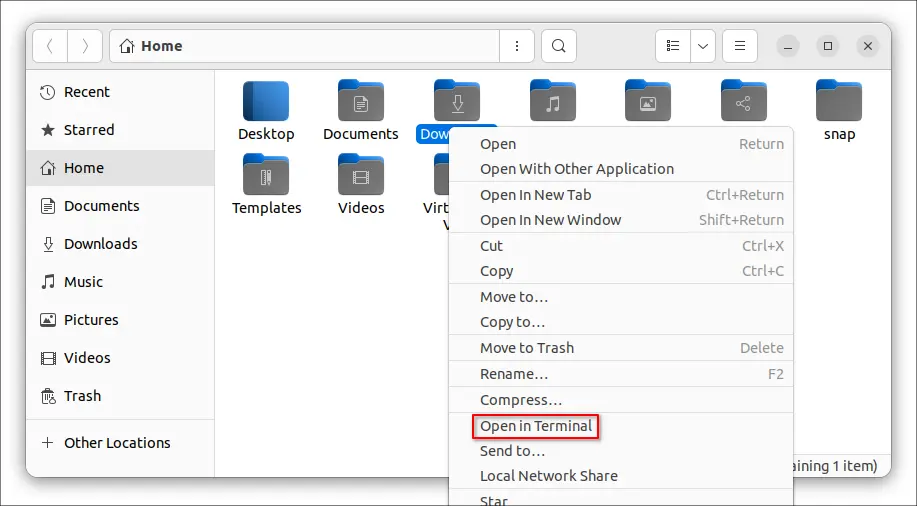
2. Next, run command to share this folder content over LAN via command:
python3 -m http.server
In case the default listening port 8000 is already in use, you may specify another port (9001 for example) via command:
python3 -m http.server 9001
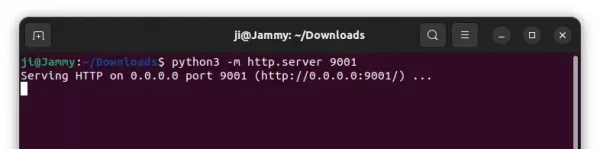
Now, in any device’s web browser, go to http://ubuntu-machine-ip:9001 (change the port accordingly, default is 8000). Click to open file directly or right-click and select “save as …” to download file.
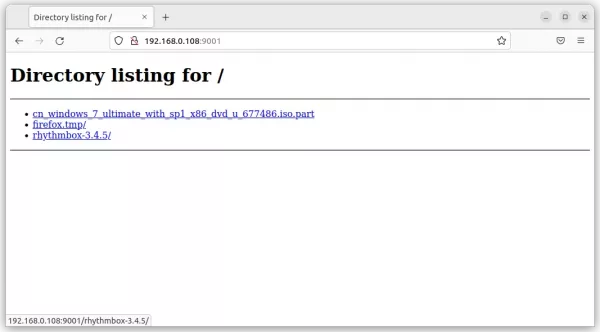
To stop sharing the folder, either press Ctrl+C in terminal window or just close it.
Option 2: Use Dukto file transfer
If you transfer files regularly from one PC to another, then the open-source “Dukto” app is a good choice that works on Linux, MacOS, and Windows machines.
Just open the app in both machines, it will detect each other automatically and offer options to transfer file/folder, and send text.
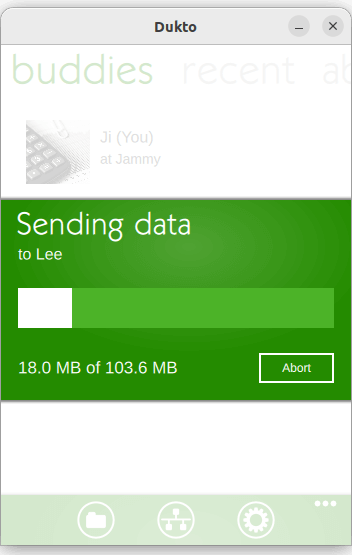
Though the app has not been updated for years, it’s still working very well! Mac and Windows users may download & install the app packages from:
For Ubuntu user, the package in previous link does not install due to dependency issue. However, the Qt6 port from this Ubuntu PPA is available for all current Ubuntu releases.
Simply open terminal by pressing Ctrl+Alt+T on keyboard, and run following commands one by one will add the PPA and install Dukto in Ubuntu:
sudo add-apt-repository ppa:xuzhen666/dukto
sudo apt update
sudo apt install dukto
Option 3: Share Folder via Samba
If you want to share a folder for long time use, it’s better to use the samba file sharing service. This can be done easily in Ubuntu, since “Files” (Nautilus file manager) provides a context menu option to do the job.
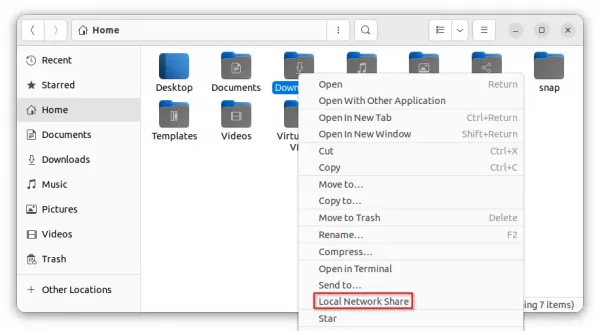
1.) Firstly, right-click on the folder you want to share. Then, click on the “Local Network Share” menu option.
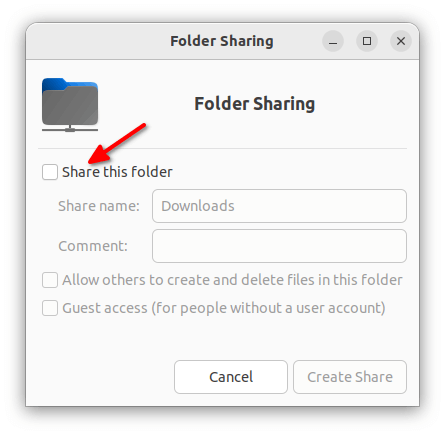
2.) In the pop-up dialog, enable the checkbox which says “Share this folder”.
3.) If you’re doing this for the first time, it will prompt to install the samba sharing service.
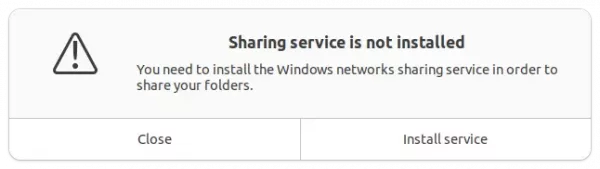
Just click “Install service” and confirm in next dialog to install the required packages.
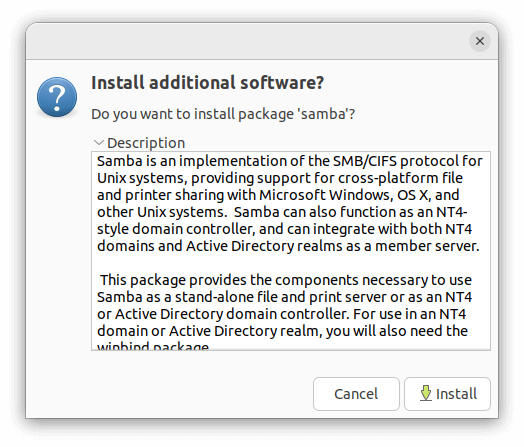
4.) After installing them, go back to the previous dialog in step 1.). Enable “Share this folder” and tick “Guest access” and “Allow others to create and delete …” accordingly.
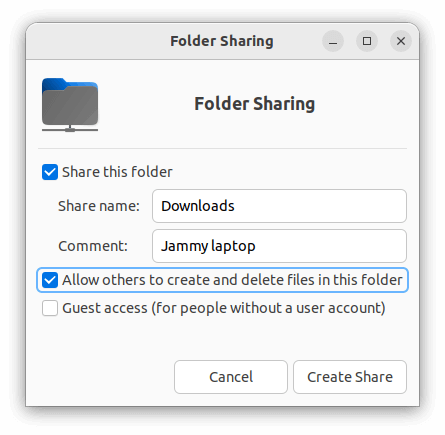
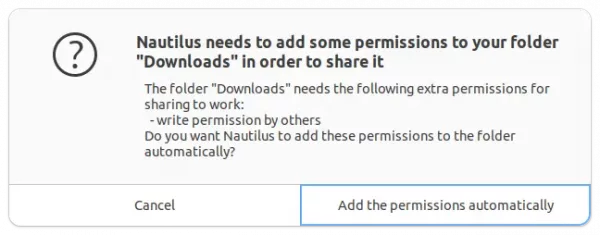
If you enabled the write permission (“Allow others to create and delete …”), it will prompt to change the folder permissions.
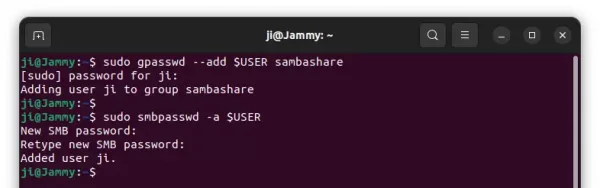
5.) If you got “‘network share’ return 255” error, open terminal (Ctrl+Alt+T) and run command to add current user to ‘sambashare’ group should fix the issue after logged out and back in.
sudo gpasswd --add $USER sambashare
And, if you didn’t enable guest access then a separated password has to be added for authentication:
sudo smbpasswd -a $USER
To access this samba share:
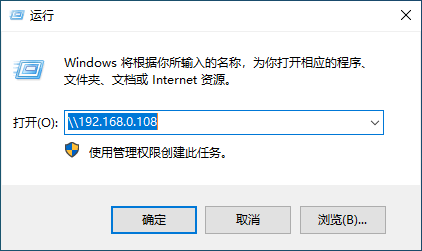
For Windows user, press Window key + R on keyboard to open “Run” box, and type \\ubuntu-machine-ip. Then type username and password you set in previous step to access this folder.
For Linux user (only tested in GNOME), open “Files -> Other Locations” and type smb://ubuntu-machine-ip in button to connect.
For MacOS, press command + K on keyboard to open Connect to Server dialog, type smb://ubuntu-machine-ip and hit Enter to access.