Archives For jimingkui

youtube ustream livestreamWant to watch live streams on Ubuntu via your favorite video player? Well, here’s how to do it using Livestreamer which supports most of the big streaming services such as Dailymotion, Livestream, Twitch/Justin.tv, YouTube Live, UStream.

Livestreamer is a Command Line Interface that pipes video streams from various services into a video player, such as VLC, Mplayer. The main purpose of Livestreamer is to allow the user to avoid buggy and CPU heavy flash plugins but still be able to enjoy various streamed content.

There is also an API available for developers who want access to the video stream data.

It’s very easy to use this tool. Let’s say you want to watch the stream located on http://twitch.tv/day9tv, just run below command in terminal (press Ctrl+Alt+T to open it).

livestreamer twitch.tv/day9tv

[cli][info] Found matching plugin justintv for URL twitch.tv/day9tv
Found streams: 240p, 360p, 480p, 720p (best), mobile_high, mobile_low (worst)

It will find out what streams are available and print them out for you to choose from. Simply give livestreamer the stream as the second argument and playback will start in your video player of choice.

In this case the best stream is a reference to the stream that is considered to be of highest quality, e.g 720p. The –player argument will specify the video player (It will open VLC as the default player if not specified).

livestreamer twitch.tv/day9tv best --player mplayer

live streams ubuntu

Install Livestreamer in Ubuntu, Linux Mint

Press Ctrl+Alt+T on your keyboard to open terminal. When it opens run below commands to install pip installer:

sudo apt-get install python-pip

Then install Livestreamer via pip:

sudo pip install livestreamer

This will work on all current supported Ubuntu releases, include Ubuntu 13.10, Ubuntu 13.04, Ubuntu 12.10, Ubuntu 12.04, Ubuntu 10.04 and their derivatives such as Linux Mint and Elementary OS.

linux kernel logoThe Linux Kernel 3.10.11 has been released. All users of the 3.10 LTS kernel series are urged to upgrade as soon as possible. Here’s how to install or upgrade in Ubuntu 13.04, Ubuntu 12.10, Ubuntu 12.04 and Linux Mint.

This maintenance release introduces ARM, x86, and PowerPC fixes, as well as many updated drivers, including Nouveau, i915, iSCSI, and a few wireless ones. See the official announcement.

Install / Upgrade Kernel 3.10.11:

Press Ctrl+Alt+T on your keyboard to open terminal. When it opens, run below commands to download the DEBs.

for 32-bit system:

wget http://kernel.ubuntu.com/~kernel-ppa/mainline/v3.10.11-saucy/linux-headers-3.10.11-031011-generic_3.10.11-031011.201309080217_i386.deb

wget http://kernel.ubuntu.com/~kernel-ppa/mainline/v3.10.11-saucy/linux-headers-3.10.11-031011_3.10.11-031011.201309080217_all.deb

wget http://kernel.ubuntu.com/~kernel-ppa/mainline/v3.10.11-saucy/linux-image-3.10.11-031011-generic_3.10.11-031011.201309080217_i386.deb

for 64-bit system:

wget http://kernel.ubuntu.com/~kernel-ppa/mainline/v3.10.11-saucy/linux-headers-3.10.11-031011-generic_3.10.11-031011.201309080217_amd64.deb

wget http://kernel.ubuntu.com/~kernel-ppa/mainline/v3.10.11-saucy/linux-headers-3.10.11-031011_3.10.11-031011.201309080217_all.deb

wget http://kernel.ubuntu.com/~kernel-ppa/mainline/v3.10.11-saucy/linux-image-3.10.11-031011-generic_3.10.11-031011.201309080217_amd64.deb

Then install them via below command:

sudo dpkg -i linux-headers-3.10.11*.deb linux-image-3.10.11*.deb

If you’re not comfortable with command line. Download & install the Debs from the kernel ppa.

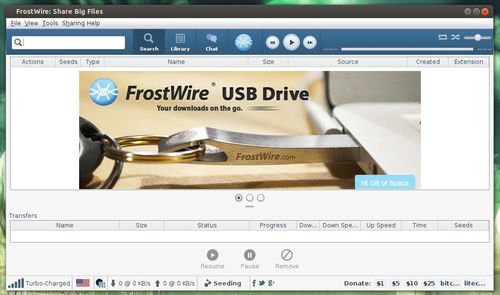
As you may know, FrostWire is a free and high quality BitTorrent client. The latest version 5.6.4 fixed a few bugs and updated translations.

FrostWire Bittorrent client

  • Fixes issues parsing some cloud urls.
  • Fixes issues with soundcloud meta search.
  • Spanish translation updated.
  • French translation updated. Thanks @jeromemorignot.
  • Portuguese translation updated. Thanks @tati110.
  • Brazilian Portuguese translation updated. Thanks @tati110.
  • Arabic translation updated. Thanks @nisrmasr.
  • Turkish translation updated. Thanks @Serrae.

Interested? Here’s how to install or upgrade in Ubuntu 13.10, Ubuntu 13.04, Ubuntu 12.10, Ubuntu 12.04 and their derivatives.

Before getting started, you need to install OpenJDK from Ubuntu Software Center or install Oracle Java via ppa

1.) You can always download the latest Debs for Ubuntu based system from the official download link:

Download FrostWire for Ubuntu

Then double click to install the Deb via pop-up Ubuntu Software Center.

2.) The other way to install FrostWire is using the GetDeb repository. Press Ctrl+Alt+T on your keyboard to open terminal. When it opens, run below commands one by one:

wget http://archive.getdeb.net/install_deb/getdeb-repository_0.1-1~getdeb1_all.deb

sudo dpkg -i getdeb-repository_0.1-1~getdeb1_all.deb

sudo apt-get update; sudo apt-get install frostwire

The Elementary OS Luna – Ubuntu 12.04 Precise based system – comes with lightweight browser Midori. To get Flash working for it, you’ll need to install ndiswrapper and do some tweaking. It’s not difficult, just folow the below steps, copy and paste commands into terminal and hit enter to run.

1.) To get started, press Ctrl+Alt+T on your keyboard to open terminal. When it opens, run command to install the flashplugin-installer.

sudo apt-get install flashplugin-installer nspluginwrapper

install flash for eos

2.) Then run below commands one by one to get the flash working.

sudo nspluginwrapper -i /usr/lib/flashplugin-installer/libflashplayer.so

nspluginwrapper -v -a -n -i

enable flash for eos

That’s it. Restart your browser and enjoy!

UPATE: As KW said, if previous commands does not work, just move the libflashplayer.so file to the /usr/lib/mozilla/plugins folder

As you may know, Aegisub is a free, cross-platform open source tool for creating and modifying subtitles. Aegisub makes it quick and easy to time subtitles to audio, and features many powerful tools for styling them, including a built-in real-time video preview.

Aegisub-logo

Aegisub is available in Ubuntu Software Center since Ubuntu 12.10 Quantal, but it’s old. At the moment, the latest version is 3.0.4 and it’s available for downloading at the below links:

aegisub_3.0.4-1_i386.deb

aegisub_3.0.4-1_amd64.deb

Or you can check out all Debs from the official ftp download page.

Once downloaded, you can install it in Ubuntu 13.10, Ubuntu 13.04, Ubuntu 12.04 and their deviratives such as Linux Mint and Elementary by running below commands in terminal (Ctrl+Alt+T):

sudo dpkg -i ~/Downloads/aegisub_*.deb; sudo apt-get -f install

Or you can directly double-click to install the Deb if there’s no dependency problem.

aegisub subtitle editor

Audacious 3.4.1 Released, Install it in Ubuntu

Last updated: September 6, 2013

audacious logoThe Audacious music player has released version 3.4.1. It mainly fixed below bugs:

  • no gapless playing with ALSA output #314
  • .minipsf looks for .psflib one directory level up #316
  • Tray icon missing after restarting xfce4-panel #317
  • Neon plugin fails to play stream over proxy with authentication. # 319
  • Buffer size too small for HVSC songlengths db #326
  • no metadata display for opus files #329
  • metadata updating failed and other weird tag issues #332
  • file writer flac does not write tags #334
  • Fix skinned ui not being drawn properly with gtk-3 >= 3.9 #336

Install Audacious in Ubuntu:

The Webupd8 Team PPA has updated the packages for Ubuntu 13.10, Ubuntu 13.04, Ubuntu 12.10, Ubuntu 12.04 and their derivatives, such as Linux Mint and Elementary OS.

To install it, press Ctrl+Alt+T on your keyboard to open terminal. When it opens, run below command to add the ppa:

sudo add-apt-repository ppa:nilarimogard/webupd8

Then install / upgrade Audacious via:

sudo apt-get update; sudo apt-get install audacious audacious-plugins

That’s it. Enjoy!

The Choqok micro-blogging client has updated to version 1.4 which brings back the Twitter support. Identi.ca support has been removed from StatusNet plugin.

choqok 1.4

The developer announced in the official website:

Sometimes ago we had two bad news, Identi.ca service switched to pump.io software and dropped it’s API, so Choqok is no longer support Identi.ca service, but it still supports StatusNet websites, because StatusNet is not died. About Identi.ca support, right now there’s no one working on pump.io support as I know, so unfortunately there’s no promise on supporting it again.
And in Twitter land, they turned off support for API v1.0 which Choqok was using, and so with this update Twitter support is back to Choqok.

other changes:

  • Support for Twitter API v1.1 (Thanks to Daniel Kreuter for his effort on it)
  • “mark timeline as read” menu item added to tabs context menu (Lim Yuen Hoe)
  • Show “in reply to” in twitter search timelines (Lim Yuen Hoe)
  • Identi.ca support removed from StatusNet plugin, we still support StatusNet
  • And some other minor fixes

Install Choqok 1.4 in Ubuntu:

Press Ctrl+Alt+T on your keyboard to open terminal. When it opens, run below commands to install the client in Ubuntu 13.10, Ubuntu 13.04, Ubuntu 12.10, Ubuntu 12.04 and their derivatives.

sudo add-apt-repository ppa:adilson/experimental

sudo apt-get update

sudo apt-get install choqok

One Command to Convert .NRG to .ISO in Ubuntu Linux

Last updated: September 4, 2013

NRG A .nrg file is a proprietary CD image file format used by Nero Burning ROM. In Ubuntu Linux, you can easily convert the .nrg to .iso file using the command line tool nrg2iso.

nrg2iso is available in Ubuntu universe repository. You can install it using Ubuntu Software Center. Or run below command if you’re on Ubuntu Server without GUI:

sudo apt-get update; sudo apt-get install nrg2iso

Once installed, you can convert .NGR file to .ISO via one command. For example:

nrg2iso image.nrg image.iso

That’s it. Enjoy!

This tutorial shows how to install Light Table IDE in Ubuntu 13.10, Ubuntu 13.04,12.10, 12.04 and manually create launcher for Unity Desktop.

As you may know, Light Table is a new interactive IDE that lets you modify running programs and embed anything from websites to games. It provides the real time feedback we need to not only answer questions about our code, but to understand how our programs really work.

LightTable IDE Ubuntu

Install Light Table IDE:

1.) Download Light Table from its homepage

2.) For global use, extract the download package and put the result folder to /opt/.

3.) You need to open Nautilus file browser as root to copy and paste Light Table Folder to /opt/. To do so, press Alt+F2 on your keyboard and type to run gksudo nautilus

open nautilus as root

Once done, you can open the IDE via command terminal:

/opt/LightTable/LightTable

NOTE: If you have problem launching it in Ubuntu 13.04 Raring Ringtail, run below command to fix:

  • for 32-bit:
    sudo ln -sf /lib/i386-linux-gnu/libudev.so.1 /lib/i386-linux-gnu/libudev.so.0
  • for 64-bit:
    sudo ln -sf /lib/x86_64-linux-gnu/libudev.so.1 /lib/x86_64-linux-gnu/libudev.so.0

Create Launcher for Light Table

1.) Press Ctrl+Alt+T on your keyboard to open terminal. When it opens, run below commands to install required package:

sudo apt-get install gnome-panel --no-install-recommends

2.) Bring up the ‘Create Launcher’ dialog via below command:

sudo gnome-desktop-item-edit /usr/share/applications/ --create-new

Type in:

Name: Light Table
command: /opt/LightTable/LightTable
choose icon from /opt/LightTable/core/img/lticon.png

Light Table in Ubuntu unity

DrJava LogoAs you may know, DrJava is a lightweight programming environment for Java designed to foster test-driven software development. It includes an intelligent program editor, an interactions pane for evaluating program text, a source level debugger, and a unit testing tool.

This tutorial shows you how to install DrJava via getdeb repository in Ubuntu 13.04, Ubuntu 12.04, Ubuntu 12.10, Ubuntu 10.04 and their derivatives such as Linux Mint, Elementary, etc.

To get started, download and install the deb from the below link which will add the GetDeb repository to your system:

Download getdeb package

For Linux Mint, you can directly enable getdeb repository from Software Sources.

To install DrJava, click Reload button and search and install drjava package in Synaptic Package Manager. Or, run below command in terminal (Ctrl+Alt+T):

sudo apt-get update; sudo apt-get install drjava

DrJava Ubuntu

Update-20170107: The tutorial should also works on current Ubuntu releases, including Ubuntu 16.04, Ubuntu 16.10, Ubuntu 14.04 and their derivatives. To uninstall, simply run commands:

sudo apt-get remove drjava && sudo apt-get autoremove

And the getdeb repository can be removed by going to System Settings -> Software & Updates -> Other Software tab.