Archives For Gnome

Remove Top Bar, Left Dock, Other UI Elements in Ubuntu 22.04/20.04

Published: December 21, 2020 — Last updated: April 24, 2024

Want to disable the top panel, left dock launcher, search box, and other Gnome UI elements in Ubuntu 20.04, Ubuntu 22.04, and Ubuntu 24.04 LTS? You can now do it via a Gnome Shell extension.

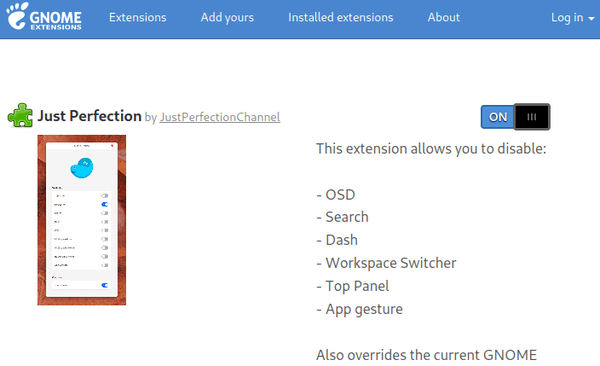
Just Perfection is an extension allows you to get a super minimal GNOME desktop. It offers a list of options to toggle on / off the visibility of Gnome top bar, Dash (dock launcher), Search (search box in both Activities view and ‘Show Applications’), Hot Corner, OSD (notification pop-up), Workspace popup and workspace switcher, Background Menu, App Gesture.
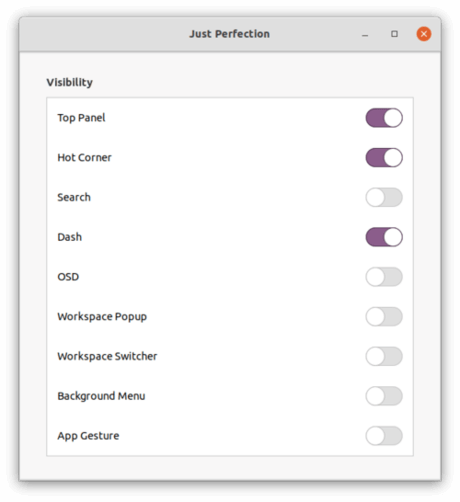
It also overrides the current GNOME shell theme while user themes extension is not required.

To install the extension in Ubuntu 20.04, Ubuntu 22.04, and Ubuntu 24.04., do following steps one by one:

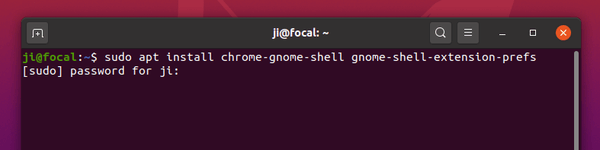
1. Open terminal and run command to install chrome-gnome-shell package if you don’t have it.

sudo apt install chrome-gnome-shell
2. Then go to the extension web page, turn on the toggle icon to install it.
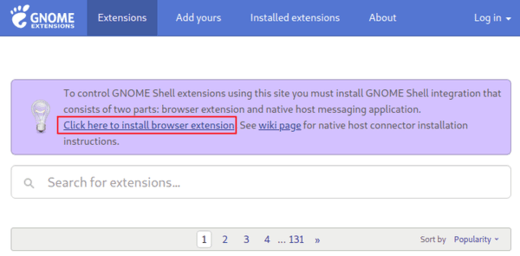
Don’t see the toggle icon? Click the link which says “Click here to install browser extension” to install browser extension and refresh the web page.
NOTE 1: the extension by default disable all the available options. If you want to re-enable any of them, press Ctrl+Alt+T to open terminal and run command:

gnome-tweaks

to bring up Gnome Tweak tool (install it via sudo apt install gnome-tweaks command) and change the settings in Extensions tab.

NOTE 2: At the moment of writing, the extension supports for Gnome from 3.36 to 46. Check the ‘Shell version…’ drop-down box before installing it on your system.


[Quick Tip] Remove ‘Window is Ready’ Notification & Focus Window Immediately

Published: December 13, 2020 — Last updated: April 24, 2024

gnome shell

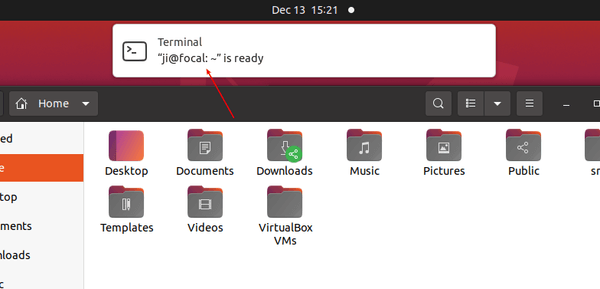
In the default Gnome desktop when you trying to open an application, the app window sometimes does not get into focus immediately, instead it pops up ‘xxx’ is ready notification and opens the window behind the current focused window.

This usually happens when another window is getting focused during the process of launching a desired application.

To get rid of the ‘Window is ready’ notification and focus window immediately, I think a quick enough system response should fix the problem. Besides, you can install “Focus my window” Gnome extension.

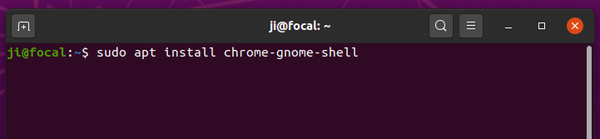
1.) Open terminal (Ctrl+Alt+T) and run command to install chrome-gnome-shell package if you don’t have it.

sudo apt install chrome-gnome-shell

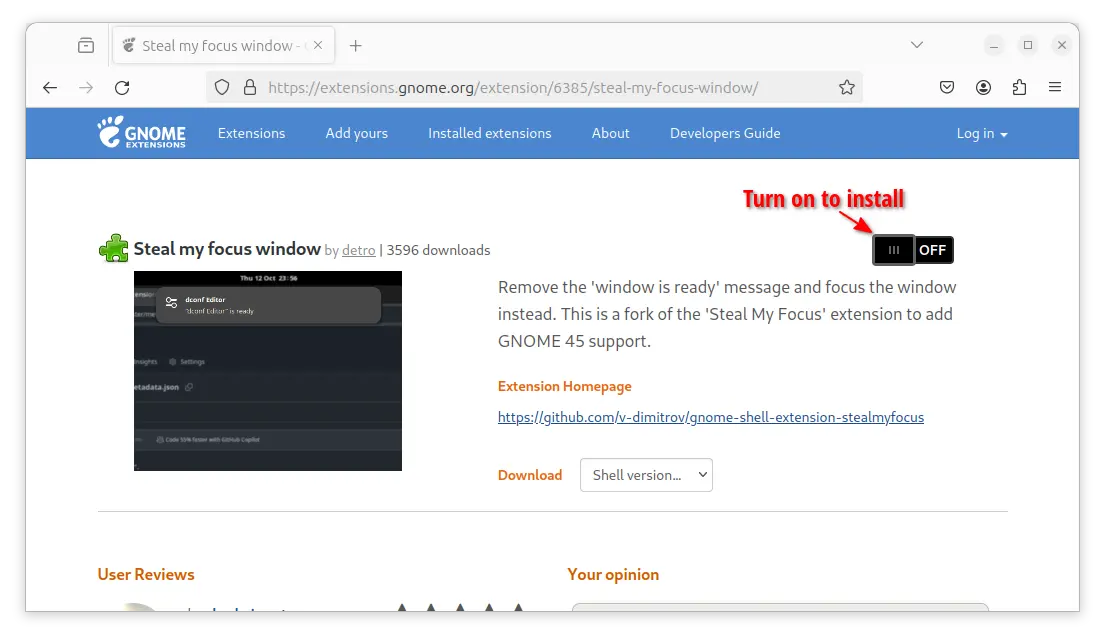
2.) Then go to the extension web page in your browser. Turn on the toggle icon and install it.

NOTE: The old extension is no longer exist. The new one supports only GNOME 45 and 46 so far, meaning for Ubuntu 23.10 and Ubuntu 24.04!.

Don’t see the toggle icon? Click the link “Click here to install browser extension” and finally refresh the page.

That’s it. Enjoy!

(Optional) If you want to remove the gnome shell extensions, either turn off the toggle icon in the web page, or use either Extensions or GNOME Extensions Manager (both available in the new App Center app) utility.

Reduce Top bar Indicator Icon Spacing in Ubuntu 20.04

Published: August 30, 2020 — Last updated: April 24, 2024

gnome shell

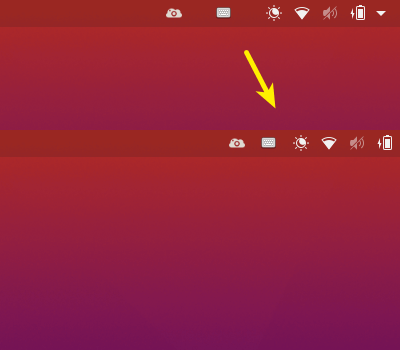
In Ubuntu 20.04 Gnome Shell, application indicator on top panel has wide spaces between icons. You can reduce the icon spacing via an extension called Unite.

Unite is a Gnome Shell extension which makes a few layout tweaks to the top panel and removes window decorations to make it look like Ubuntu Unity Shell. With the extension, your system tray area will look like:

To install the extension, do following steps one by one.

1.) Open terminal (Ctrl+Alt+T) and run command:

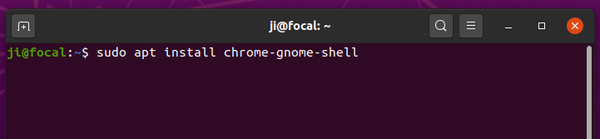
sudo apt install chrome-gnome-shell

2.) Run command to install the extension required x11-utils library:

sudo apt install x11-utils

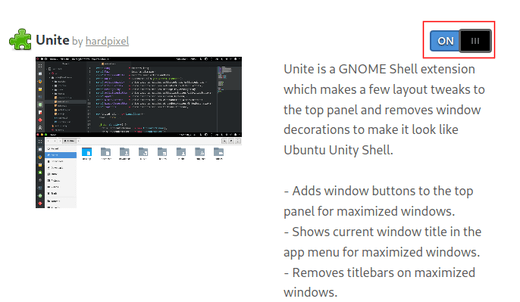
3.) Go to extensions.gnome.org/…/unite/, toggle on and install the extension.

If you don’t see the toggle icon, click link to install browser extension and refresh this web page

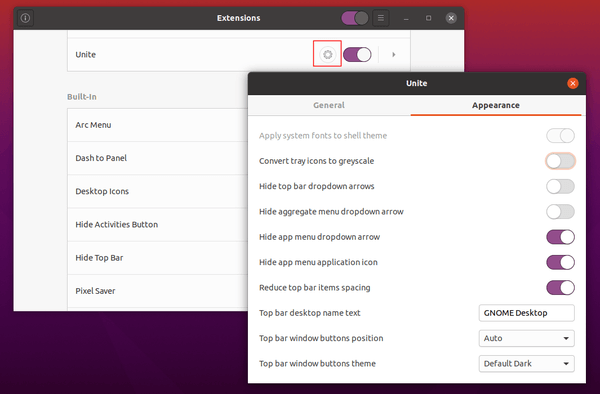
The extension by default reduces top bar item spacing. To tweak other panel appearance, open Gnome Tweaks (or Extensions tool), and go to unite settings.

gpaste for gnome

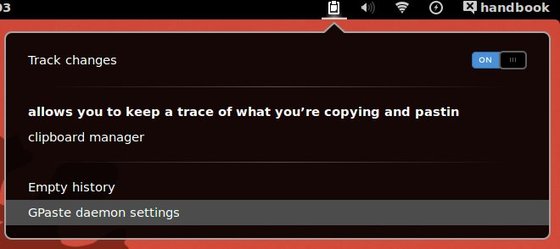
Gpaste is a clipboard manager allows you to keep a trace of what you’re copying and pasting. It is really useful when you go through tons of documentation and you want to keep around a bunch of functions you might want to use, for example. The clipboard manager will store a history of everything you do, so that you can get back to older copies you now want to paste.

Gpaste 3.2.2 and the couple of following ones (3.3 and maybe 3.4) are the last releases supporting GNOME <3.10. Gpaste 3.3 will add an Ubuntu Unity applet.

What’s New in Gpaste 3.2.2:

  • “Paste and Pop” is now only “Pop”
  • Fix SEGV at startup
  • Fix SEGV when deleting last item of history
gpaste extension in Ubuntu 13.10 gnome shell

gpaste extension in Ubuntu 13.10 gnome shell

Install Gpaste entension for Gnome Shell in Ubuntu 13.10

Ubuntu Gnome 13.10 uses GNOME 3.8, so your can run commands below one by one in terminal (Ctrl+Alt+T) to install paste 3.2.2:

sudo add-apt-repository -y ppa:webupd8team/gnome3

sudo apt-get update

sudo apt-get install gnome-shell-extensions-gpaste

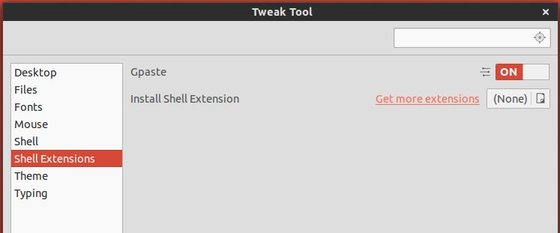
Then log out and back in. Enable this extension in Gnome Tweak Tool:

enable gpaste in gnome shell

enable gpaste in gnome shell