This is a step by step guide shows how to install and try out Myna, Ubuntu’s new offline speech to text feature in Ubuntu 26.04 and Ubuntu 24.04 LTS.
Canonical, the company behind Ubuntu, is developing a voice typing application called Myna. It’s an opt-in feature in Ubuntu 26.10, while the current Ubuntu 26.04 can also try it out.
How it works
Just press a keyboard shortcut and speak naturally, the app will record what you said, then use an AI model to convert the voice to text, finally type the text in your application.
All the process works offline! And, myna is made up of three components:
myna-config– the graphical configuration tool, responsible for choosing which AI model to use (Whisper, Parakeet, or FunASR), set keyboard shortcut, language, etc.- myna client and AI models, installed as snap packages.
- Gnome Shell extension for dictation activity indicator.
Step 1: Install myna-config Graphical Configuration Tool
For user on modern Intel/AMD platform, Ubuntu developer maintains a PPA that contains myna-config package for Ubuntu 24.04 and Ubuntu 26.04.
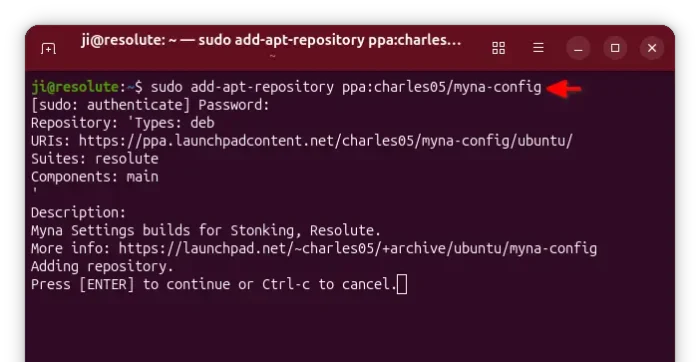
To install the package, first press Ctrl+Alt+T on keyboard to launch terminal, then run command to add PPA:
sudo add-apt-repository ppa:charles05/myna-config
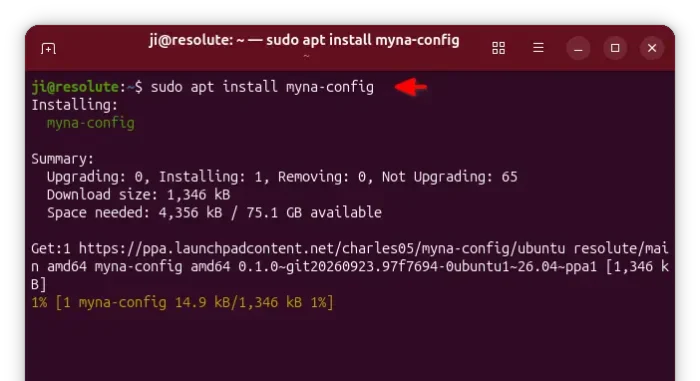
Next, run command to install the configuration tool:
sudo apt install myna-config
If you’re following this tutorial in Linux Mint, then run sudo apt update to refresh cache first.
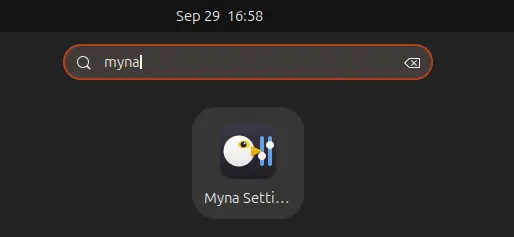
Finally, launch the tool from either Gnome Overview or by running myna-config in terminal.
Step 2: Install Myna Client and AI Models
Both the client app and AI models are available as Snap packages.
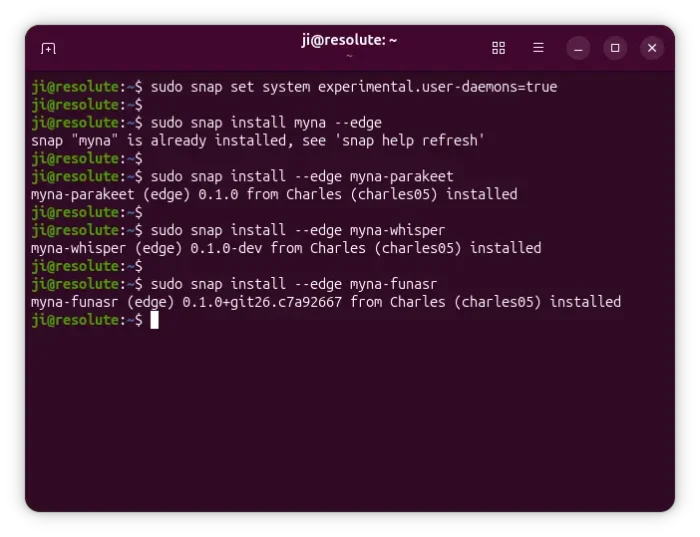
To install then, first launch terminal (Ctrl+Alt+T) then run the commands below one by one:
- First, run command to allow snap packages to run background services as user:
sudo snap set system experimental.user-daemons=true
- Then, install the myna client (so far available in edge repository):
sudo snap install myna --edge
- Finally, download & install AI models (choose one that you prefer, or install all of them):
sudo snap install --edge myna-parakeet
sudo snap install --edge myna-whisper
sudo snap install --edge myna-funasr
Step 3: Install GNOME Shell Extension (only for default GNOME Desktop)
For better integration, you may install myna-shell extension that can display small on-screen overlay showing the status of dictation.
The extension so far is not available in extensions.gnome.org, so you need to manually install it from source.
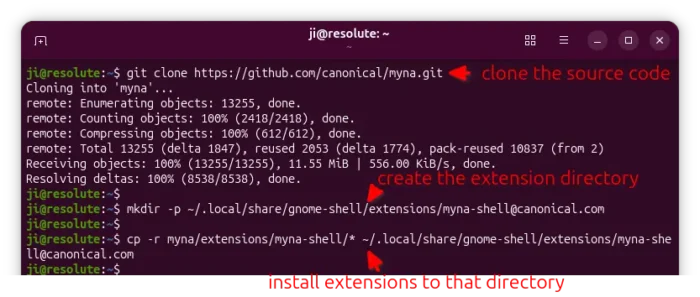
- First, launch terminal (Ctrl+Alt+T) and run command to grab the myna source code:
git clone https://github.com/canonical/myna.git
Run
sudo apt install gitto install if git does not exist. - Create the extension directory:
mkdir -p ~/.local/share/gnome-shell/extensions/[email protected]
- Finally, copy the extension from source to the directory you just created:
cp -r myna/extensions/myna-shell/* ~/.local/share/gnome-shell/extensions/[email protected]
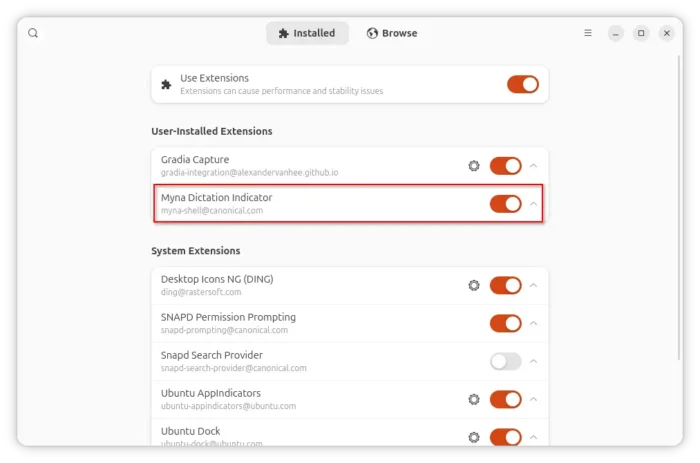
After installed the extension, log out and back in. Then, launch “Extension Manager” (available in App Center / Ubuntu Software as Debian package) and enable that extension.
Configure and Use Myna
Now, launch myna-config, choose AI model, set a keyboard shortcut, your spoken language (e.g., en) and other.
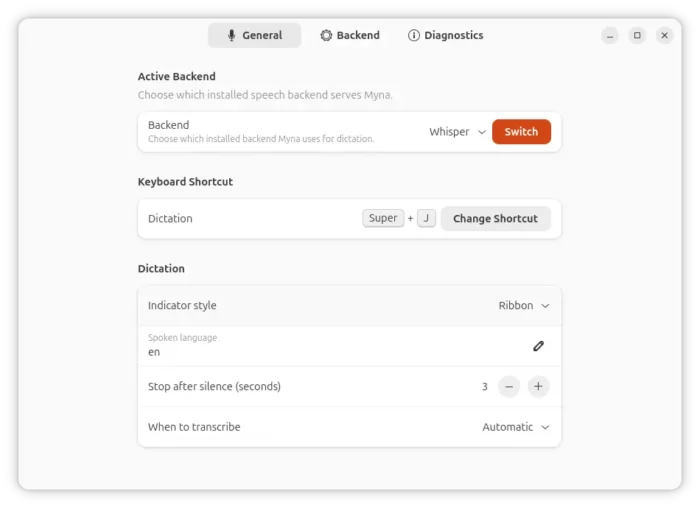
Finally, launch a text editor or application to input, press the keyboard shortcut and speak naturally, and see if it works!
For issues, report to github.com/canonical/myna/issues.
Uninstall:
If you don’t like the new voice typing application, or it does not work properly for you, then launch terminal (Ctrl+Alt+T) and remove it by following steps.
- First, remove the extension either by using “Extension Manager” or by simply removing the source:
rm -R ~/.local/share/gnome-shell/extensions/[email protected]
- Then, remove the client and AI models:
snap remove --purge myna myna-parakeet myna-funasr myna-whisper
- Finally, remove the configuration tool:
sudo apt remove myna-config
Also remove the PPA afterward by running command:
sudo add-apt-repository --remove ppa:charles05/myna-config