Missing the global menu that adds focused application’s menus to the top panel? Here’s an extension that brings it back in recent GNOME Desktops.
Ubuntu previously supported global menus when GNOME 2 and Unity were its default desktop environments. Since GNOME 3, there have been some extensions that implement this feature, but most of them discontinued.
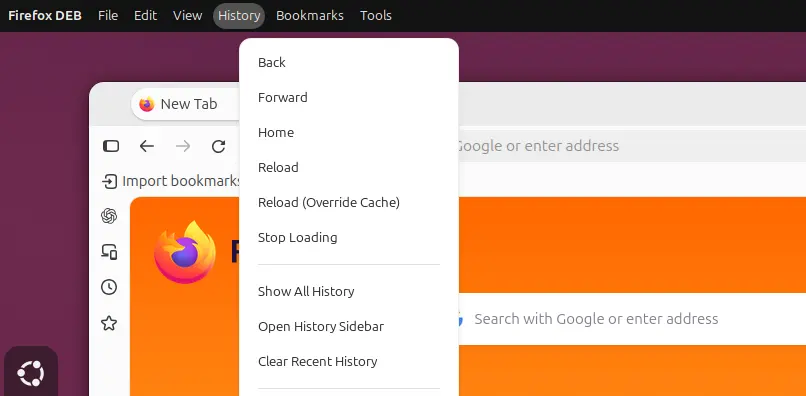
As far as I know, Global Menu for GNOME is the only extension that support the feature in recent GNOME.
However, it shows the same menu regardless of which app is focused, rather than dynamically updating the menu for the focused app.
Orbit Global Menu
In this post I’m going to introduce “Orbit Global Menu“, an extension so far supports GNOME 49 & 50 (Ubuntu 26.04, Fedora 44 Workstation).
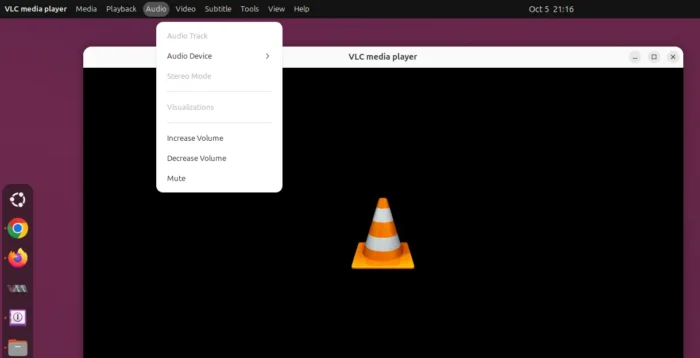
The extension tries to fetch and display a menu from D-Bus if the focused application publishes a menu through it.
If NOT, it falls back to show a menu built from the app’s documented keyboard shortcuts. And, when you click a menu item, it sends that key combination to the window.
It dynamically updates the menu for the focused app, but so far it supports 171 applications that do not publish menu through D-Bus, though the number is growing.
And, the global menu is not always identical to the one inside the focused app window, as NOT all menu items support keyboard shortcuts.
How to Install the Orbit Global Menu
The developer is going to make the extension into Gnome EGO, try searching it in https://extensions.gnome.org.
At the moment, user may install it manually by copy’n’pasting the “[email protected]” from source into user’s .local/share/gnome-shell/extensions/ directory.
To do so, launch terminal (Ctrl+Alt+T) and run the commands below one by one:
- First, run command to clone the source from github:
git clone https://github.com/Unmade760/orbit-global-menu.git
Run
sudo apt install gitif git command not found. - Then, create the target directory in case it does not exit, navigate to source, and copy the extension sub-folder to that directory:
mkdir -p ~/.local/share/gnome-shell/extensions/
cd orbit-global-menu
cp -r '[email protected]' ~/.local/share/gnome-shell/extensions/
- Finally, compile all the GSettings XML schema files:
glib-compile-schemas ~/.local/share/gnome-shell/extensions/'[email protected]'/schemas
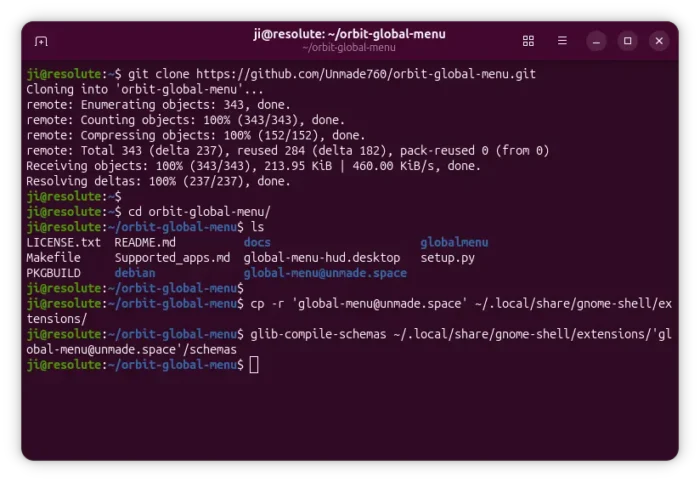
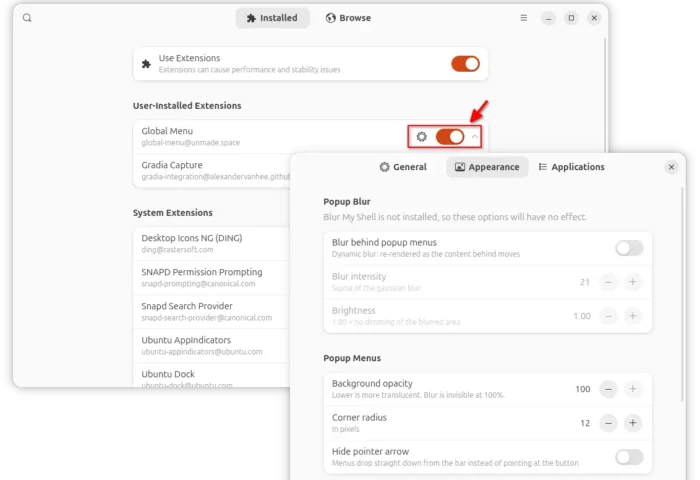
When done, log out and back in. Finally, launch “Extension Manager” or “Gnome Extensions” app (available in App Center) to enable the extension, and configure its appearance and app menus.
(Optional) For the applications that publish menu through D-Bus, run the commands below one by one from the source folder to install the daemon:
First, install the dependency libraries:
sudo apt install python3-gi python3-dbus gir1.2-gtk-3.0
Then, navigate to the source folder (cd orbit-global-menu) and install the daemon as Python package:
pip install --user . --break-system-packages
Run sudo apt install python3-pip if pip command not found.
Uninstall:
For any reason, you may remove the extension easily by using either “Gnome Extensions” or “Extension Manager” app. Or, simply delete the extension folder by running command:
rm -r ~/.local/share/gnome-shell/extensions/globalmenu\@ShiroOSL.github.io/
Also remove the daemon installed as Python package:
pip uninstall global-menu --break-system-packages