Sushi, the file previewer application for GNOME Desktop, released the 51 RC version today.
The last 51 alpha & beta releases of this macOS Finder’s Quick Look style application ported the app to GTK4 plus LibAdwaita, so when you pressing Space on a file, it pops-up a modern native preview window that follows system light and dark style.
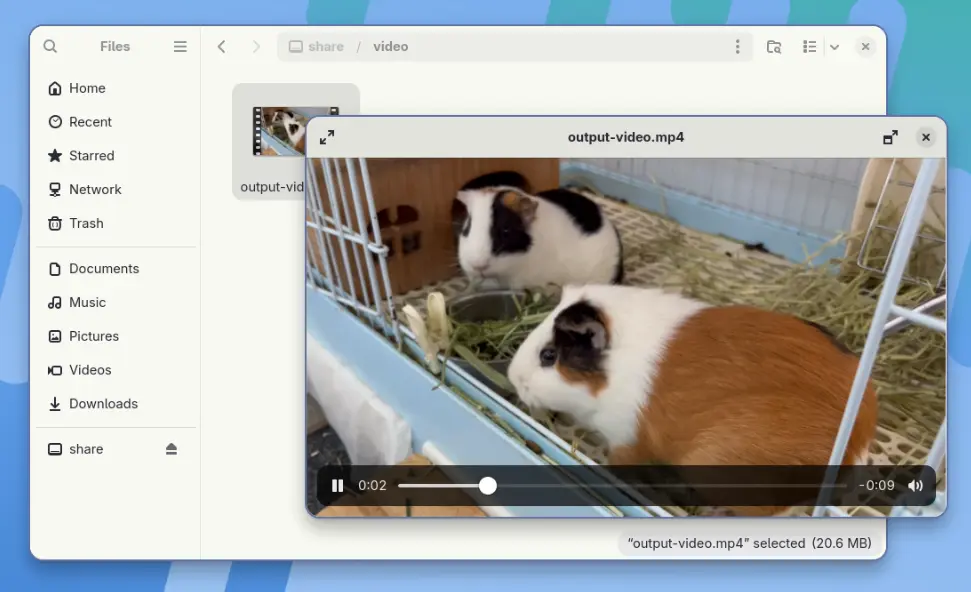
It as well added single click pause/resume video, double-click maximize/restore image/video, context menu for HTML in previews, as well as more mime types support and overhauled plugin API.
With the new RC release, more features are added. For users who use prefer keyboard shortcuts, it now supports F2 to re-name file and Del to move file to trash while previewing a file.
Without mouse clicks, you can press O to open the file with the default app, and press P to pause or resume audio/video playback.
It as well supports opening folders in currently previewed nautilus window, auto-resize window on changed scale factor, and use dark background for videos.
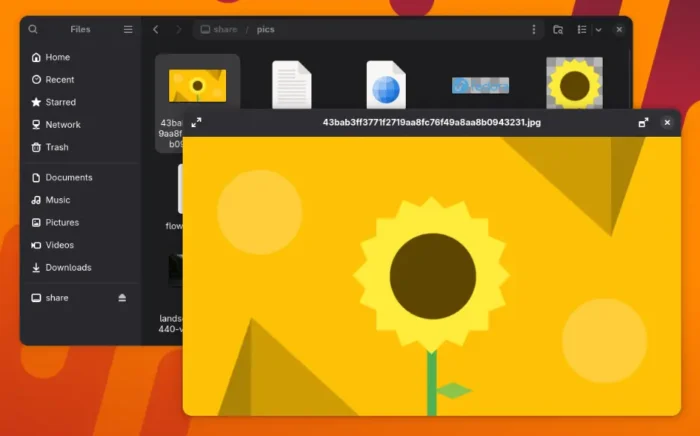
This RC version also improved its plugin system with an example showing how to use a UI file and keyboard shortcuts, and a helper for setting up action groups and resolving paths relative to the plugin.
It also added a markFailed API so plugins can report initialization/runtime failures explicitly and renamed some functions for clearer naming.
Other changes include fixes for loading animated GIF and TIFF images, image scaling and aspect ratios improvements, as well as various window resizing issue fixes and nautilus integration improvements.
Get GNOME Sushi 51 Dev
The source tarball and the release note are available in the Gitlab source page via the link below:
Besides building from the source, Arch Linux and Fedora will soon built the package in their repositories. While, Debian and Ubuntu user may keep an eye on this page for the Sushi package status.