This tutorial shows how to install the last version of Darktable (5.6.1 so far) via native DEB package in Ubuntu 26.04, Ubuntu 24.04, Ubuntu 22.04, and their based distributions such as Linux Mint 22.x.
Darktable is a popular free open-source photography and raw developer application, which is so far at version 5.6.1. It provides official Linux package as non-install AppImage.
If you prefer the native .deb package, then here are 2 community maintained alternatives:
- OBS (Open Build Service) repository.
- Unofficial Ubuntu PPA.
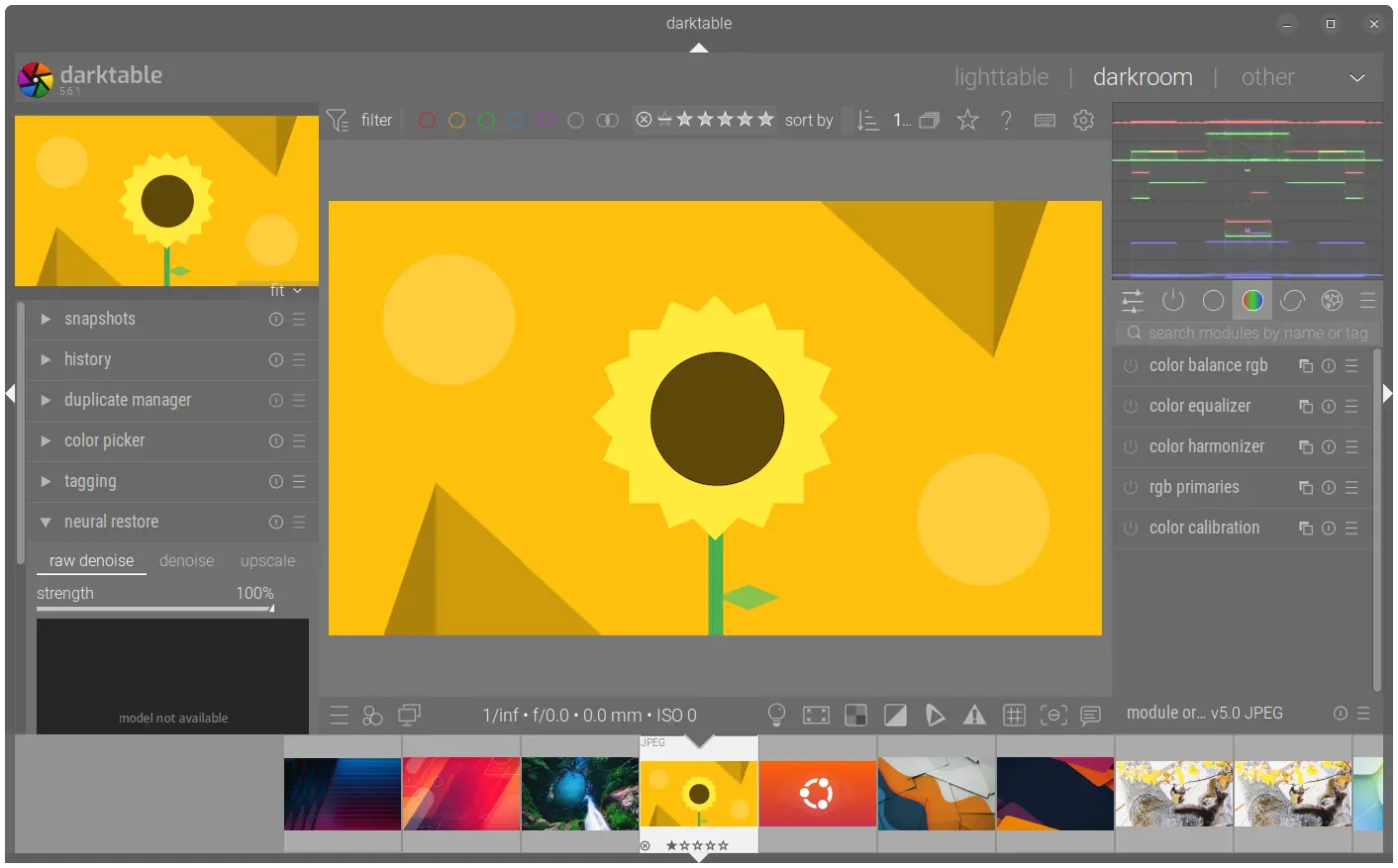
What’s New in the Latest Darktable 5.6.1:
The latest 5.6.1 is a maintenance release that contains mainly bug-fixes and stability improvements. It improved the logic of the built-in AI download manager, fixed AMD OpenCL issues, and improved stability on low-memory GPUs.
While the last 5.6.0 features:
- AI sub-system, with built-in manager to download some open-source AI models.
- Add new color harmonizer module.
- Export to HEIF image format, lossy or lossless in 8/10/12 bit color depths.
- New welcome dialog with some initial setup options.
- See the official release note for more.
Option 1: Use the OBS Build
The community OBS repository for Darktable has been maintained for many years. Not only for Ubuntu, it also provides native .deb for Debian, and .rpm for Fedora & openSUSE, though only for amd64 (AMD/Intel) platform.
You can simply go to the download page, choose your distribution logo, “Grab binary packages directly”, finally select download & install the package for your system.
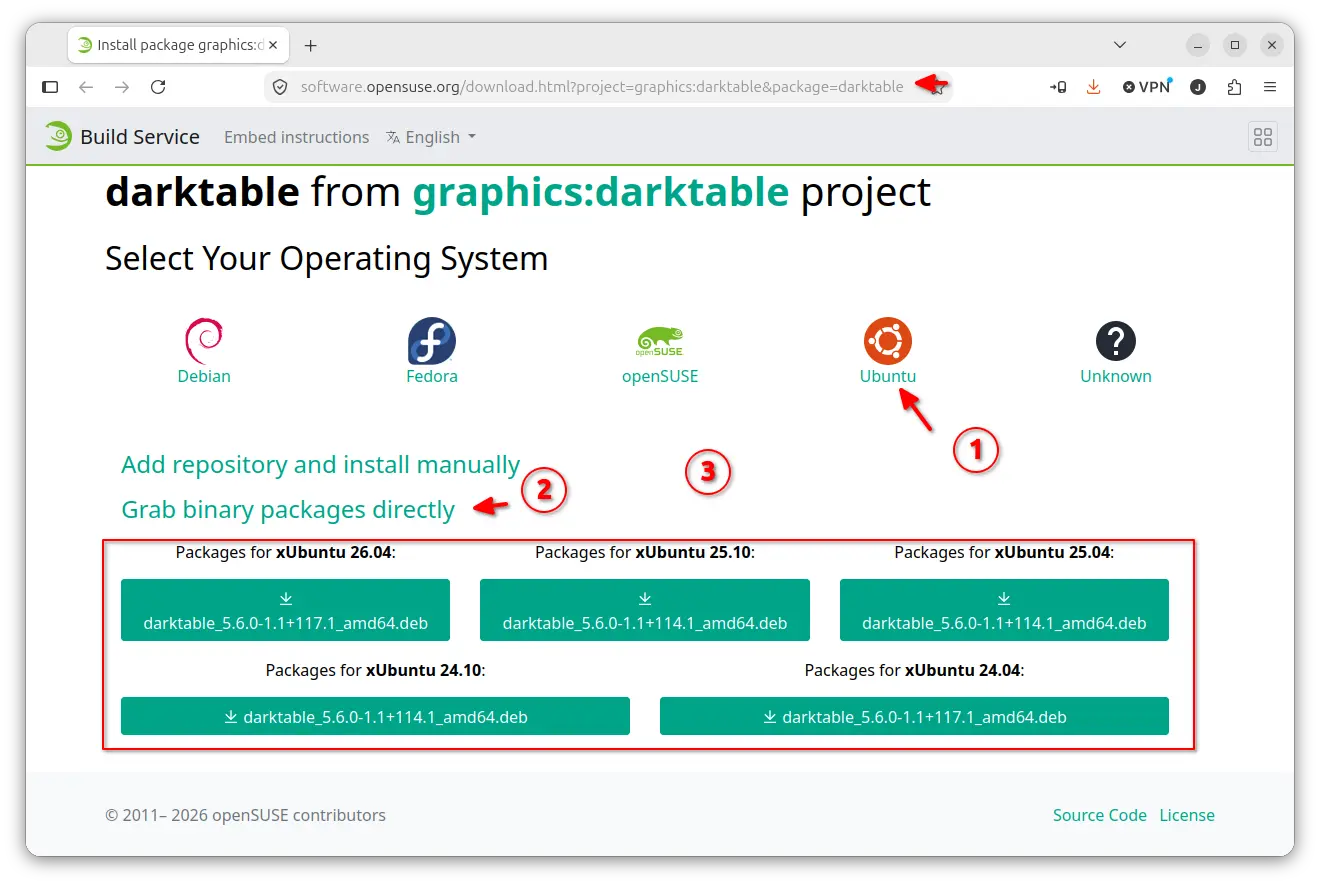
If you would like to add the repository into your system, and keep the package up-to-date, then try the “Add repository and install manually” section. For Debian/Ubuntu, it however outdated, you need to correct it manually.
Option 2: Use Ubuntu PPA
While the OBS build supports only AMD/Intel, the unofficial PPA maintains the Darktable package with also ARM64 (e.g., Raspberry Pi and Snapdragon X) platform support.
The PPA so far supports the three Ubuntu 26.04 (amd64v3 also supported), Ubuntu 24.04, and Ubuntu 22.04 LTS releases.
NOTE: the Ubuntu 22.04 build has HEIF and AVIF support disabled due to lack of build dependency. Feel free to leave comment below if you do need the feature.
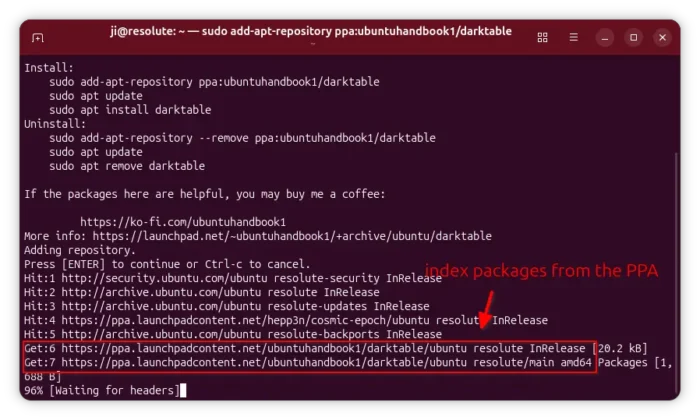
To add the PPA and install Darktable, press Ctrl+Alt+T on keyboard to open terminal, and run the commands below one by one:
sudo add-apt-repository ppa:ubuntuhandbook1/darktable
sudo apt update
sudo apt install darktable
The second command is optional but needed for Linux Mint. And, it should output something looks like “Get/Hit:6 https://ppa.launchpadcontent.net/ubuntuhandbook1/darktable/ubuntu” meaning it properly indexed the packages from the PPA.
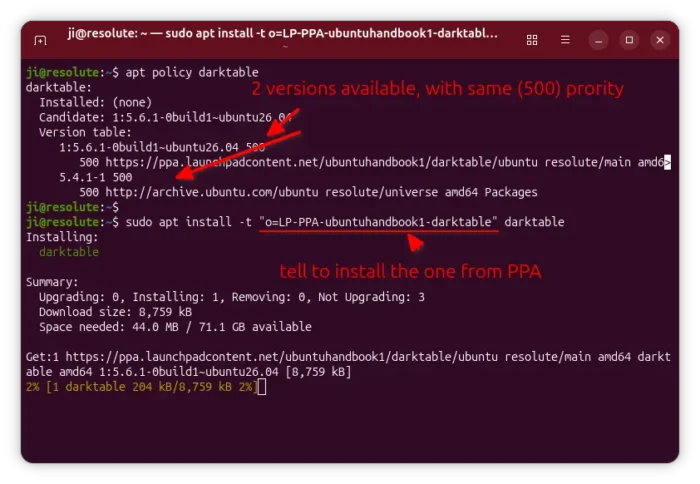
If you’ve the PPA added properly, but the latest Darktable is still NOT available, then it’s properly the package priority issue. In the case, you may specify package source while running the install command, so it will be:
sudo apt install -t "o=LP-PPA-ubuntuhandbook1-darktable" darktable
Uninstall Darktable
To uninstall Darktable .deb package, open terminal and run command:
sudo apt install --remove darktable
And, remove the PPA by running command:
sudo add-apt-repository --remove ppa:ubuntuhandbook1/darktable