Extension Manager, the popular app for installing and managing GNOME Shell extensions, released new 0.7.0 version a few days ago.
The new version of this graphical application adds batch operation support for user installed extensions.
By clicking on the new “check mark in a circle icon”, you can select multiple installed extensions and remove them at once.
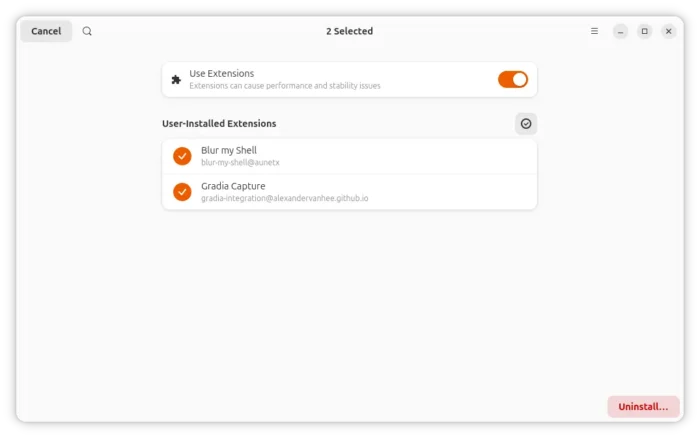
Extension Manager remove several extensions at once
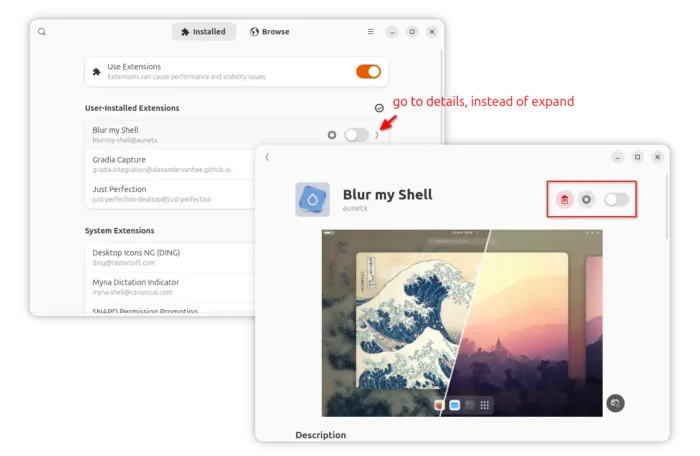
The arrow icon in the right side of each extension, does no longer expand to show description along with See Details and Remove options.
Instead, clicking on it goes directly to the extension details page. And, the Details page has been redesigned with toggle options to turn on/off, remove extension, and open preferences dialog.
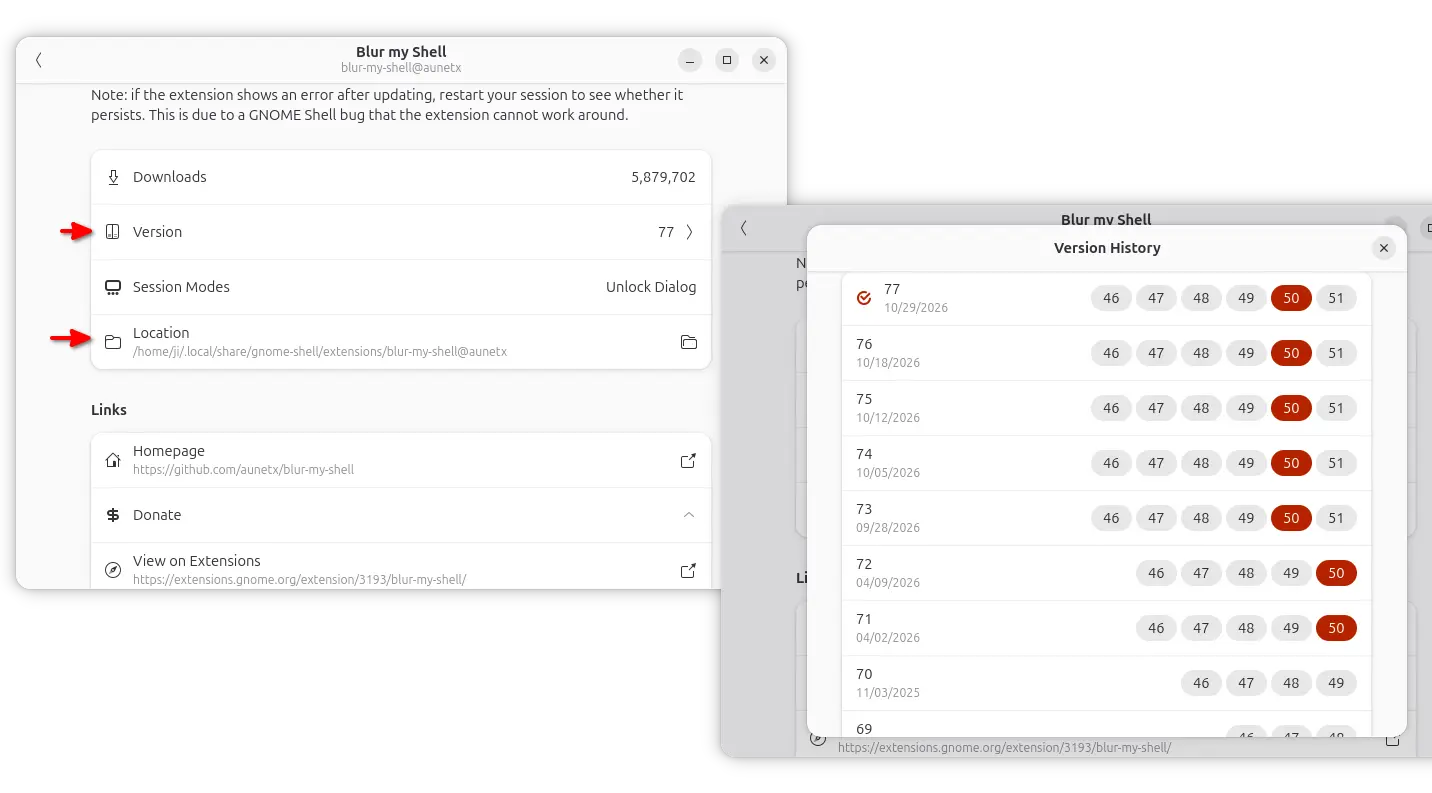
The “Version row” in extension details now is clickable. It pops up a dialog, shows the extension version history, along with release dates and all supported GNOME version.
And, advanced users who want to modify the extension, can click the new “Location” row to quickly open the extension folder.
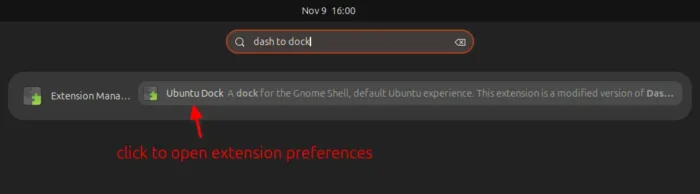
After enabled the Search permission in GNOME Control Center (System Settings) -> Apps, user can now search installed extensions from GNOME Overview.
Then, click on the overview search result to open the extension preferences dialog quickly, without launching the Extension Manager app first.
For searching and browsing extensions, the Show Unsupported hamburger menu option has been added back, allowing to show or hide all the extensions that do not support your GNOME version.
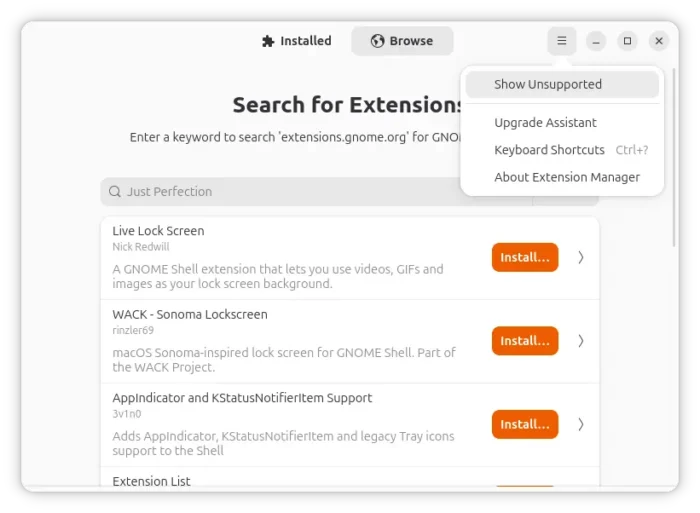
Other changes in the new Extension Manager 0.7.0 include:
- One click to copy the path to system extensions.
- Animated screenshots support.
- Detect when GNOME Shell is not running.
- Faster loading thanks to response and image caching.
- New translations.
For more, see the official release note.
Install Extension Manager
Extension Manager is available in the repositories of most popular Linux distributions, but may be outdated.
For the latest version, it’s available to install as Flatpak package that runs in sandbox environment.
And, Debian/Ubuntu based distributions can run the 3 commands below one by one to get it:
sudo apt install flatpak
flatpak remote-add --if-not-exists flathub https://dl.flathub.org/repo/flathub.flatpakrepo
flatpak install flathub com.mattjakeman.ExtensionManager
If this is the first Flatpak package installed in your system, then log out and back in to apply environment variable changes.