
Microsoft announced the release of .NET 11 in last week. Here’s how to install it in current Ubuntu 26.04, Ubuntu 24.04, and Ubuntu 22.04 LTS via PPA.
.NET 11 is a Standard Term Support (STS) release with two years support until November 2028. It’s already available in Ubuntu 26.10’s repository, while, the 3 LTS releases can install it through PPA, Snap, or official tarball.
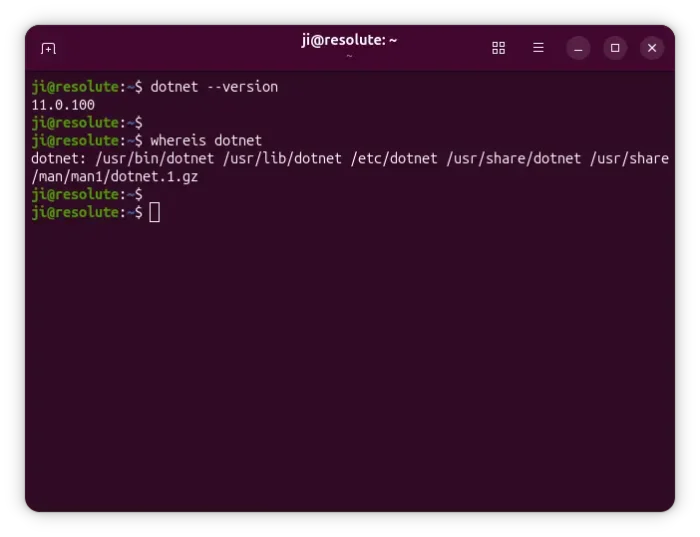
New features in .NET 11 include:
- Introduce C# 15 union types and closed hierarchies.
- Improve .NET CLI startup and MSBuild performance.
- Add asynchronous validation, OpenAPI 3.2 support, and new Blazor and SignalR capabilities to ASP.NET Core.
- Expand AI application development support with Microsoft.Extensions.AI, MCP, and Microsoft Agent Framework.
- Introduce new AI-assisted development tools, including .NET Skills and .NET MAUI DevFlow.
- Make CoreCLR the default runtime for .NET MAUI and improves XAML development.
- Add Zstandard compression, enhanced JSON support, and other improvements to the standard libraries.
See the announcement for more about .NET 11.
Install .NET 11 from PPA
.NET 11 is available in Ubuntu’s App Center (or Ubuntu Software) through Snap package, which however runs in sandbox environment. Microsoft also provides Linux packages through portable tarballs.
If you prefer the native .deb package, then the official .NET backports PPA is the best choice.
To add the PPA, press Ctrl+Alt+T on keyboard to launch a terminal window and run command:
sudo add-apt-repository ppa:dotnet/backports
Type user password (no asterisk feedback) when it asks and hit Enter to continue.
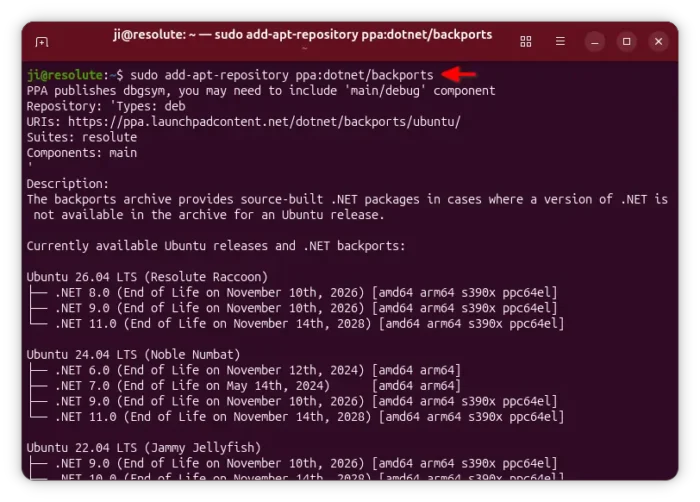
Next, refresh cache if you follow this tutorial on Linux Mint. While, Ubuntu now does it automatically after adding a PPA:
sudo apt update
Finally, install .NET deb package by running command:
sudo apt install dotnet11
This command will install both the SDK and run-times, while you may replace dotnet11 with dotnet-sdk-11.0, aspnetcore-runtime-11.0, or dotnet-runtime-11.0 to install only the sdk or runtime as you prefer.
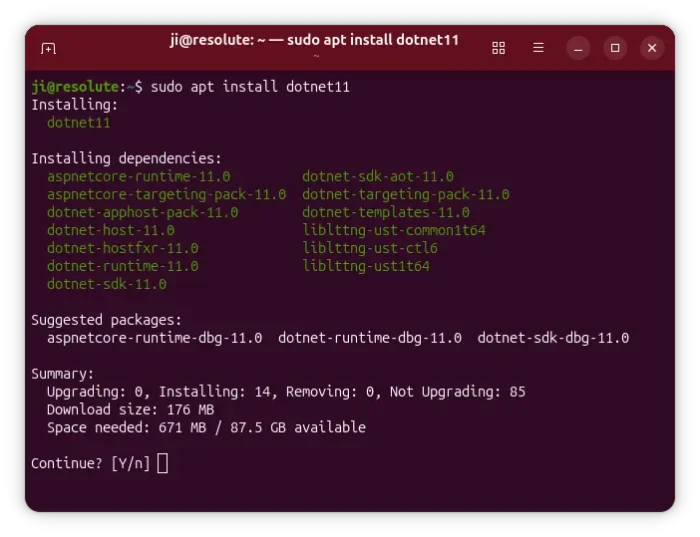
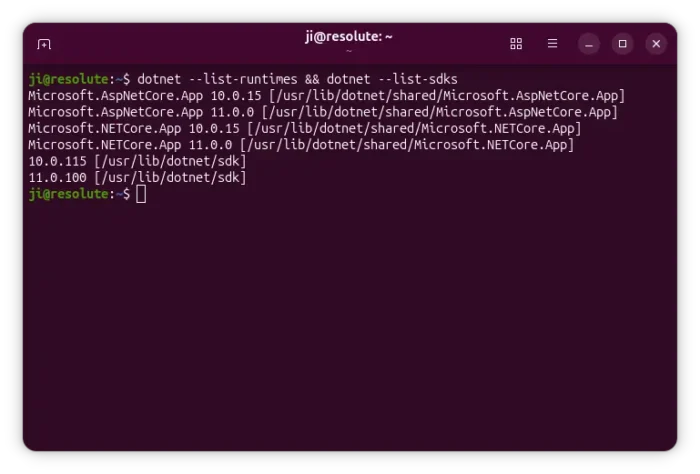
If you also have .NET 10 or older versions installed on your system, then you have multiple .NET SDK or run-times. To check them, use command:
dotnet --list-runtimes && dotnet --list-sdks
In the case, you may either choose a runtime via command dotnet -r <RUNTIME_IDENTIFIER> or select SDK by using global.json file.
{
      "sdk": {
        "version": "11.0.100"
      }
    }
Uninstall:
To uninstall the .NET 11 deb package installed from PPA, open terminal (Ctrl+Alt+T) and run command:
sudo apt remove --autoremove dotnet11 aspnetcore-runtime-11.0 dotnet-runtime-11.0 dotnet-sdk-11.0
Then, remove the PPA repository either by “Software & Updates” utility under “Other Software” tab (for Ubuntu 24.04 and earlier), or by running command below in terminal:
sudo add-apt-repository --remove ppa:dotnet/backports
For Linux Mint, either use Software Sources to remove PPA, or run sudo apt update afterward to refresh cache.