Archives For Howtos

How to Install Simple Screen Recorder in Ubuntu via PPA

Published: December 29, 2013 — Last updated: December 29, 2013

simple screen recorder ubuntu

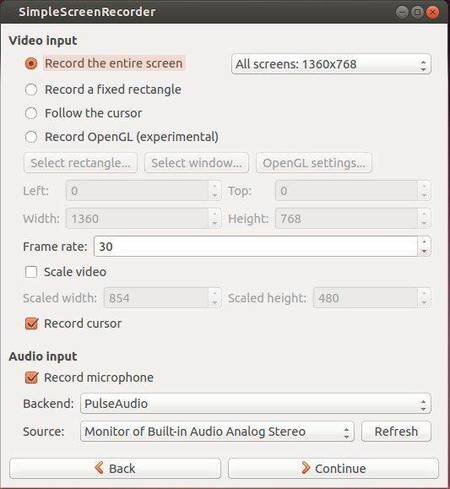
SimpleScreenRecorder is a Linux program to record programs and games. It aims to be powerful and really simple to use. It’s ‘simple’ in the sense that it’s easier to use than ffmpeg/avconv or VLC, because it has a straightforward user interface.
simple screen recorder Ubuntu

This recorder has below features:

  • Graphical user interface (Qt-based).
  • Faster than VLC and ffmpeg/avconv.
  • Records the entire screen or part of it, or records OpenGL applications directly (similar to Fraps on Windows).
  • Synchronizes audio and video properly (a common issue with VLC and ffmpeg/avconv).
  • Reduces the video frame rate if your computer is too slow (rather than using up all your RAM like VLC does).
  • Fully multithreaded: small delays in any of the components will never block the other components, resulting is smoother video and better performance on computers with multiple processors.
  • Pause and resume recording at any time (either by clicking a button or by pressing a hotkey).
  • Shows statistics during recording (file size, bit rate, total recording time, actual frame rate, …).
  • Can show a preview during recording, so you don’t waste time recording something only to figure out afterwards that some setting was wrong.
  • Uses libav/ffmpeg libraries for encoding, so it supports many different codecs and file formats (adding more is trivial).
  • Can also do live streaming (experimental).
  • Sensible default settings: no need to change anything if you don’t want to.
  • Tooltips for almost everything: no need to read the documentation to find out what something does.

Install SimpleScreenRecorder Ubuntu:

The developer has created a PPA for Ubuntu and Linux Mint users. Currently supports Ubuntu 13.10, Ubuntu 13.04, Ubuntu 12.10, Ubuntu 12.04, Mint 13/14/15/16.

To install it, press Ctrl+Alt+T on keyboard to open terminal. When it opens, run commands below one by one:

sudo add-apt-repository ppa:maarten-baert/simplescreenrecorder
sudo apt-get update
sudo apt-get install simplescreenrecorder

# if you want to record 32-bit OpenGL applications on a 64-bit system:

sudo apt-get install simplescreenrecorder-lib:i386

For Arch Linux, Gentoo, OpenSUSE and other Linux packages, refer to the app homepage

Lubuntu-Tweaks – Simple Tweak Tool For Lubuntu [PPA]

Published: December 29, 2013 — Last updated: December 29, 2013

Lubuntu Tweak PPA

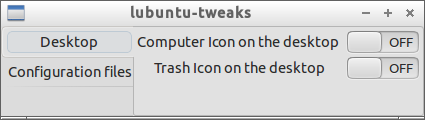
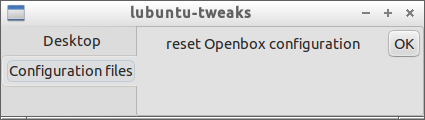
Lubuntu users now have a new configuration tool “Lubuntu-Tweaks“, which allows to do simple tweaks. Right now it only has options to enable Computer and Trash icon on Desktop, and allows to reset Openbox configuration.

Screenshots:

Lubuntu Tweak desktop icons


Lubuntu Tweak reset openbox

Install Lubuntu Tweak:

This little app is still in early stage. If you would like to install it, press Ctrl+Alt+T on keyboard to open terminal. When it opens, run commands below one by one:

sudo add-apt-repository ppa:lubuntu-dev/non-official-apps

sudo apt-get update

sudo apt-get install lubuntu-tweaks

Currently supports Ubuntu 14.04, Ubuntu 13.10, Ubuntu 13.04, Ubuntu 12.10.

Lubuntu Tweaks on Launchpad

Free File Sync Ubuntu PPA

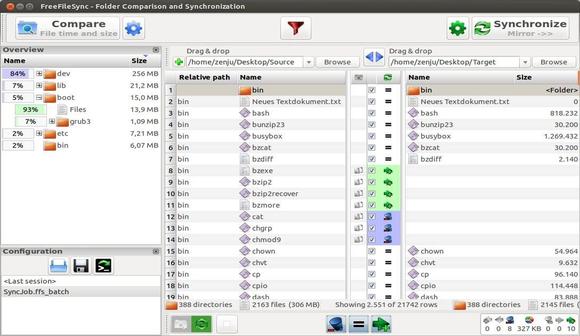
FreeFileSync a folder comparison and synchronization tool that provides highly optimized performance and usability without needless user interface complexity.

Key Features of FreeFileSync:

  • Detect moved and renamed files and folders
  • Copy locked files (Volume Shadow Copy Service)
  • Detect conflicts and propagate deletions
  • Binary file comparison
  • Configure handling of Symbolic Links
  • Automate sync as a batch job
  • Process multiple folder pairs
  • Comprehensive and detailed error reporting
  • Copy NTFS extended attributes (compressed, encrypted, sparse)
  • Copy NTFS security permissions
  • Support long file paths with more than 260 characters
  • Fail-safe file copy
  • Cross-platform: Windows, Linux, Mac OS X
  • Expand environment variables like %USERPROFILE%
  • Access variable drive letters by volume name (USB sticks)
  • Native 64-bit support
  • Keep versions of deleted/updated files
  • Prevent disc space bottlenecks via optimal sync sequence
  • Full Unicode support
  • Highly optimized runtime performance
  • Include/exclude files via filter
  • FreeFileSync portable and local installation available
  • Handle daylight saving time changes on FAT/FAT32
  • Use macros %time%, %date%, et al. for recurring backups
  • Case-sensitive synchronization
  • Built-in locking: serialize multiple jobs running against the same network share

Install FreeFileSync in Ubuntu:

Press Ctrl+Alt+T on keyboard to open terminal. When it opens, run commands below one by one:

sudo add-apt-repository ppa:freefilesync/ffs

sudo apt-get update

sudo apt-get install freefilesync

Currently support Ubuntu 13.10, Ubuntu 13.04, Ubuntu 12.10, Ubuntu 12.04 and Linux Mint. Go to the launchpad page to check out if your Ubuntu release is supported.

Install FreeFileSync Ubuntu

Totem full-screen mode

Playing videos with Ubuntu’s default Totem player? Well you may want to open movies directly in full-screen mode.

Totem doesn’t provide an option to open in full-screen, but it’s not hard to tweak this setting since Ubuntu Unity uses .desktop files to manage application launchers. All you need to do is change a parameter in totem.desktop file.

To get started, press Ctrl+Alt+T on keyboard to open terminal. When it opens, copy and paste below command and hit enter:

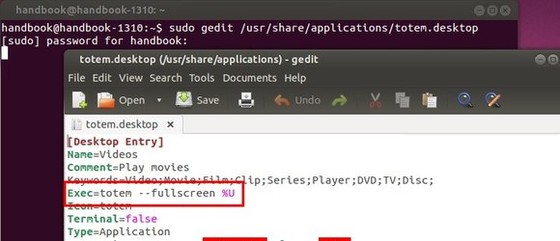
sudo gedit /usr/share/applications/totem.desktop

Type in your user password when prompt (Terminal won’t display your password, just type in mind and hit enter to get pass).

You’ll see the totem.desktop opened with Gedit editor. What you need to do is add --fullscreen parameter to Exec value:

Totem open in full-screen

Save the file and now your movies will be opened directly in fullscreen mode with Totem player.

Enjoy!

System Restore App TimeShift 1.3 Released, Install it via PPA

Published: December 28, 2013 — Last updated: December 10, 2022

system restore app for Ubuntu Linux

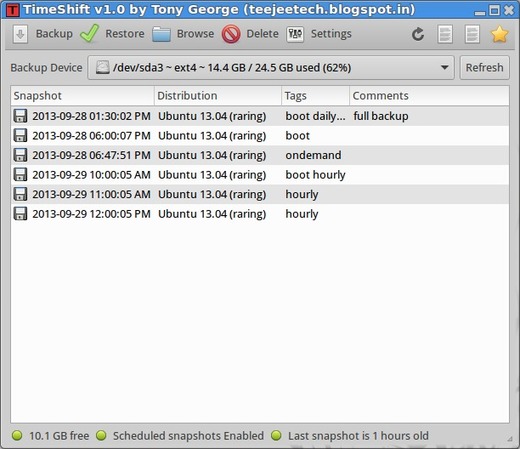
TimeShift is a Linux app that provides functionality similar to the System Restore feature in Windows and the Time Machine tool in Mac OS.

TimeShift takes incremental snapshots of the file system at regular intervals. These snapshots can be restored later to bring your system to the exact state it was in at the time when the snapshot was taken.

Snapshots are taken using rsync and hard-links. Common files are shared between snapshots which saves disk space. Each snapshot is a full system backup that can be browsed with a file manager.

TimeShift is designed to protect only system files and settings. User files such as documents, pictures and music are excluded. This ensures that your files remains unchanged when you restore your system to an earlier date.

create system restore point

TimeShift 1.3 was released recently with Ubuntu 12.04 build error fixed. The TimeShift PPA is ready for Ubuntu 13.10, Ubuntu 13.04, Ubuntu 12.10, Ubuntu 12.04, Linux Mint and their derivatives.

To install the tool, press Ctrl+Alt+T on keyboard to open terminal. When it opens, run commands below one by one:

sudo add-apt-repository ppa:teejee2008/timeshift

sudo apt-get update

sudo apt-get install timeshift

For Fedora, OpenSuse, ArchLinux and other Linux Operating Systems, you may use the .run installer from TimeShift website.

TimeShift Homepage

Install Linux Mint Device Driver Manager in Ubuntu

Published: December 27, 2013 — Last updated: January 23, 2015

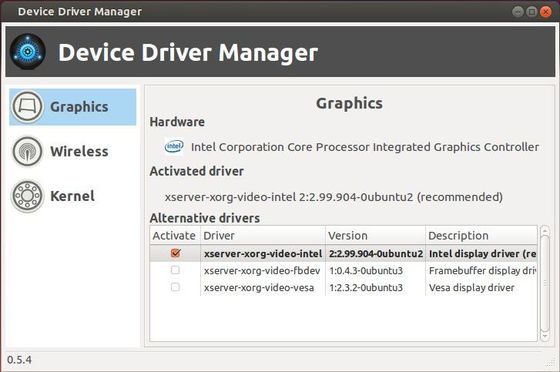
Device Driver Manager


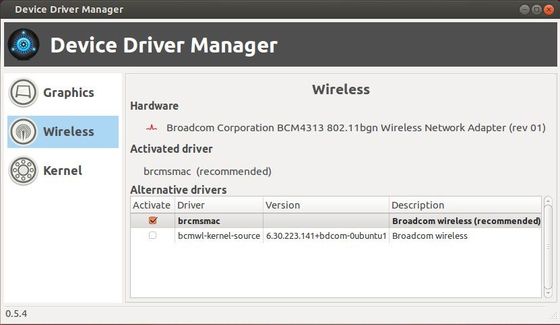
Device Driver Manager is one of Linux Mint application makes it easy to manage open source and proprietary graphics, wireless drivers. Currently Nvidia, ATI, Intel, VIA and Broadcom are supported. It also checks whether or not the PAE kernel can be installed on multi-processor 32-bit systems.

Device Driver Manager Ubuntu

Device Driver Manager Ubuntu

The Device Driver Manager is an independent application, boot the application will scan your system for any available drivers, just select a driver or kernel, DDM will download and install the appropriate packages uses available repositories on your system.

To install this app, download the DEB package from Linux Mint webpage

Tools to Display System & Hardware Information in Ubuntu Linux

Published: December 26, 2013 — Last updated: January 9, 2019

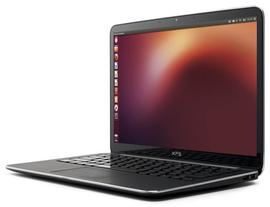
ubuntu hardware information

Want to check out your system and hardware information? Well, here are two tools that display detailed information about Ubuntu Linux and your computer hardware. They are: HardInfo and I-Nex

I-Nex

UPDATE 2019-1: I-Nex support ends at Ubuntu 17.04! Use Hardinfo instead which is available in Ubuntu Software

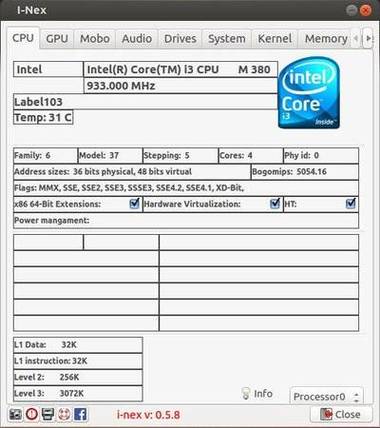
I-Nex has a CPU-Z similar interface that displays CPU, GPU, MotherBoard, Audio, Drives, System, Kernel, Memory, Network, USB info in tabs.

I-Nex collects real-time CPU temperature and Memory usage, it also allows to take a screenshot or generate (print) report.

I-Nex cpu information

To install I-Nex, press Ctrl+Alt+T on keyboard to open terminal. When it opens, run commands below one by one to get it from PPA:

sudo add-apt-repository -y ppa:i-nex-development-team/stable

sudo apt-get update

sudo apt-get install i-nex

Works on Ubuntu 14.04, Ubuntu 13.10, Ubuntu 13.04, Ubuntu 12.10, Ubuntu 12.04, Ubuntu 10.04 and Linux Mint.

HardInfo:

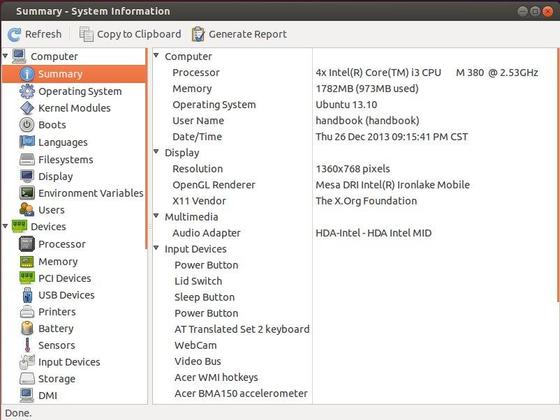
HardInfo is a system information and benchmark tool available in Ubuntu’s universe repository. It displays a summary of your system information and detailed devices, network, benchmarks. It allows to generate printable reports either in HTML or in plain text formats.

hardinfo ubuntu information

To install this app, just open up Ubuntu Software Center, search for and install hardinfo package.

Facebook Client with Emoji Support For Ubuntu Linux Mint

Published: December 26, 2013 — Last updated: December 26, 2013

Facebook client with Emoji support

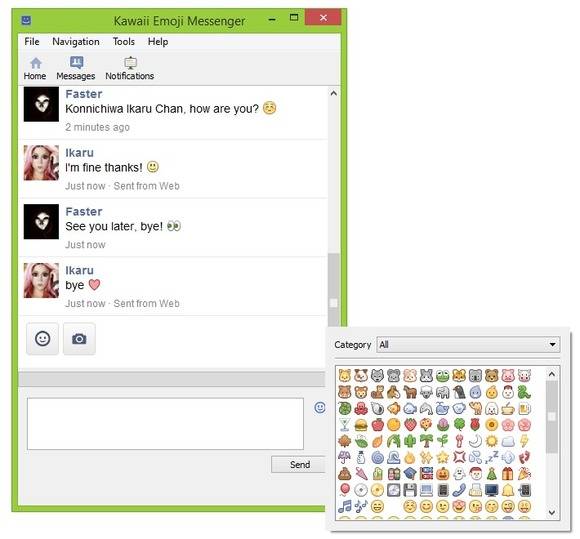
There’s now a new Linux app which brings Facebook client on your Desktop with emoji support. It’s called Kawaii Emoji Messenger.

Kawaii Emoji Messenger is a multiplatform Facebook client based on the idea of bringing emoji on desktop.
Through Kawaii Emoji Messenger you can use a full set of emoji in you Facebook conversations and comments in the easiest way.

facebook client with emoji support

Facebook does not allow emoji on its web version for browsers. So this app shows you a mobile version of Facebook.

Install Kawaii Emoji Messenger

NOTE: Kawaii Emoji Messenger is currently in its beta stage so you may find it a little unstable and incomplete.

I’ve made this tool into PPA to make it easy to install. The PPA supports Ubuntu 14.04, Ubuntu 13.10, Ubuntu 13.04, Ubuntu 12.04, Ubuntu 12.10, Linux Mint and other derivatives.

To install it, press Ctrl+Alt+T on keyboard to open terminal and run commands below one by one:

sudo add-apt-repository ppa:ubuntuhandbook1/apps

sudo apt-get update

sudo apt-get install kawaiiemojimessenger

Once installed, open it from Unity Dash or Menu.

If you’d like to build it from source code, run commands below one by one within the source folder:

mkdir build
cd build
cmake -DCMAKE_INSTALL_PREFIX=/usr ..
make
sudo make install

Kawaii-Emoji-Messenger Home

Boomaga virtual printer

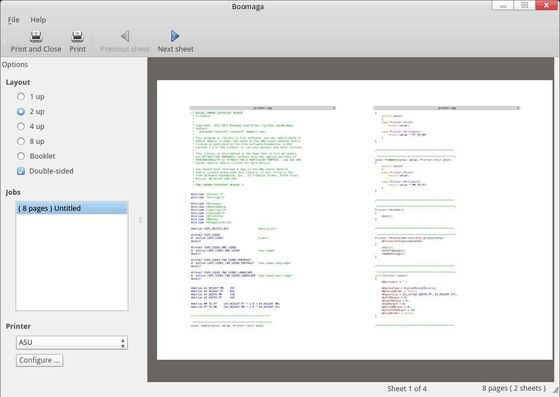
Boomaga is a virtual printer for viewing a document before printing it out using the physical printer and help you get your documents prepared a bit before printing.

The program is very simple to work with. Running any program, click “print” and select “Boomaga” to see in several seconds (CUPS takes some time to respond) the Boomaga window open. If you print out one more document, it gets added to the previous one, and you can also print them out as one.

boomaga virtual printer main window

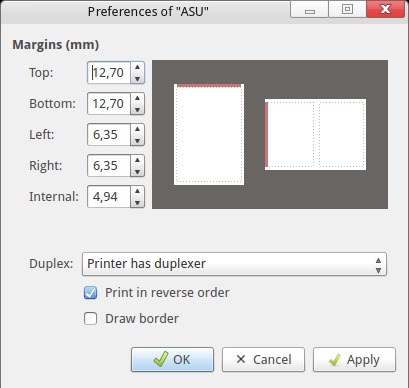
Regardless of whether your printer supports duplex printing or not, you would be able to easily print on both sides of the sheet. If your printer does not support duplex printing, point this out in the settings, and Booklet would ask you to turn over the pages half way through printing your document.

boomaga printer settings

The program can also help you get your documents prepared a bit before printing. At this stage Boomaga makes it possible to:

  • Paste several documents together.
  • Print several pages on one sheet.
    • 1, 2, 4, 8 pages per sheet
    • Booklet. Folding the sheets in two, you’ll get a book

Install Boomaga in Ubuntu:

The latest version (so far it is 0.3.0) is available in PPA for Ubuntu 13.10 Saucy, Ubuntu 13.04 Raring, Ubuntu 12.10 Quantal, Ubuntu 12.04 Precise, Linux Mint and their derivatives.

To get started installing the app, press Ctrl+Alt+T on keyboard to open terminal. When it opens, run below commands one by one:

sudo add-apt-repository -y ppa:boomaga/ppa

sudo apt-get update

sudo apt-get install boomaga

.

Install PokerTH to play texas hold'em in Ubuntu

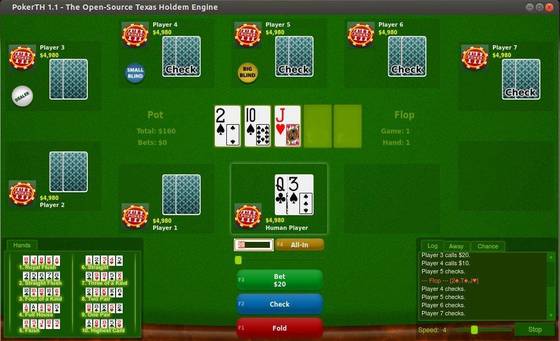
PokerTH is a poker game written in C++/QT4. You can play the popular “Texas Hold’em” poker variant against up to 9 computer-opponents or play network and internet games with people all over the world. This poker engine is available for Android, Linux, Windows, and MacOSX.

The latest PokerHT 1.1 has been released recently with following changes.

  • New web-based spectator mode on http://www.pokerth.net/live
  • New option to allow/disallow spectators when creating a game
  • Show list of spectators in the lobby and on the game table
  • Support for WebSocket connections was integrated in the server
  • Show server ping (“application layer ping”) in the client
  • Added option to disable emoticons in the chat
  • Avatars are no longer displayed for players which are on the ignore list
  • New option to “unignore” a player in the context menu
  • BUGFIX: context menu in connected player list was fixed
  • BUGFIX: “display idle players” in the lobby was fixed
  • BUGFIX: No longer beep if ignored player uses nickname in chat
  • translation updates

Install PokerHT via PPA:

This release has been made into Ubuntu 14.04 universe repository, so Trusty users can just install it from Ubuntu Software Center.

For Ubuntu 13.10, Ubuntu 13.04, press Ctrl+Alt+T on keyboard to open terminal. When it opens, run commands below one by one to install from PPA:

sudo add-apt-repository ppa:pkg-games/ppa

sudo apt-get update

sudo apt-get install pokerth

Once installed, open the game from Unity Dash or Menu and enjoy!

Install PokerHT Ubuntu