Ubuntu desktop keeps going blank or dark when it is idled for a certain time. That’s not good if you’re watching movies on screen. Here’s the guide to stop your screen being turned off.

Open Brightness & Lock from Unity dash search results, or from System Settings

brightness&control

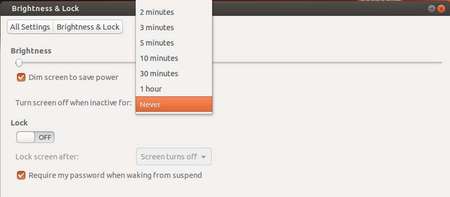
You’ll see the window as the below picture shown. Select “Never” in the drop-down box after where it says “Turn screen off when inactive for”.

disable-screen-blank

That’s it! There also provides options to disable lock screen and dimming.

Enjoy!

How to Disable Screen Lock on Ubuntu 13.04

Last updated: July 15, 2013

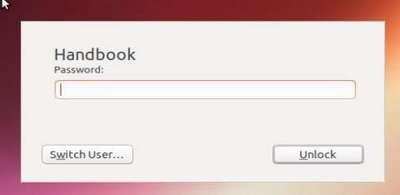
When your computer is idled for a certain time, Ubuntu goes into screensaver and lock it self. You’re prompt to enter password to continue your session. Below steps will show you how to prevent your screen from locking on Ubuntu 13.04 Raring Ringtial.

ubuntu-unlock-dialog

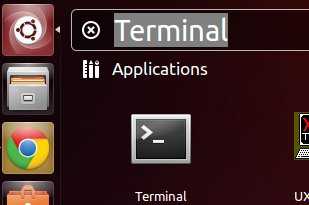
To get started, open terminal from unity dash or by pressing Ctrl+Alt+T

Open Terminal to run commands

Copy and paste below command and hit enter to run:

gsettings set org.gnome.desktop.screensaver lock-enabled false

command to disable screen lock

That’s it! The unlock dialog has gone

Create Desktop Shortcuts on Ubuntu 13.04 Unity

Last updated: November 1, 2013

This brief tutorial is going to show you how to create application shortcuts on Unity Desktop in Ubuntu 13.04 Raring. You can just drag and drop icons to your desktop, but it won’t always work. Some of them have the permission issues which can be fixed by below steps:

UPDATES: For Ubuntu 13.10 Saucy, copy and paste the programs .desktop file from /usr/share/applications to user’s Desktop folder

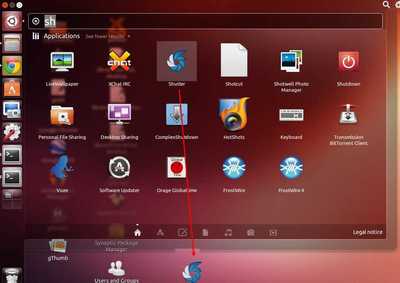
1.) Search for applications from Unity Dash, drag and drop them onto desktop:

drop app icon to desktop

2.) After added all app icons to your desktop, press Ctrl+Alt+T to open a terminal.

Change the ownership of them. My username is handbook, in below command change it to yours.

sudo chown handbook ~/Desktop/*.desktop

change-the-ownership

Make sure all icons are executable:

sudo chmod +x ~/Desktop/*.desktop

make-them-executable

You are done. Enjoy!

The latest stable kernel 3.10.1 has been released. All users of the 3.10 kernel series are urged to upgrade as soon as possible. Here is what’s new and how to install / upgrade kernel 3.10.1 on your system.

Linux kernel 3.10.1 is a small release that includes a few updated drivers, fixes for the HPFS and NFS file systems, as well as other small changes. See the announcement.

Kernel3.9.8

Below steps shows you how to install or upgrade this kernel:

1.) Press Ctrl+Alt+T to open terminal. Run below command to download the Deb packages

For 32-bit:

wget http://kernel.ubuntu.com/~kernel-ppa/mainline/v3.10.1-saucy/linux-headers-3.10.1-031001-generic_3.10.1-031001.201307131550_i386.deb http://kernel.ubuntu.com/~kernel-ppa/mainline/v3.10.1-saucy/linux-headers-3.10.1-031001_3.10.1-031001.201307131550_all.deb http://kernel.ubuntu.com/~kernel-ppa/mainline/v3.10.1-saucy/linux-image-3.10.1-031001-generic_3.10.1-031001.201307131550_i386.deb

For 64-bit:

wget http://kernel.ubuntu.com/~kernel-ppa/mainline/v3.10.1-saucy/linux-headers-3.10.1-031001-generic_3.10.1-031001.201307131550_amd64.deb http://kernel.ubuntu.com/~kernel-ppa/mainline/v3.10.1-saucy/linux-headers-3.10.1-031001_3.10.1-031001.201307131550_all.deb http://kernel.ubuntu.com/~kernel-ppa/mainline/v3.10.1-saucy/linux-image-3.10.1-031001-generic_3.10.1-031001.201307131550_amd64.deb

2) Install the Debs:

sudo dpkg linux-headers-3.10.1*.deb linux-image-3.10.1*.deb

After installation, update grub via:

sudo update-grub

For applications that don’t have launcher icons for Ubuntu, you can manually create them to make available from the Unitys search results.

Yestoday I installed Celtx 2.9.7 on my Ubuntu which doesn’t have a launcher icon by default. I need to run a command in terminal to open it everytime.

Finally I got it fixed, and here’s how:

1.) Open terminal by pressing Ctrl+Alt+T or from Unity Dash.

terminal

2.) Run below command to install required package gnome-panel without installing the recommends.

sudo apt-get install gnome-panel --no-install-recommends

install-gnome-panel-no-recommends

3.) From now, you can create a custom launcher by running this command:

sudo gnome-desktop-item-edit /usr/share/applications/ --create-new

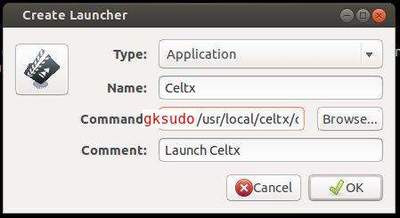
It brings up a dialog, where you can set the launcher icon, name, and command to run it.

The Celtx was installed into /usr/local/celtx/ directory, and run by root. So I found the icon from that directory, and type in command with gksudo at beginning.

celtx-launcher

Once done,click OK. Search in Unity, and you’ll find it!

celtx-unity-dash

This simple tutorial shows how to assign Ctrl+Alt+Del shortcut key for launching system monitor (aka task manager) in Ubuntu Desktop.

The Ctrl+Alt+Del is a well-known keyboard shortcut for launching Task Manager in Windows. In Ubuntu, the key combination by default triggers the log-out dialog, however, it’s easy to re-assign it to a custom action.

Mission Center

Tips: For users switching from Windows, Mission Center (see the screenshot above) is great alternative system monitor and task manager app with similar layout that works on Linux.

Re-assign Ctrl+Alt+Del to launch Task Manager

NOTE: The steps below are only for GNOME, the default desktop in Ubuntu and Fedora Workstation.

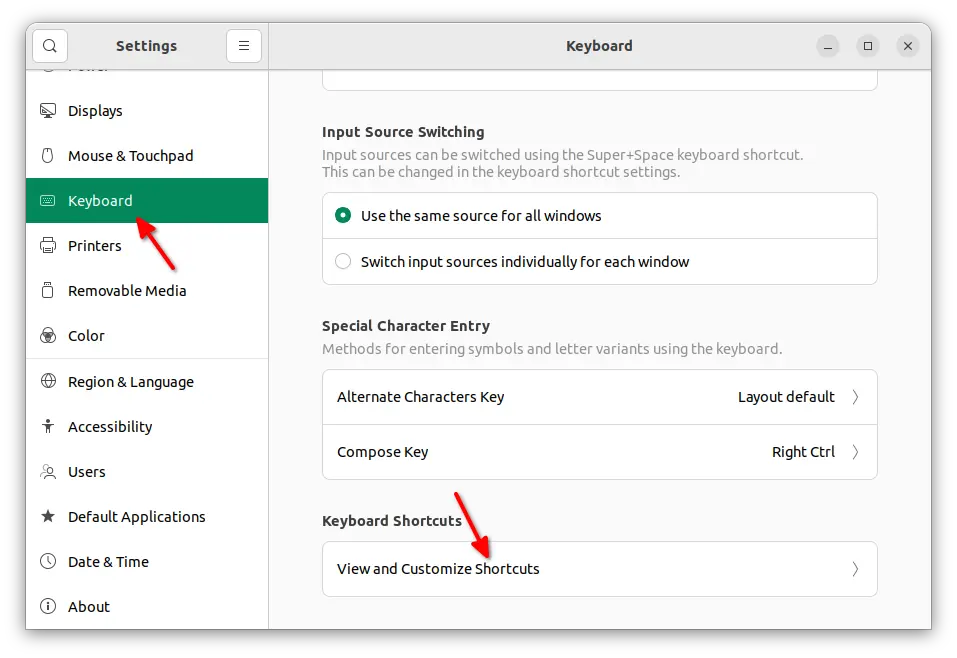
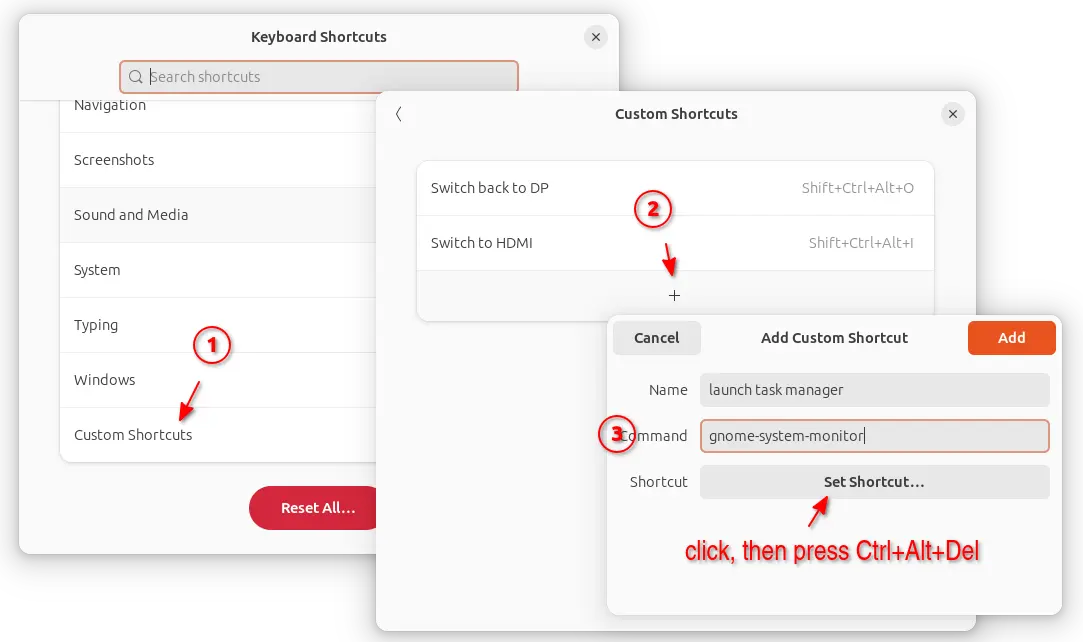
1. First, launch “Settings” from top-right corner system menu. Then, navigate to Keyboard in left, Keyboard Shortcuts -> View and Customize Keyboard Shortcut in right.

For Ubuntu 20.04, just click “+” in bottom right after navigating to Keyboard Shorcuts pane in Settings.

2. Next, click Custom Shortcuts and then “+” in pop-up dialog to add new keyboard shortcut. In next pop-up dialog, set:

  • Name: launch task manager.
  • Command: gnome-system-monitor
  • Shortcut: set to Ctrl+Alt+Del

If you installed the “Mission Center” app mentioned above, insert flatpak run io.missioncenter.MissionCenter instead for the Command box, then the keyboard shortcut will launch this app instead.

That’s it. Enjoy!

UPDATE: 2ManDVD discontinued! If you want an alternative DVD authoring tool, try DVD Styler.

Here is a guide to install the 2ManDVD DVD Authoring tool on Ubuntu 13.04, 12.10, 12.04 and Linux Mint via getdeb repository.

2ManDVD is a simple DVD authoring and slideshow tool written in QT. The getdeb repository contains the latest packages for Ubuntu and Linux Mint users.

2mandvd1

To install it, press Ctrl+Alt+T to open terminal, and follow the below steps:

1.) Click the link below to download getdeb package and then double-click to install it. It adds the repository to your system.

Download getdeb package

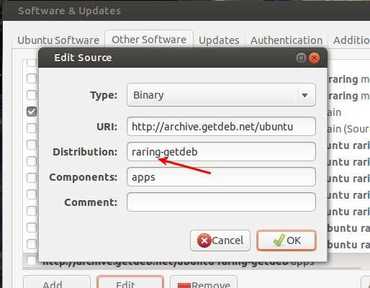
2.) For Linux Mint users, go to Synaptic Package Manager -> Settings -> Repositories -> Other Software Center, scroll down to highlight the line said “http://archive.getdeb.net olivia-getdeb/apps”. Then click Edit:

Linux Mint 13: change from maya to precise-getdeg
Linux Mint 14: change from nadia to quantal-getdeb
Linux Mint 15: change from olivia to raring-getdeb

getdeb-linuxmint

3.) Update the package lists and install the tool:

sudo apt-get update; sudo apt-get install 2mandvd

Enjoy!

Nixnote

This tutorial shows how to install NixNote (formerly NeverNote) on Ubuntu 22.04 and Ubuntu 20.04.

NixNote, previously known as NeverNote is an open-source client for Evernote on Ubuntu Linux. It has following features:

  • Synchronizes with Evernote servers
  • Local data caching
  • Cross platform
  • Local-only and synchronized notebooks supported
  • Database may be encrypted locally

There’s a ppa repository contains the latest packages for Ubuntu and Linux Mint users. To install it, press Ctrl+Alt+T to open terminal, then follow the below steps:

NOTE: Don’t know why, but the PPA so far does NOT support Ubuntu 24.04. Check the PPA web page.

1.) Copy and paste this command, and run. It adds the stable ppa repository to your system:

sudo add-apt-repository ppa:nixnote/nixnote2-stable

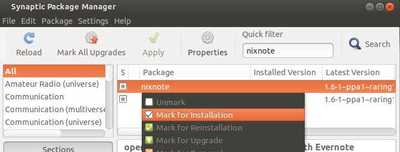
2.) If you’ve installed Synaptic Package Manager, open it and click Reload button to update package lists. Then search for and install nixnote:

nixnote-synaptic

or, run this command instead to update package cache and install the software:

sudo apt-get update; sudo apt-get install nixnote2

Uninstall Nixnote

To uninstall the app, open terminal (Ctrl+Alt+T) and run command:

sudo apt remove --autoremove nixnote2

Also remove the Ubuntu PPA by running command:

sudo add-apt-repository --remove ppa:nixnote/nixnote2-stable

This tutorial shows you how to install the most recent Rubyripper on Ubuntu 22.04, Ubuntu 20.04, and Linux Mint 21.

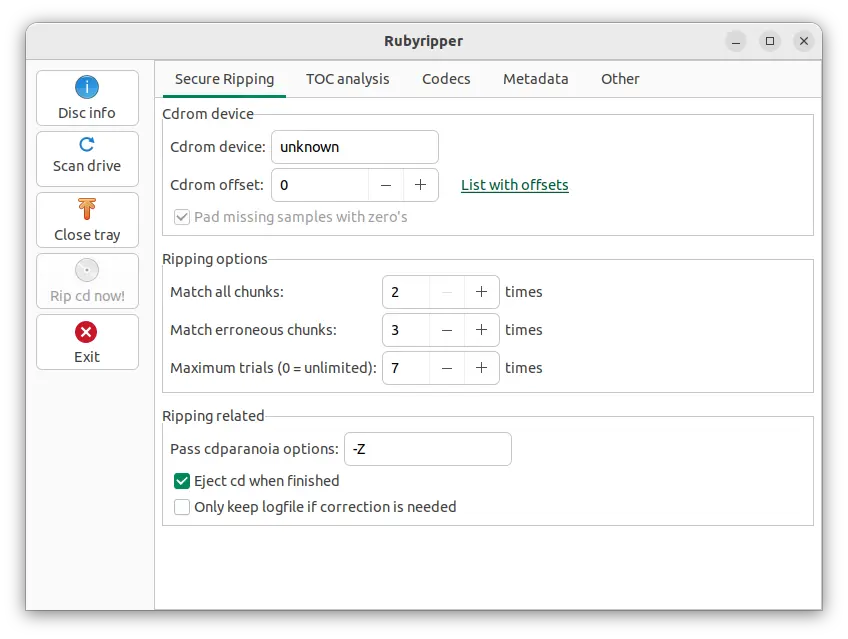
Rubyripper is a secure audiodisc ripper for Linux and macOS. It uses cdparanoia in a sophisticated way to make sure that a CD rip is done successfully and accurately. It is very similar to and inspired by EAC. Rubyripper is written in the ruby programming language.
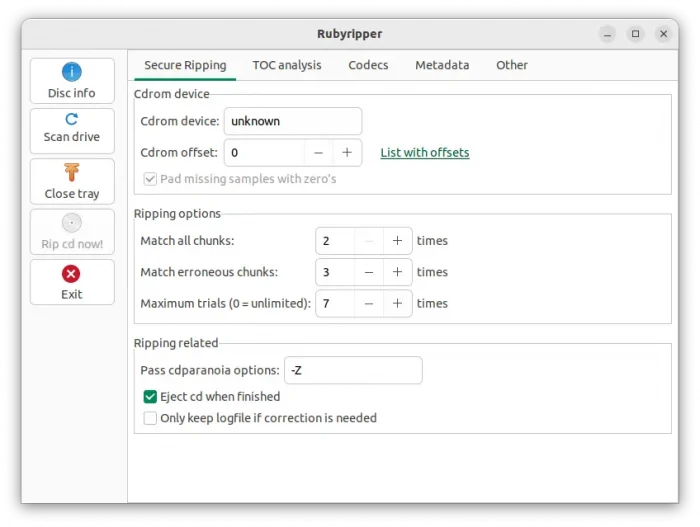
Install RubyRipper in Ubuntu via PPA

Besides building the app from source code, there’s an Ubuntu PPA that so far contains the app packages for Ubuntu 23.10, Ubuntu 22.04, Ubuntu 20.04, and even Ubuntu 18.04.

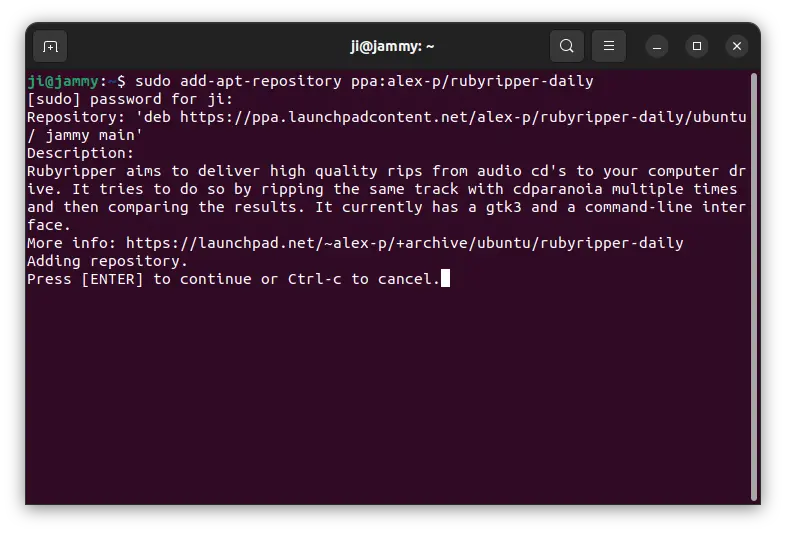
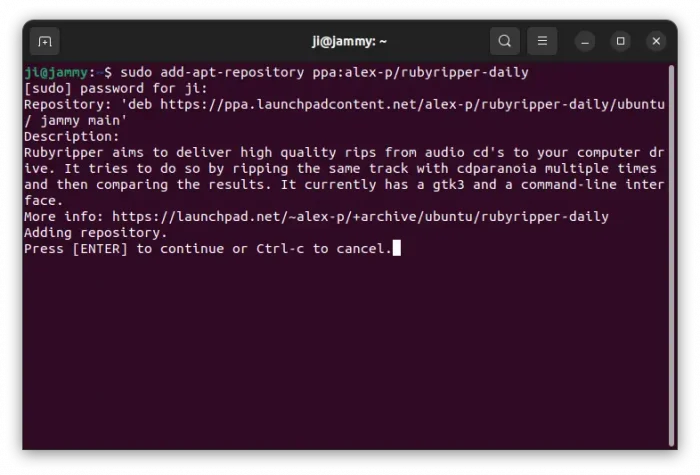
1. To add the PPA, press Ctrl+Alt+T on keyboard to open up a terminal window. Then run command:

sudo add-apt-repository ppa:alex-p/rubyripper

Type user password (no asterisk feedback) when it asks and hit Enter to continue.
2. Then, refresh system package cache, though it should be done automatically in current Ubuntu releases.

sudo apt update

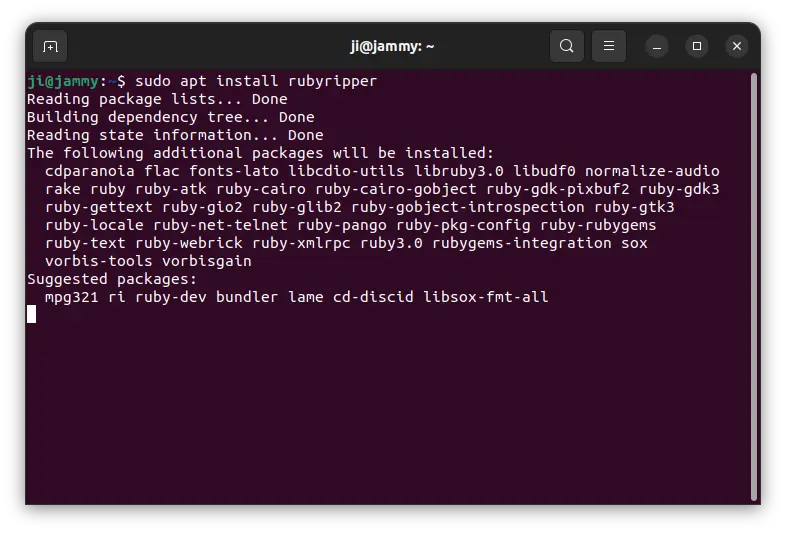
3. Finally, run command to install the app from PPA:

sudo apt install rubyripper
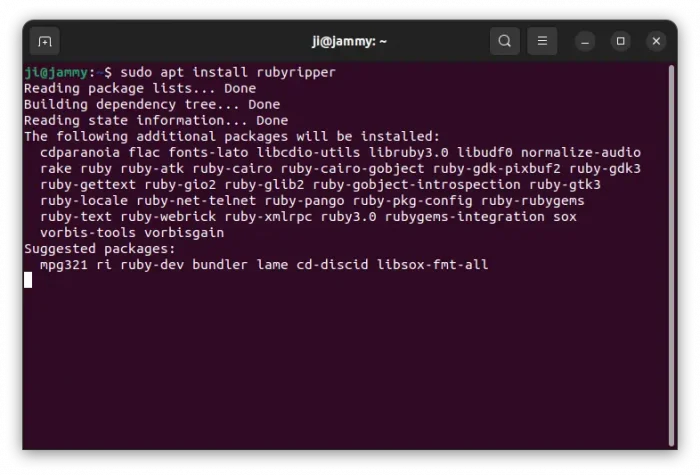
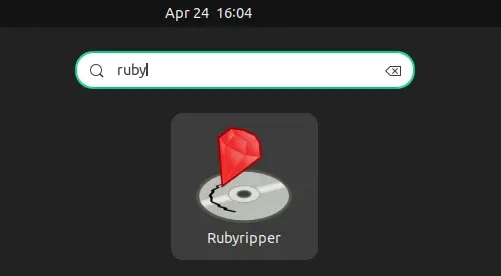
Once installed, search for and launch it from either start menu or overview screen depends on your desktop environment, and enjoy!
Uninstall Rubyripper

To uninstall the app package, open terminal (Ctrl+Alt+T) and run command:

sudo apt remove --autoremove rubyripper

Also remove the Ubuntu PPA by running command:

sudo add-apt-repository ppa:alex-p/rubyripper-daily

Finally refresh cache via sudo apt update command if it’s not done automatically.