Archives For Howtos

adobe reader ubuntu 13.10

This quick tip is going to show beginners how to install Adobe Reader 9 in Ubuntu 13.10 Saucy Salamander.

Adobe Reader is available in Canonical Partners repository for Ubuntu 13.04 Raring and earlier. At the moment the repository is not ready for Ubuntu 13.10. So this tutorial will show you how to install it via the official DEB package.

1.) Click to download the DEB for Adobe Reader

2.) Press Ctrl+Alt+T on your keyboard to open terminal. When it opens, run below command to install it:

For 32-bit system:

sudo dpkg -i ~/Downloads/AdbeRdr9.5.5-1_i386linux_enu.deb; sudo apt-get -f install

For 64-bit system:

UPDATE: the easier way to install Adobe Reader DEB on 64 bit Ubuntu is using Gdebi, which will automatically install all dependencies.

sudo apt-get install gdebi

sudo gdebi AdbeRdr9.5.5-1_i386linux_enu.deb

Once installed, open Adobe Reader from Unity Dash or right-click your PDF files to open it via Adobe Reader.

adobe reader on ubuntu 13.10

UPDATE 1: Thanks for your comments! I’ve rewritten a clean tutorial about how to install this in Ubuntu 14.04 Trusty.

If you’ve already followed previous steps, run the below command to install required libraries should make the Adobe Reader work (Thanks to osman):

sudo apt-get install libgtk2.0-0:i386 libnss3-1d:i386 libnspr4-0d:i386 lib32nss-mdns libxml2:i386 libxslt1.1:i386 libstdc++6:i386

Ubuntu 13.10 Quick Tip: How to Install Skype

Last updated: October 27, 2013

skype video call

This quick tip is going to show beginners how to install Skype in Ubuntu 13.10 Saucy Salamander.

Ubuntu 13.10 final will be release on October 17th. Now it’s in beta 2. If you’re going to install Skype on Ubuntu Desktop, this tutorial may help.

1.) Skype is available in Canonical Partners repository, so first we’re going to enable this repository. Search and open Software & Updates from Unity Dash. When it opens, navigate to Other Software tab. Check on the first two lines.

enable canonical partners repository

2.) Install Synaptic Package Manager from Ubuntu Software Center. When done, you can use the tool to install Skype (see picture):

install skype ubuntu

If you don’t want to install Synaptic, you can also run below commands instead in terminal (Ctrl+Alt+T):

sudo apt-get update; sudo apt-get install skype

To fix Skype no sound or distorted sound issues occured on Ubuntu 13.10:

sudo sed -i 's/^Exec=.*/Exec=env PULSE_LATENCY_MSEC=30 skype %U/' /usr/share/applications/skype.desktop

The Linux Kernel 3.11.2 has been released. All users of the 3.11 kernel series must upgrade.

This tutorial shows you how to install / upgrade this kernel in Ubuntu 13.04, Ubuntu 12.04, Ubuntu 12.10 and Linux Mint.

Kernel 3.11.2 contains lots of fixes and improvements, see the official release note.

To get started, press Ctrl+Alt+T on your keyboard to open terminal. When it opens, follow the steps below:

For 32-bit systems:

Download the DEBs:

wget http://kernel.ubuntu.com/~kernel-ppa/mainline/v3.11.2-saucy/linux-headers-3.11.2-031102-generic_3.11.2-031102.201309262136_i386.deb

wget http://kernel.ubuntu.com/~kernel-ppa/mainline/v3.11.2-saucy/linux-headers-3.11.2-031102_3.11.2-031102.201309262136_all.deb

wget http://kernel.ubuntu.com/~kernel-ppa/mainline/v3.11.2-saucy/linux-image-3.11.2-031102-generic_3.11.2-031102.201309262136_i386.deb

Install the kernel:

sudo dpkg -i linux-headers-3.11.2*.deb linux-image-3.11.2*.deb

For 64-bit systems:

Run commands one by one to download the DEBs:

wget http://kernel.ubuntu.com/~kernel-ppa/mainline/v3.11.2-saucy/linux-headers-3.11.2-031102-generic_3.11.2-031102.201309262136_amd64.deb

wget http://kernel.ubuntu.com/~kernel-ppa/mainline/v3.11.2-saucy/linux-headers-3.11.2-031102_3.11.2-031102.201309262136_all.deb

wget http://kernel.ubuntu.com/~kernel-ppa/mainline/v3.11.2-saucy/linux-image-3.11.2-031102-generic_3.11.2-031102.201309262136_amd64.deb

Then install them:

sudo dpkg -i linux-headers-3.11.2*.deb linux-image-3.11.2*.deb

Once installed, reboot your machine.

(Optional) If you have any problem with this kernel, you can run below command to remove it:

sudo apt-get purge linux-image-3.11.2*

Kernel PPA:http://kernel.ubuntu.com/~kernel-ppa/mainline/v3.11.2-saucy/

Enjoy!

The Linux Kernel 3.10 LTS series had reached 3.10.13. All users of the 3.10 kernel series are urged to upgrade as soon as possible.

The Kernel 3.10.13 contains lots of fixes and improvements, read the official released note

To install or upgrade to 3.10.13 in Ubuntu 13.04, Ubuntu 12.04, Ubuntu 12.10, Linux Mint and their derivatives. Press Ctrl+Alt+T on your keyboard to open temrinal. When it opens, follow below instructions:

For 32-bit systems:

Run below commands one by one to download the DEBs:

wget http://kernel.ubuntu.com/~kernel-ppa/mainline/v3.10.13-saucy/linux-headers-3.10.13-031013-generic_3.10.13-031013.201309262117_i386.deb

wget http://kernel.ubuntu.com/~kernel-ppa/mainline/v3.10.13-saucy/linux-headers-3.10.13-031013_3.10.13-031013.201309262117_all.deb

wget http://kernel.ubuntu.com/~kernel-ppa/mainline/v3.10.13-saucy/linux-image-3.10.13-031013-generic_3.10.13-031013.201309262117_i386.deb

Then install them via:

sudo dpkg -i linux-headers-3.10.13*.deb linux-image-3.10.13*.deb

For 64-bit systems:

Run commands to download the kernel debs:

wget http://kernel.ubuntu.com/~kernel-ppa/mainline/v3.10.13-saucy/linux-headers-3.10.13-031013-generic_3.10.13-031013.201309262117_amd64.deb

wget http://kernel.ubuntu.com/~kernel-ppa/mainline/v3.10.13-saucy/linux-headers-3.10.13-031013_3.10.13-031013.201309262117_all.deb

wget http://kernel.ubuntu.com/~kernel-ppa/mainline/v3.10.13-saucy/linux-image-3.10.13-031013-generic_3.10.13-031013.201309262117_amd64.deb

Install them via:

sudo dpkg -i linux-headers-3.10.13*.deb linux-image-3.10.13*.deb

You can also download the Debs from Kernel PPA

frostwire logo

The free and open-source FrostWire BitTorrent client has released 5.6.5, it fixed a real nasty bug that will affect many of you who like to select multiple files from the same set of search results when those files happen to belong to the same torrent.

It also updated the SoundCloud meta search and integrated fully to the new SoundCloud.com’s search interface.
If you are a musician and you have a SoundCloud account, remember that if you mark your songs as “Downloadable” they will become available to the millions of FrostWire users worldwide, both on desktop and mobile.

Changelog:

frostwire (5.6.5) stable; urgency=high

  • Upgrades Soundcloud search, download, streaming.
  • Fixes issue when starting downloads made of multiple single files
    that belong to the same .torrent.
  • When opening finished transfers on the library with a double click
    FrostWire will no longer type the name of the file on the library
    search box.

It’s highly recommended to upgrade to FrostWire 5.6.5, here’s the link for Ubuntu and Linux Mint package:

FrostWire 5.6.5 Deb

For other systems, go to the official download page

Ios 7 style icons theme for Ubuntu & Elementary OS

Last updated: September 26, 2013

This tutorial is going to show you an icon theme called ieos7, which is based on Mac Mountain Lion.

This theme is created for Elementary OS Luna. I’ve tested it on Ubuntu 13.04 Raring Unity, and it works.

ios 7 style icons ubuntu

ios 7 style icons

ios 7 style icon theme

For Ubuntu 12.04 Precise and Elementary OS Luna, you can install this icons by running below 3 commands one by one in terminal (Ctrl+Alt+T):

sudo add-apt-repository ppa:elementary-br/projects

sudo apt-get update

sudo apt-get install ieos7-icons

For other Ubuntu editions, directly download and install the ieos7-icons DEB package from launchpad.net

Once installed, use Unity Tweak Tool, Gnome Tweak Tool or other system tools to apply the theme.

Enjoy!

Want to make screencasts as animated GIFs on Ubuntu? Well, byzanz is the best choice I ever found.

Byzanz is a small and efficient screencast creator. It records your desktop session or parts of it to an animated GIF, OGG Theora or Flash.

Below is an animated GIF created by byzanz:

animated gif

It is said that byzanz does not screencast Unity-3D. However, I’ve been using it in Unity for a period of time since I was in Ubuntu 12.10 Quantal.

To install byzanz in Ubuntu 13.10, Ubuntu 13.04, Ubuntu 12.04, Ubuntu 12.10, press Ctrl+Alt+T on your keyboard to open terminal. When it opens, run below commands one by one:

sudo add-apt-repository ppa:fossfreedom/byzanz

sudo apt-get update

sudo apt-get install byzanz

This is an example I did just now:

byzanz-record --duration=15 --x=0 --y=0 --width=500 --height=350 output.gif

For more options, run:

man byzanz-record

Enjoy!

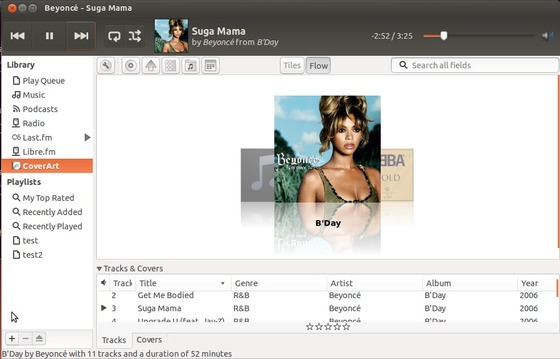
Cover Art Browser is a plugin gives a visually slick way to browse your music collection in Rhythmbox v2.96-v3.0.

It adds a new CoverArt button to the left pane; Albums are displayed as clickable buttons containing their album cover; Right click menu allows to play, queue & search for coverart for an album.

rhythmbox cover art browser

As well as simply displaying a grid full of album art for browsing, you can:

  • Drag & Drop cover art on to the browser
  • Fetch/search for missing album art
  • Display Album & Artist name under the cover
  • Double click playing of albums
  • Sort covers by album name and artist
  • Adjust cover art size
  • Multiple user-configurable options to tailor what you see and use.
  • Examine and change properties for an album/tracks
  • Set ‘CoverArt Browser’ to Rhythmbox’s default view

To install this plugin, press Ctrl+Alt+T on your keyboard to open terminal. When it opens, run below commands one by one:

sudo add-apt-repository ppa:fossfreedom/rhythmbox-plugins

sudo apt-get update

sudo apt-get install rhythmbox-plugin-coverart-browser

The PPA supports for Ubuntu 13.10, Ubuntu 13.04, Ubuntu 12.04, Ubuntu 12.10 and their derivatives such as Linux Mint and Elementary OS.

After installation, enable the plugin by running below command:

gsettings set org.gnome.rhythmbox.plugins.coverart_browser webkit-support false

Enjoy!

gnutella logo

Gtk-gnutella is the graphical Unix Gnutella client, efficient, reliable and fast, written in C. It has been optimized for speed and scalability, with low-memory consumption. It is meant to be left running 24×7, using little CPU and only the configured bandwidth.

Gtk-gnutella 1.0.0 is a major release correcting a few bugs and adding small but interesting features such as the ability to limit dropping of received UDP messages, making the DHT keys and values persistent across sessions, SDBM file auto-compaction at startup, and last but not least, rarest-chunk downloading to optimize download efficiency when facing partial sources.

gtk gnutella client

New Feature:

  • Let users define a maximum lease time for UPnP and NAT-PMP mappings.
  • Made DHT keys and values persistent across sessions.
  • When there are partial sources for a file, download the rarest chunks first.

Improvements:

  • [GTK1] Optimize massive updating of the download source list.
  • [GTK] Dynamically update the list of available chunks in the file (blue line).
  • Files used to persist information across sessions are now auto-compacted.
  • The UPnP layer can now monitor more types of Internet Gateway Devices.
  • After unclean shutdown, rename existing core file in crash directory.
  • Detect servers that choke when receiving pipelined HTTP requests.
  • Added the Mersenne Twister Pseudo-Random Number Generator.
  • Remember when user requests an auto-restart, to keep the same session going.
  • Increased maximum download buffer size to 1 MiB and default to 128 KiB.

Install gtk-gnutella 1.0.0 via PPA:

The Sourceforge provides the Deb packages for gtk-gnutella, but I can’t install it on my machine due to dependency problem. Fortunately there’s a PPA repository makes it easy to install it in Ubuntu and its derivatives.

To get started, press Ctrl+Alt+T on your keyboard to open terminal. When it opens, run below command to add the ppa:

sudo add-apt-repository -y ppa:zapman/gtkg

Then update package lists and install the package via:

sudo apt-get update; sudo apt-get install gtk-gnutella

Enjoy!

This tutorial shows you how to easily kill / force quit an application or window that freezes or stops responding using xkill & shortcut key.

Xkill is a utility for forcing the X server to close connections to clients. This program is very dangerous, but is useful for aborting programs that have displayed undesired windows on a user’s screen. It works on Ubuntu, Linux Mint, Elementary OS, and other Linux systems.

You can run Xkill from terminal, Alt+F2 run command box or even via a keyboard shortcut. When it runs, your cursor becomes a cross (‘X’). Click on any window will kill it instantly.

Kill frozen window

Warning: Don’t click on Desktop and Panel when running xkill, it will also kill them and break your desktop and you need to restart to restore.

To create a shortcut key for xkill, go to System Settings -> Keyboard -> Shortcut -> Custom shortcuts. Click add to create the shortcut and give a key combination.

Add xkill shortcut

After that, press the key combination and then click on the window you want to kill.

Enjoy!