Archives For jimingkui

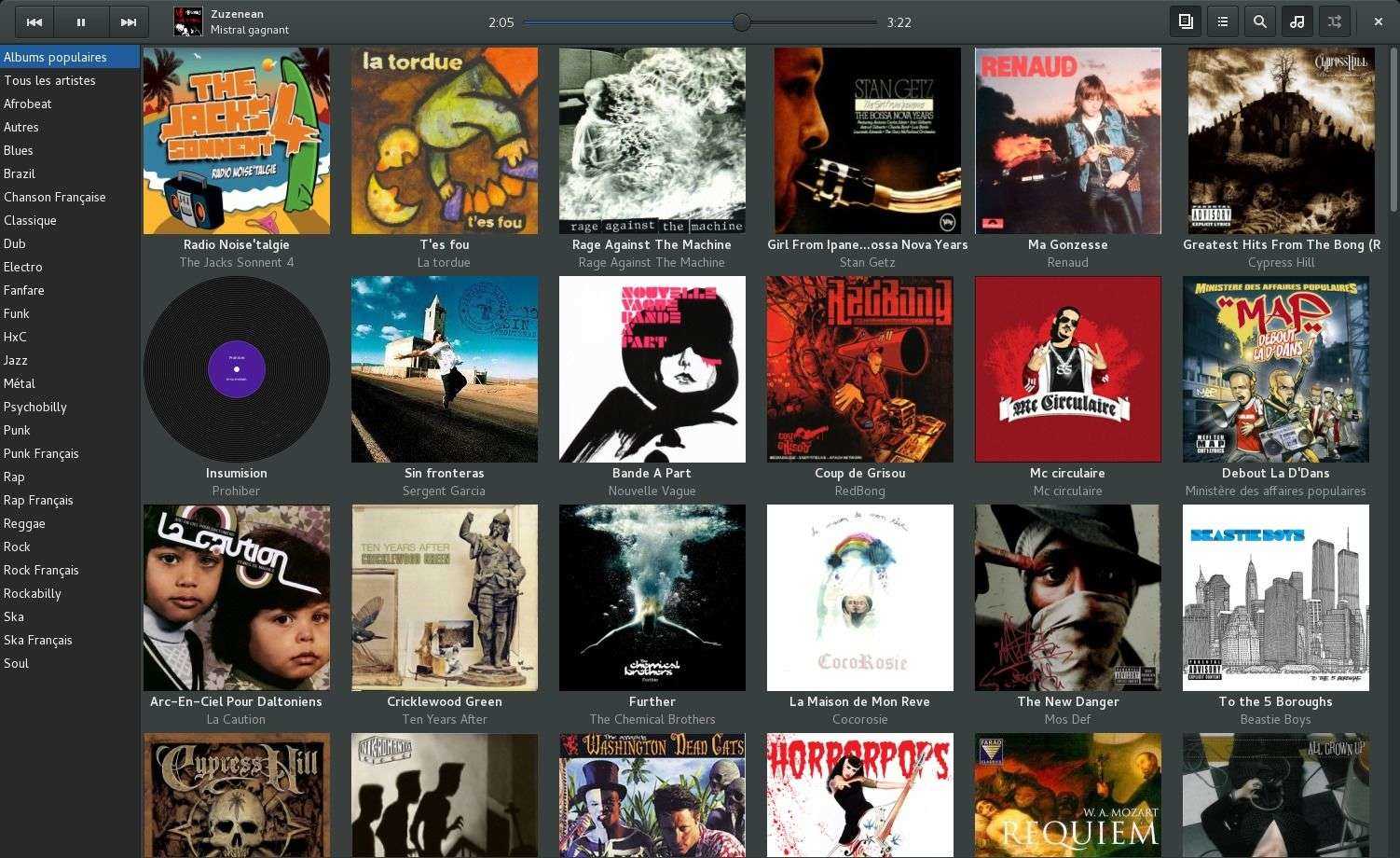
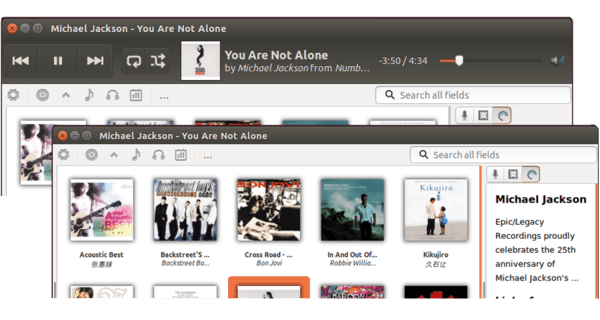
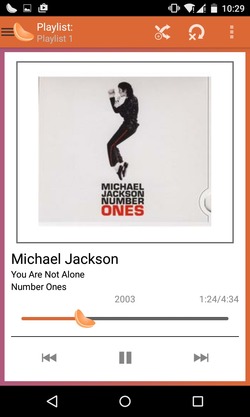
Clementine, a modern music player and library organizer inspired by Amarok 1.4, has reached version 1.2.3 with a few bugfixes.

This simple tutorial will show you how to install this release in Ubuntu 14.04 Trusty Tahr while the default repositories still have version 1.2.0.

Clementine-1.2

Changes since Clementine 1.2.0:

Version 1.2.3:

  • Fix compilation with GCC 4.9.
  • (Linux) Fix poor search performance with sqlite 3.8.
  • (Ubuntu) Fix dependency issues on Ubuntu 14.04.
  • (Windows) Upgrade to OpenSSL 1.0.1g to fix CVE-2014-0160.
  • Version 1.2.2:

  • (Android Remote) Add kittens support.
  • Rename SkyDrive to OneDrive.
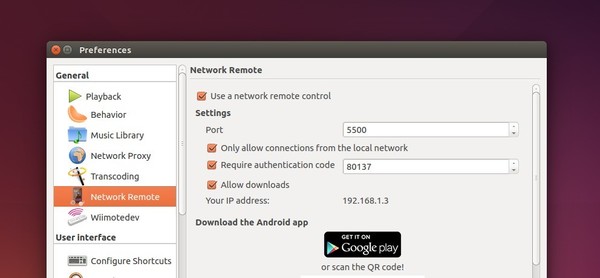
  • Don’t include the user’s IP address in the log (from the network remote settings dialog).
  • (Debian) Fix a bug with HTTPS logins to all cloud storage providers.
  • (Mac OS X) Fix a bug in the workaround for a weird font issue on 10.9.
  • (Mac OS X) Fix rendering of source icons on retina displays.
  • (Android Remote) Don’t advertise songs that aren’t available.
  • (Android Remote) Fix playing songs with special characters in filenames.
  • Version 1.2.1:

  • Fix library download in the network remote.
  • Fix removing songs from playlist in the network remote.
  • Fix login failures with box.com.
  • (Mac OS X) Add a workaround for a weird font issue on 10.9.
  • (Linux) Fix a typo that would prevent the Spotify downloader button from ever being shown.
  • Install Clementine:

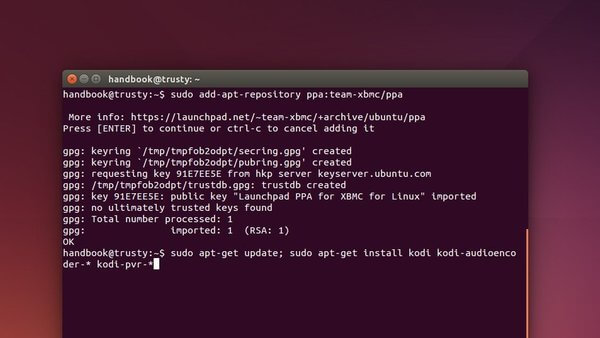
    You can add the Clementine PPA and receive updates by running the command below in a terminal window (Press Ctrl+Alt+T to open the terminal):

    sudo apt-add-repository ppa:me-davidsansome/clementine

    So far, the PPA supports Ubuntu 14.04, Ubuntu 13.10, Ubuntu 12.10, and Ubuntu 12.04.

    After added the PPA, install the player via the commands below or check for updates via System Updater:

    sudo apt-get update
    
    sudo apt-get install clementine

    Don’t like launcher PPA? Well, you can directly download & install the .DEB at github.com.


    This simple tutorial will show you how to add ‘Open As Root’ or ‘Open As Administrator’ option to context menu so that you can easily edit / open file folders as super user privilege within Nautilus file browser.

    To get started:

    1. Open Ubuntu Software Center. Search for and make sure the package gksu is installed. gksu allows graphical programs to ask a user’s password to run program as root / administrator.

    2. Open Nautilus file browser, press Ctrl+H to view hidden files & folders. Navigate to USER Home -> .local -> share -> nautilus -> scripts.

    Create an empty document under this directory named ‘open-as-administrator’ or ‘open-as-root’

    3. Edit and paste following lines into the file

    #!/bin/bash
    #
    # this code will determine exactly the path and the type of object,
    # then it will decide use gedit or nautilus to open it by ROOT permission
    #
    # Determine the path
    if [ -e -n $1 ]; then
    obj="$NAUTILUS_SCRIPT_SELECTED_FILE_PATHS"
    else
    base="`echo $NAUTILUS_SCRIPT_CURRENT_URI | cut -d'/' -f3- | sed 's/%20/ /g'`"
    obj="$base/${1##*/}"
    fi
    # Determine the type and run as ROOT
    if [ -f "$obj" ]; then
    gksu gedit "$obj"
    elif [ -d "$obj" ]; then
    gksu nautilus "$obj"
    fi

    exit 0

    4. Press Ctrl+Alt+T to open the terminal. When it opens, run the command below to make executable:

    cd .local/share/nautilus/scripts/ && chmod 0755 open-as-administrator

    5. Finally restart Nautilus via command nautilus -q, or just log out and back in.

    Avidemux is a free video editor designed for simple cutting, filtering and encoding tasks. While Ubuntu repositories still have version 2.5.x, this tutorial will show you how to install the latest release Avidemux 2.6.8 in Ubuntu 14.04 Trusty Tahr.

    First see changes in v2.6.8:

    • Image/export: Proper initialization of Qz for jpeg export
    • UI : Add an override menu to force language
    • tinypy : Add support for os.environ
    • x264 : Improved settings (tobias)
    • Win32 : Fix crash when having an audio problem
    • Win32 : Re-add mp4v2 to installer files
    • Audio/FAAC : Fix channel mapping when source is mono
    • Audio/AMR : Re-enabled AMR
    • Audio/lavc : Fixed encoding for codec not supporting planar (MP2)
    • Audio : Fixed importing MP2 audio detected as MP3
    • Editor : Fix deleting chunks of the video leading to seek errors
    • Editor : Initial copy/paste support
    • Editor/audio: Fix issue when source has more than 4 tracks
    • Editor : Better detection of double fps input files
    • TS/Demux : Brute force eac3 probe
    • TS/Demux : Better initialization, avoid dropping audio
    • MP4/Demux : Fix management of PCM audio
    • Mkv/Demux : Proper re-indexing for mpeg2 in mkv
    • Mp4v2/Mux : Add fast start mode back
    • OpenSolaris : Some fixes by pfelecan
    • Subtitles : Update libass + very simple srt2ssa converter
    • OsX : Enables more optional codecs…
    • avsfilte : Performance Improvements (fahr)

    Install:

    Press Ctrl+Alt+T on keyboard to open the terminal. When it opens, run the commands below one by one:

    sudo add-apt-repository ppa:rebuntu16/avidemux+unofficial
    
    sudo apt-get update
    
    sudo apt-get install avidemux2.6-gtk avidemux2.6-qt4

    Once installed, start it from app menu or Unity dash. Enjoy!

    Install Komodo Edit 8 in Ubuntu 14.04

    Last updated: April 23, 2014

    This simple tutorial shows you how to install Komodo Edit, the free and Open-Source counterpart of Komodo IDE, in Ubuntu 14.04 Trusty Tahr via PPA.

    Komodo Edit offers sophisticated support for all major scripting languages, including in-depth autocomplete and calltips, multi-language file support, syntax coloring and syntax checking, Vi emulation, Emacs key bindings. It provides dynamic language expertise for Perl, PHP, Python, Ruby, and Tcl, plus JavaScript, CSS, HTML, and XML, and template languages like RHTML, Template-Toolkit, HTML-Smarty and Django.

    Install Komodo Edit:

    Because the editor is available in Launchpad PPA, you can easily install it by running the commands below one by one in a terminal window (Press Ctrl+Alt+T to open the terminal):

    sudo add-apt-repository ppa:mystic-mirage/komodo-edit
    
    sudo apt-get update
    
    sudo apt-get install komodo-edit

    Once installed, open the app from Unity Launcher or App Menu.

    This simple tutorial is going to show you how to set a different desktop wallpaper for each workspace in Ubuntu 14.04 Unity.

    Only have one desktop? Well, you may first enable workspaces by going to System Settings -> Appearance -> Behavior and check the box as the below picture shows.

    Now click the new icon on Unity Launcher and you’re able to switch between workspaces.

    To set different wallpapers:

    1. Open Ubuntu Software Center, search for and install both the Compizconfig Settings Manager and compiz-plugins-extra

    The package “compiz-plugins-extra” contains the plugin Wallpaper which allows you to assign multiple wallpapers to your workspaces, with the added bonuses of proper transparency handling and desktop icons (with patches to Nautilus, etc).

    2. Open CCSM (CompizConfig Settings Manager) from Unity Dash. Enable Wallpaper plugin and click to go into its settings page.

    3. Click the New button and add some wallpapers. Enable Images plugin when it prompts.

    Result:

    To revert back, just disable the plugin or read how to reset Unity and Compiz Settings.

    Install Gnome Classic Desktop in Ubuntu 14.04

    Last updated: April 20, 2014


    This simple tutorial is going to show you how to install the Gnome Classic desktop environment in Ubuntu 14.04 Trusty Thar.

    Ubuntu 14.04 gets new window decorations inside Unity and so far it does not support changing window control buttons to the right of title bar. So if you want your window buttons on the right, you may switch to the Gnome Classic desktop.

    Alt + right-click

    Install Gnome Classic:

    Press Ctrl+Alt+T on keyboard to open the terminal. When it opens, paste the command below and hit run. Type in your password when prompt.

    sudo apt-get update; sudo apt-get install gnome-session-fallback

    Once installed, log out the current session. When you’re in log-in screen, click the logo icon and select log in to Gnome Flashback (Compiz) or Gnome Flashback (Metacity).

    Ubuntu Tweak, the popular Ubuntu configuration tool, has just released version 0.8.7 a few hours ago. According to the changelog, the new release added or fixed:

    • add support for Ubuntu 14.04 Trusty Tahr
    • add Support for Minimize from Unity Launcher
    • add toggle for Nautilus Recursive Search
    • Fix the nautilus scripts support for Ubuntu 13.10 and later
    • Going to workspace adjustement automatically add keyboard shortcut for fade screen
    • Missing options: fonts, desktop icons,window, file manager
    • Never crash when sources.list is not parsable

    Install Ubuntu Tweak 0.8.7 in Ubuntu 14.04:

    Ding Zhou, the app developer, has built this release into PPA for Ubuntu 14.04, Ubuntu 13.10, Ubuntu 12.10 and Ubuntu 12.04.

    To install it, press Ctrl+Alt+T on keyboard to open terminal. When it opens, run the commands below one by one:

    sudo add-apt-repository ppa:tualatrix/ppa
    
    sudo apt-get update
    
    sudo apt-get install ubuntu-tweak

    If you don’t want to add the PPA, download & install the deb at here.

    Save Screen Brightness Settings In Ubuntu 14.04

    Last updated: September 24, 2014

    Laptop users still have the backlight issue in Ubuntu 14.04. Every time Ubuntu boots up you get the maximum level of screen brightness.

    Here’s a workaround by adding a startup script which will automatically adjust screen brightness when Ubuntu boots up.

    To get started:

    Preparation: Open your file browser and navigate to “Computer-> sys -> class -> backlight” directory. You’ll see two or three folders there:

    Find Out Actual Backlight Settings Folder

    In each folder there’s a file called actual_brightness, you can see its content (brightness value) through the thumbnail icon.

    Remember them and do:

    • Change your screen brightness through Fn + Arrow key.
    • Check out the actual_brightness files in each folder (Re-open each folder to refresh the value).
    • Does the value change?
    • Remember the folder name in which the value of actual_brightness changes.
    • Replace acpi_video0 in below commands with that folder name

    1. Press Ctrl+Alt+T on keyboard to open the terminal. When it opens, run the command below will give you the maximum level of your laptop backlight:

    cat /sys/class/backlight/acpi_video0/max_brightness

    Mine is 9, so I can set backlight level from 0 to 9.

    2. Run the command below one by one. You’ll get the super user privilege and open the /etc/rc.local file, a script executed at the end of each multiuser runlevel, with gedit editor.

    sudo -i
    
    gedit /etc/rc.local

    Add the line below before the last. Change the number 0 to the brightness level you want.

    echo 0 > /sys/class/backlight/acpi_video0/brightness

    That’s it. Enjoy!
    Ubuntu 14.04 LTS is Out! One of the first things to do after upgraded to or installed the Trusty Tahr is disable the Guest Session. Here I’ll show you how.

    In Ubuntu 14.04 Trusty, the configuration files for LightDM has been moved to /usr/share/lightdm directory. I could only guess that the previous location “/etc/lightdm” is in preparation for giving the login option of logging in to a Unity 8 preview session running on Mir/Xmir.

    Anyhow, you can follow the below steps to remove Guest Session in Ubuntu 14.04:

    1. Press Ctrl+Alt+T on keyboard to open the terminal. When it opens, run the command below to edit the config file:

    gksudo gedit /usr/share/lightdm/lightdm.conf.d/50-ubuntu.conf

    Type in your user password when it asks. You may need to install gksu first from Ubuntu Software Center.

    2. When the file opens, add this line in the end of file and save it.

    allow-guest=false

    That’s it. Guest Login will disappeared at next boot.